How to Make a Google Form Quiz in 6 Easy Steps
Wondering how to make a Google Form quiz? The entire process is easy and only takes a few minutes. In this guide, we’ll walk you through a quick six-step process.

Creating a simple quiz in Google Forms takes less than five minutes.
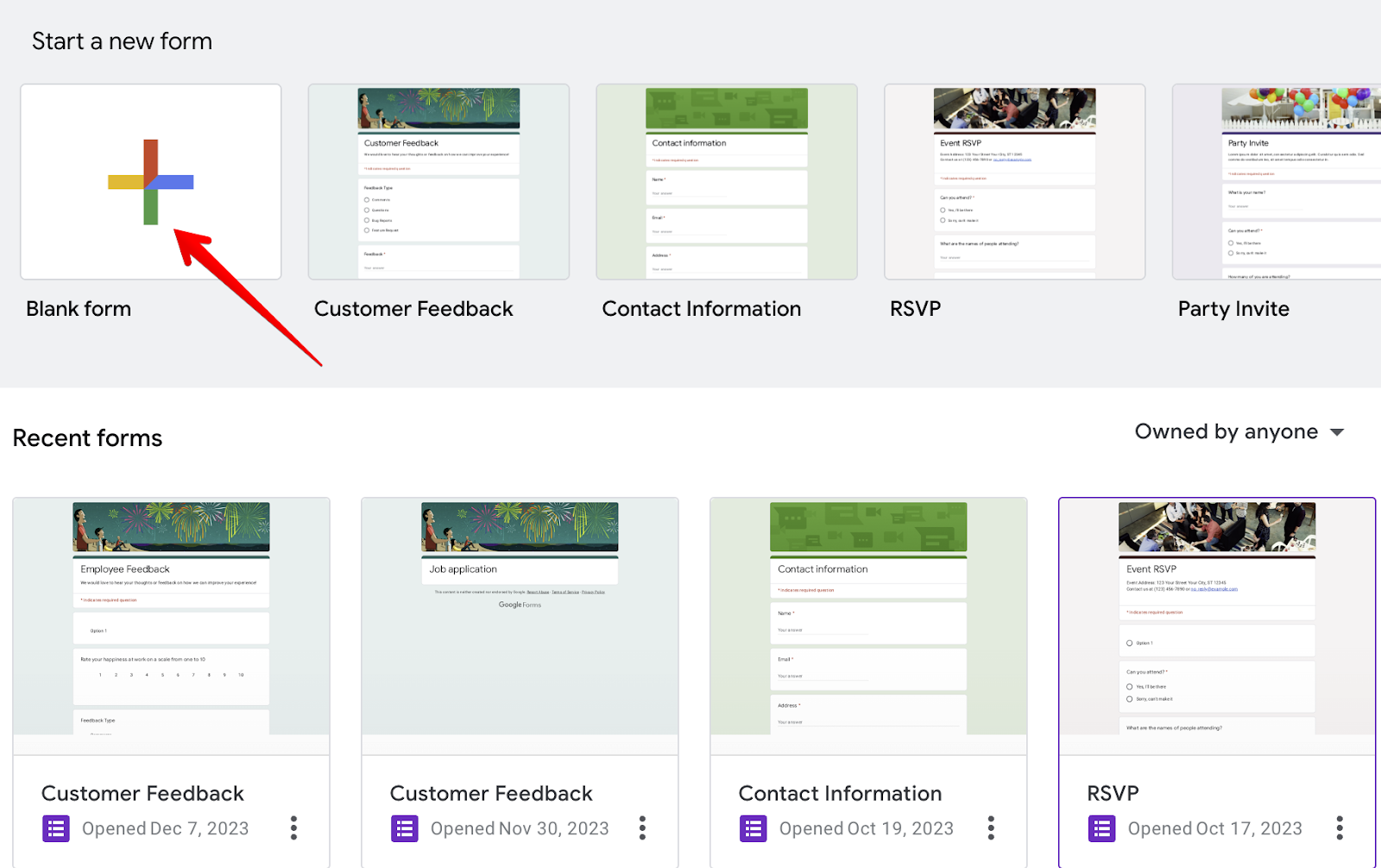
- Get started by logging into Google Forms and opening a blank form.
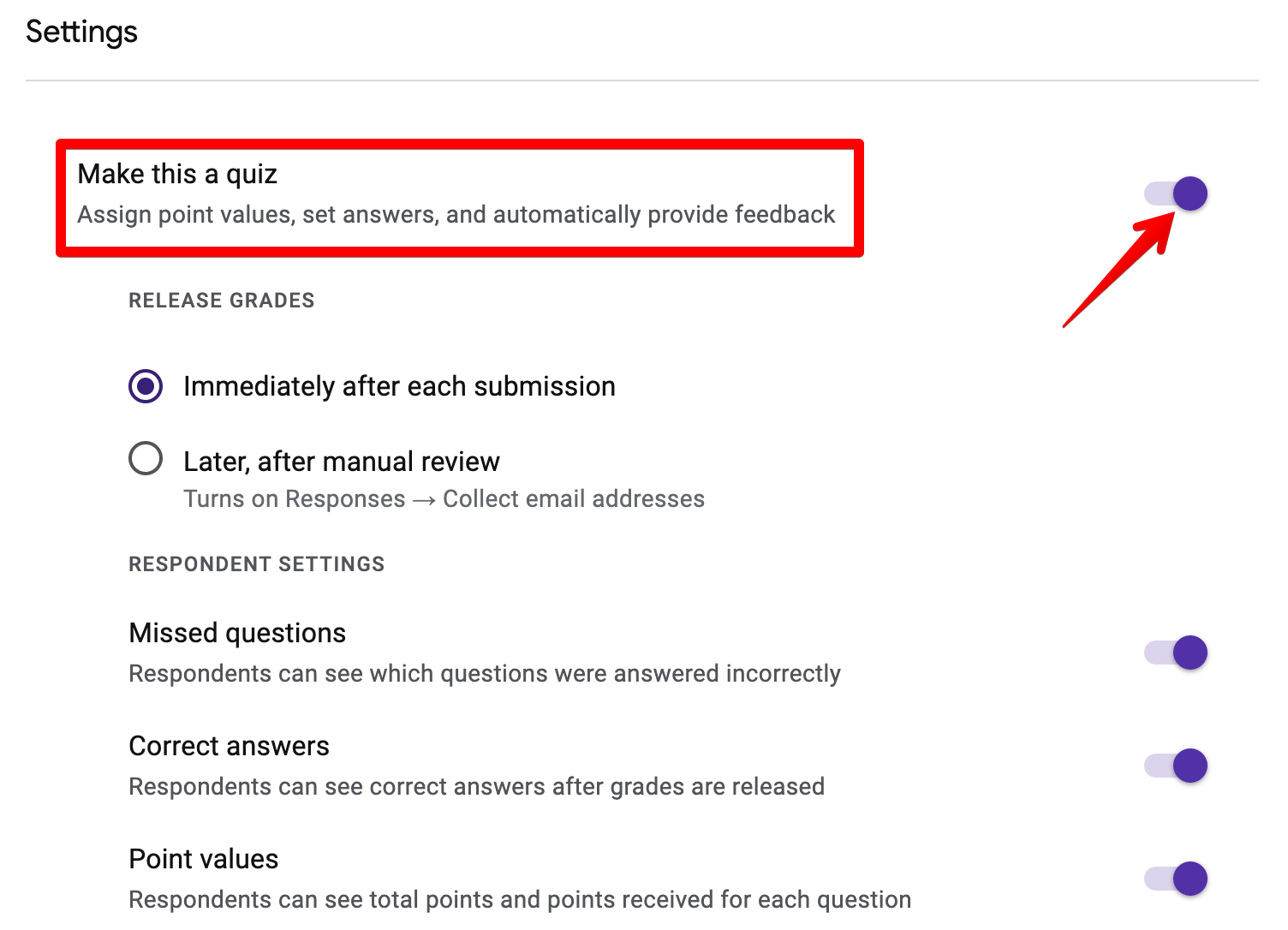
- Go to the settings page and turn the "Make this a quiz" toggle to the on position. This will allow you to select correct answers and assign certain values to these answers.
- Add all the questions you'd like to ask your students. You can do this by clicking the "Add question" button and choosing the type of question you want to add to your form.
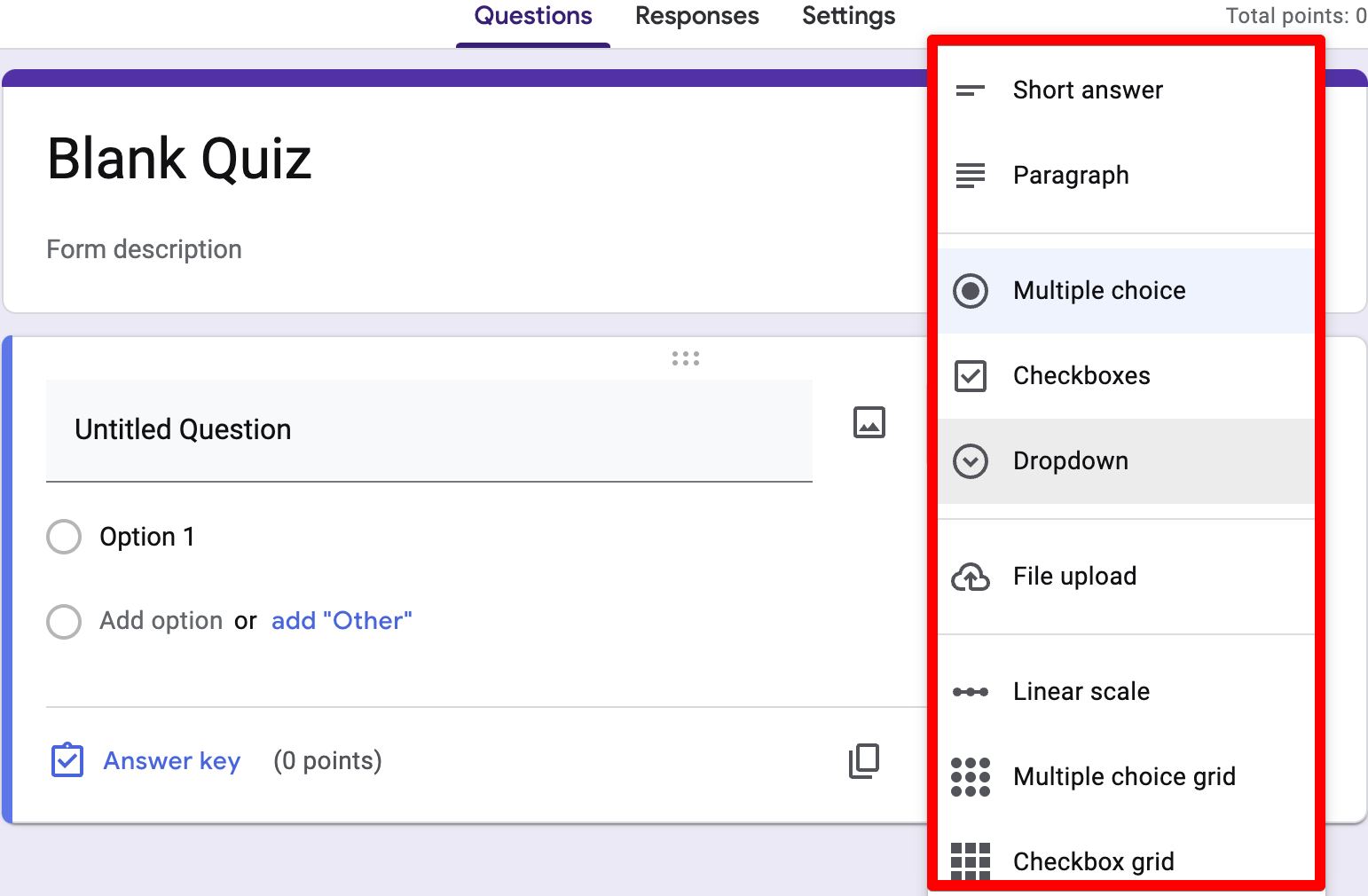
Google Forms has twelve question types, and these are the ones relevant to quizzes:
-
Short answer
-
Paragraph
-
Multiple choice
-
Checkboxes
-
Dropdown
-
Linear scale
-
Rating
-
Multiple choice grid and checkbox grid
-
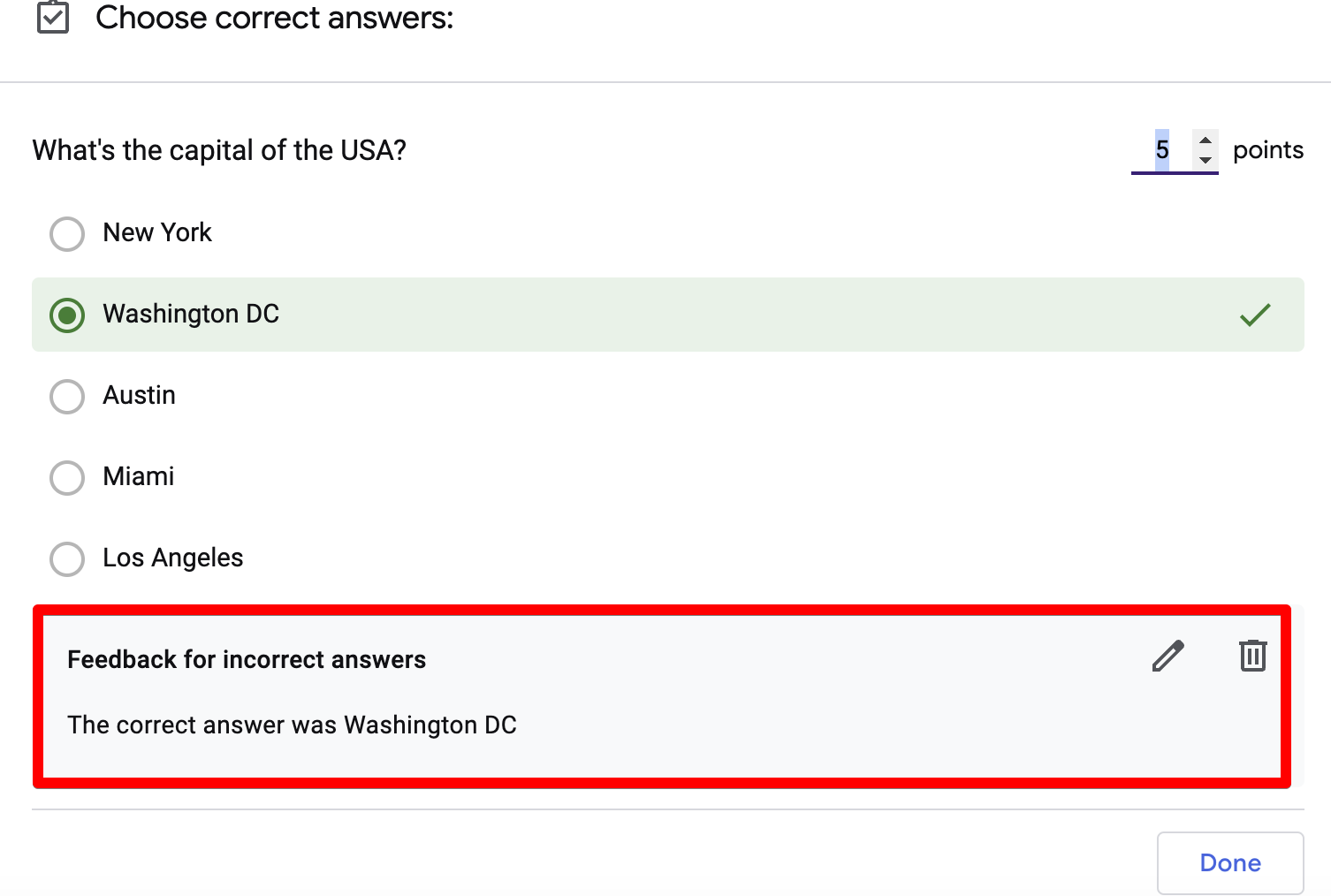
Once you've added all your questions, it's time to assign values to the correct answers. You can do this by clicking the “Answer key” link at the bottom left of the question, choosing the correct answer, entering the number of points in the top right, and clicking "Done."
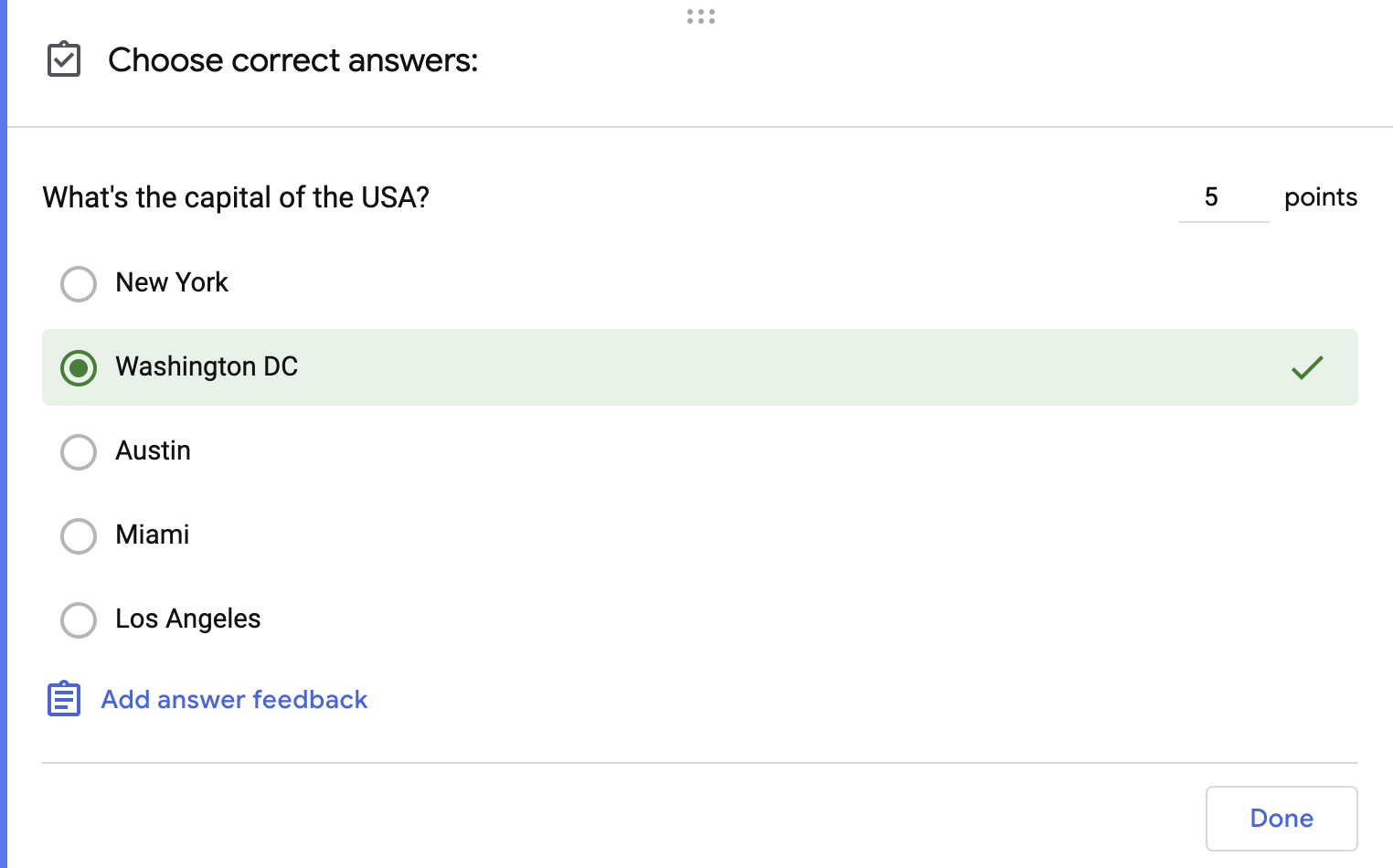
- If you'd like to give students feedback when they choose the wrong answer, click "Add answer feedback" and write a short snippet next to each incorrect answer.
- After you've done this for all your questions, share your form with students. Google Forms will automatically add up all your students’ points and give them a total score when they are finished.
However, there are a few issues you'll run into when using this approach:
- The quiz can only look like a Google Form
- There is no field-level conditional logic
- Points must be whole numbers
- Reporting stops at the summary tab
When we built FormBuilder, we aimed to solve most of these problems by giving teachers more flexibility. You aren’t limited to the basic features that Google Forms offers.
Below, we'll discuss in more detail the problems we experienced when creating quizzes inside Google Forms and how we aimed to solve them with FormBuilder.
Note: We are FormBuilder, an online form builder with built-in quiz grading. Although Google Forms is fine if you’re creating a simple quiz, you’ll quickly run into problems when you want the quiz to carry your branding, live on your own site, or adapt to each answer. So if you’re creating quizzes regularly, start on the free plan (5 active forms, 100 responses a month) or take the 14-day Pro trial. You don’t have to enter your card info!
The quiz can only look like a Google Form
When creating a quiz inside Google Forms, theming is limited to a header image, a color and a font. The "This content is neither created nor endorsed by Google" footer stays on every form, and the quiz lives on a docs.google.com link rather than on your own site.
Since you can't restyle the layout or remove the footer, every quiz looks like every other Google Form.
How FormBuilder solves this:
With FormBuilder, you control the theme (colors, typography, borders, buttons), you can embed the quiz on your school or company site, and on the Pro plan you can remove the FormBuilder badge and use a custom domain. You also get a wider set of field types for the questions, such as:
- Short and long text
- Dropdown, radio button and checkbox questions
- Star rating and range slider questions
- Number, date and file upload fields
- And more!
All you have to do is create a form, and on the left-hand side of the builder, you'll find these fields.
Simply drag and drop a field of your choice onto your form, then turn on "Quiz question" in its settings to mark the correct answer and set the points.
There is no field-level conditional logic
Google Forms can send a respondent to a different section based on a multiple choice answer, but it can't show or hide individual questions based on what someone typed or selected earlier.
That limits you if you're creating dynamic quizzes that change based on user inputs, for example a follow-up question that only appears when a student gets the previous one wrong.
How FormBuilder solves this:
FormBuilder's conditional logic shows or hides any field based on earlier answers, and multi-page forms let you split a long test into steps. A calculation field can also add, subtract, multiply and divide values entered in the form, which helps with worked math and physics questions.
Points must be whole numbers
Another limiting factor about Google Forms is that you can only assign whole numbers to your form's answers. For example, you can assign 10, 20, or 30 points to an answer, but you can't assign 10.5 or 20.5 points. If you type 0.5, it silently reverts to 0.
This is a problem because if your school or college has established grading principles that use decimals, you won't be able to adhere to these principles with Google Forms.
How to work around it:
Scale the points up. Make a question worth 2 points instead of 1, so a half-correct answer can earn 1. FormBuilder's quiz questions also use whole-number points per question, so the same approach applies there: the form tallies the points automatically and shows the student their score out of the maximum after they submit.
Reporting stops at the summary tab
The last issue we ran into when making quizzes inside Google Forms was reporting. You get a summary of responses and an average score, and anything more means exporting to Google Sheets.
How FormBuilder solves this:
With FormBuilder, each quiz gets a Quiz performance panel in form analytics: average score, average percentage, number of graded responses and a score distribution, alongside views and completion rate for the form itself. Responses can also be sent to Google Sheets automatically through the native integration if you want to grade or curve in a spreadsheet.
Next steps
If you're looking for a more flexible form builder than Google Forms, consider signing up for FormBuilder. You can brand the quiz, embed it on your own site, use conditional logic, and see quiz performance at a glance.
These are a few other factors that we believe set FormBuilder apart from Google Forms and other form builders:
- Templates and AI: Start from a quiz template or describe the quiz to the AI form generator and edit the draft.
- Automatic scoring: Mark the correct answer on any dropdown, radio, checkbox or text question, set the points, and the score is calculated on submission.
- Responsive by default: Every FormBuilder form adapts to phones, tablets and desktops without extra work, and you can preview it on each before publishing.
If you want to see first-hand how simple and effective FormBuilder is, try it for free.