How to Set Up Conditional Questions in Google Forms in 6 Easy Steps
Wondering how to set up conditional questions in Google Forms? This guide will walk you through everything you need to know.

If you want to automatically change survey questions based on user responses, i.e. conditional logic, I have good news for you! Google Forms allows you to create conditional questions within minutes.
Step 1: Create a new form or select one of your existing forms:
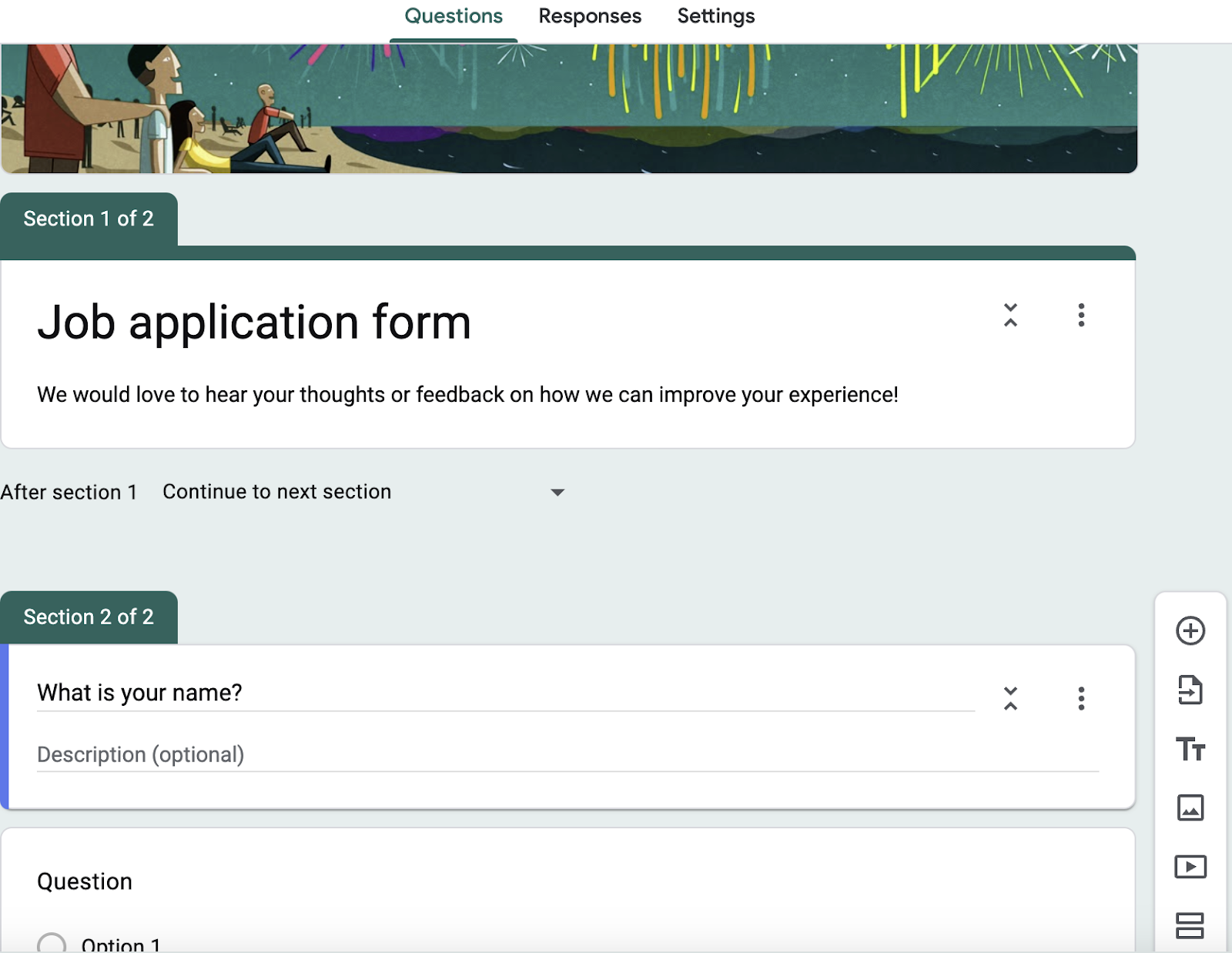
Step 2: Add a separate section to your Google Form for each branch of questions you want to ask by clicking the "Add section" icon (the two stacked bars) in the toolbar on the right:
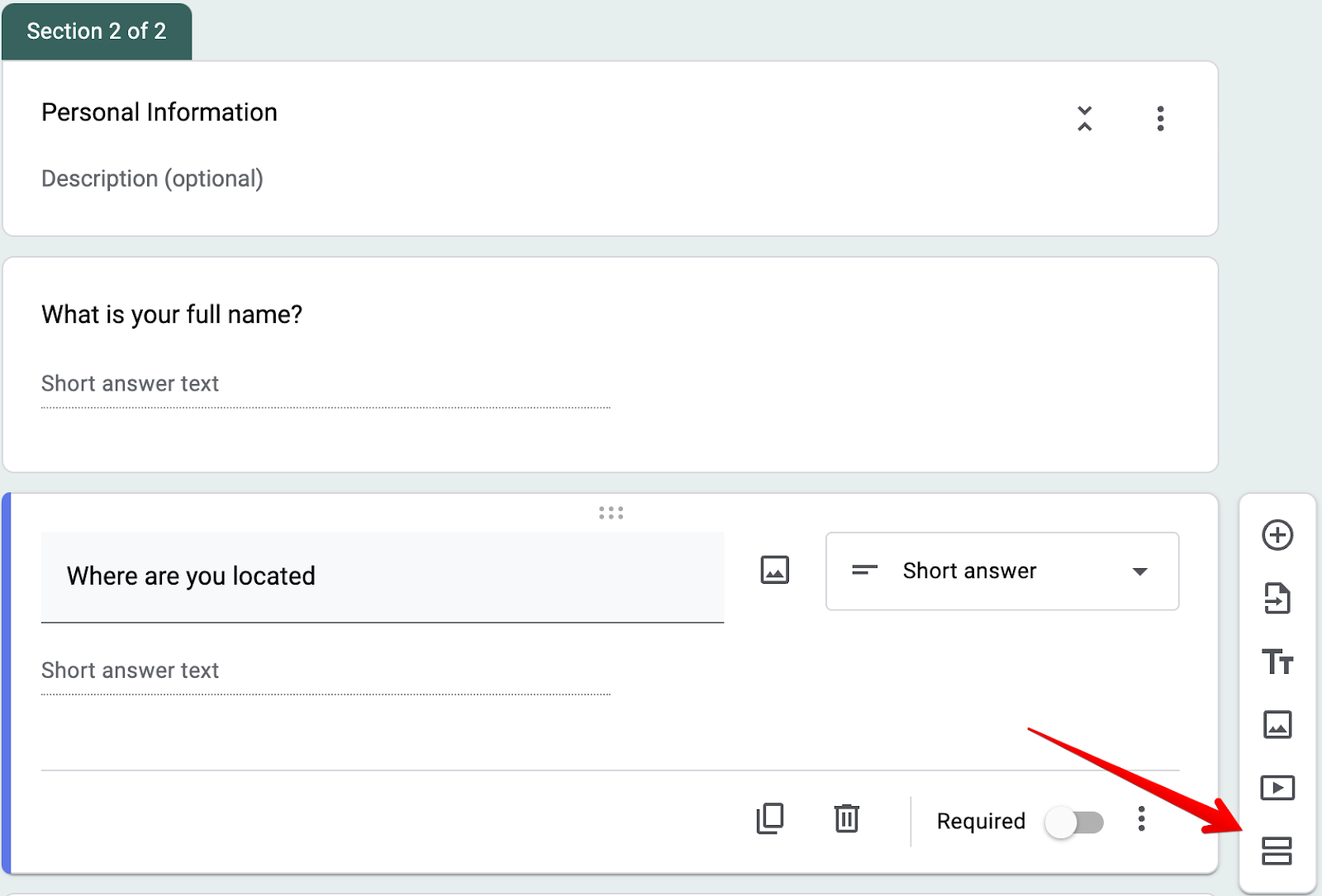
Step 3: Write all the questions you'd like to ask your respondent. Note that branching only works on Multiple choice and Dropdown questions, so the question that decides the path must be one of those.
Step 4: To access the conditional logic features, click the three dots at the bottom right of your question field and choose "Go to section based on answer."
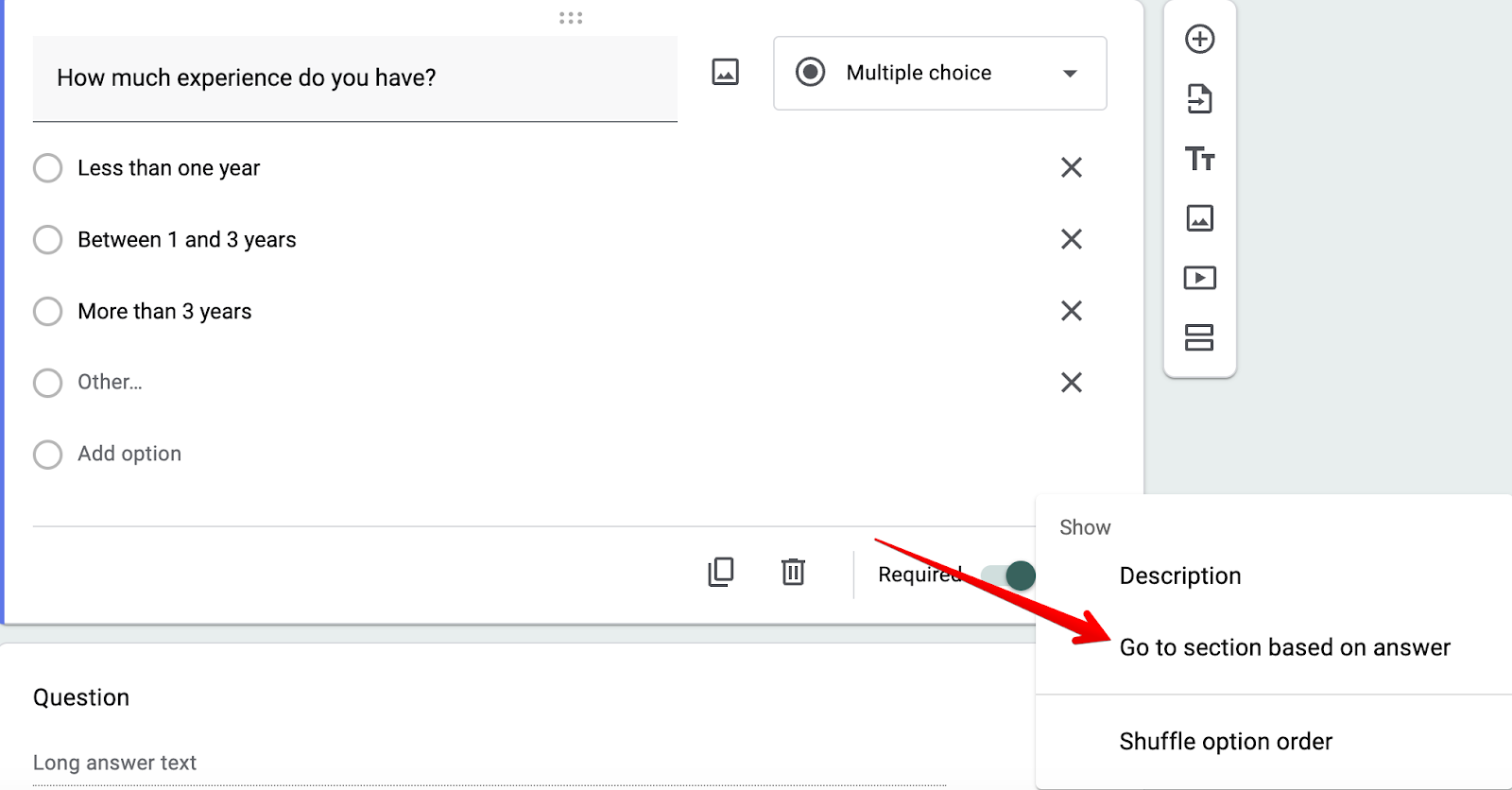
This will open up a logic display for each question inside your form:
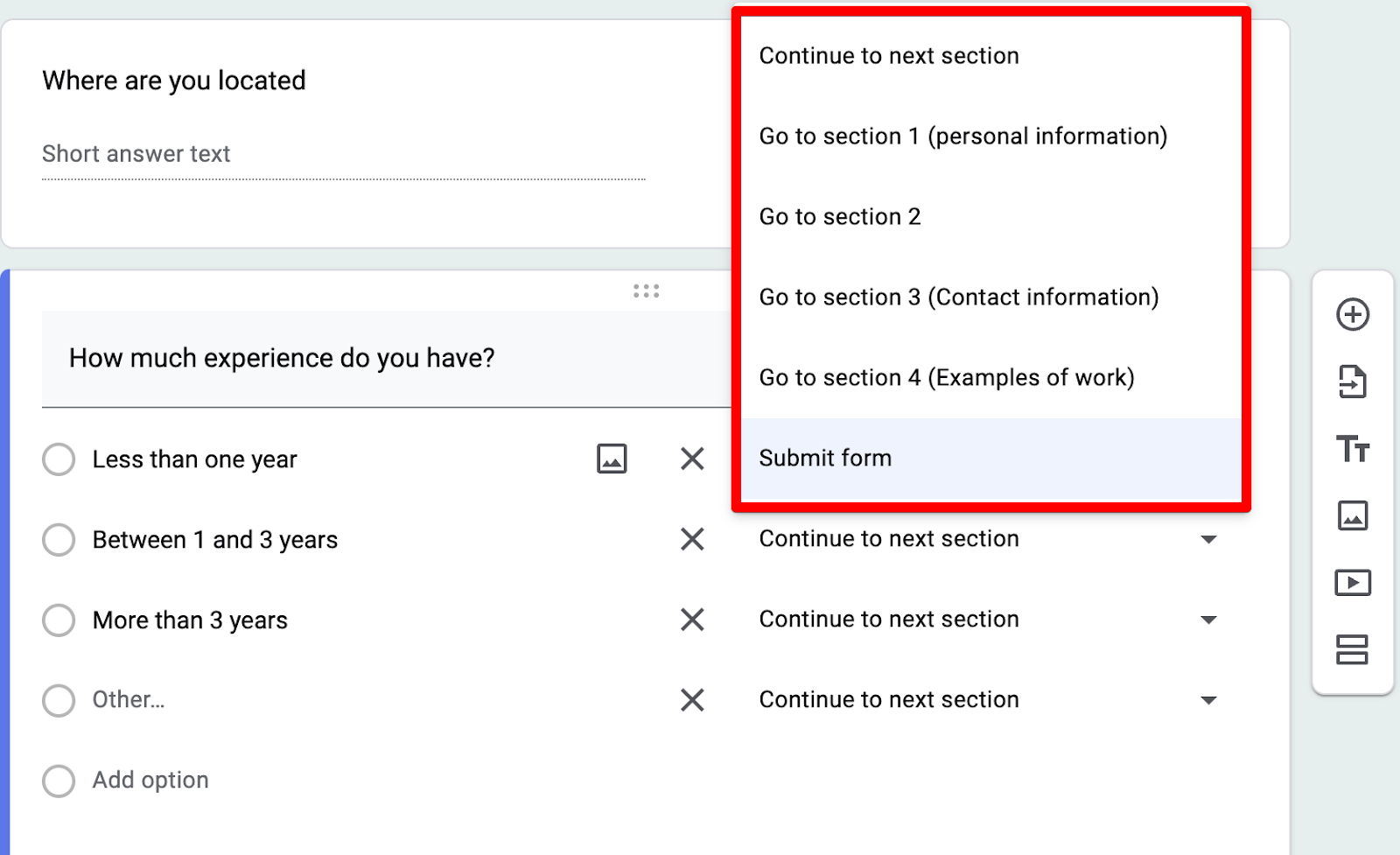
Step 5: Have your form jump to specific sections/questions depending on what your user entered. For example, if you’re hiring and an applicant says they have zero experience, you can automatically take them to the end of the form.
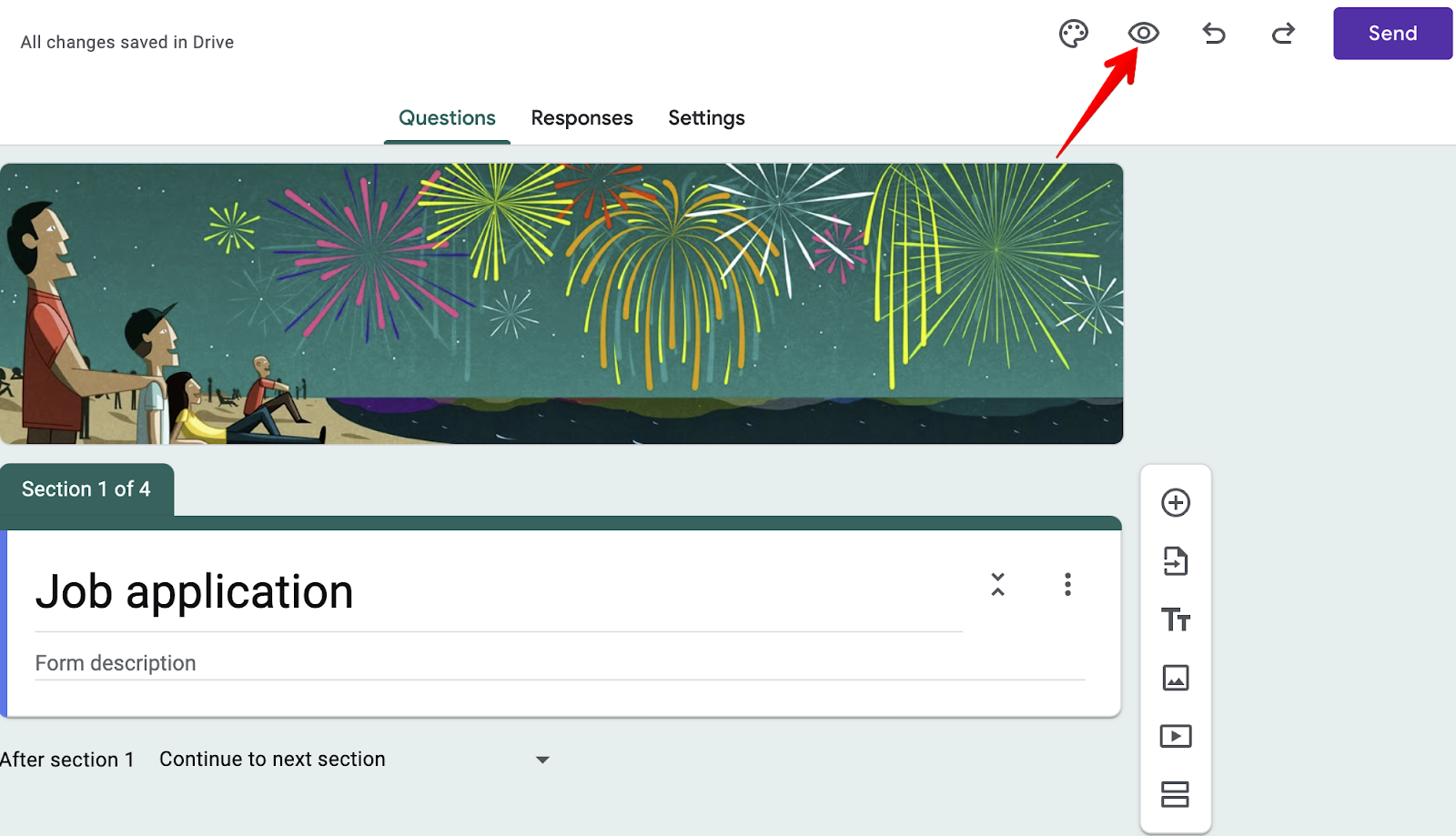
Step 6: Do this for all your questions, and once you're happy with how your logic is set up, test it by clicking the eye icon at the top of the page and then publishing your form.
However, we found four major problems with this approach:
- You can't add logic to individual questions
- You can't visualize the conditions
- You can't set and/or conditions
- The setup process is really tedious
So in an effort to make it easy for users to create conditional questions, we built FormBuilder.
With FormBuilder, you can create conditional questions without the tedious process of writing each question in a different section, like you would with Google Forms. You also access more advanced conditional logic features that can, for example, notify certain members of your team or redirect to a different thank-you page depending on what users entered into your form.
Note: If you’re looking for a form builder that has more advanced conditional logic features than Google Forms while also allowing you to collect Stripe payments, build multi-page forms and send responses to Google Sheets, start on the free FormBuilder plan (5 active forms, 100 responses a month, no card needed) or take the 14-day Pro trial.
1. You can't add logic to individual questions
The first problem we encountered was that we couldn't add logic based on individual questions. We had to add logical rules by dividing questions into different sections and applying rules based on those sections.
Creating a simple quiz with this method is fine. But it can get frustrating if you're creating surveys or application forms with several questions and adding logic to each question. We actually tested this, and it took 20 minutes to create a conditional logic survey with five questions.
2. You can't visualize the conditions
We also found that Google Forms doesn't allow you to visualize your conditional logic questions in either a graph format or if/then statements. This can make it difficult to double-check the accuracy of your form because there's no way to visualize it.
In our experience, conditional logic rules are best when visualizing them in if/then statements. For example, IF the user responds yes, THEN take them to the next question. IF the user responds with no, THEN end survey.
Again, this isn't a problem with simple quizzes and forms. But as soon as you have several questions you need to join together with conditional logic, it can get really confusing, and you'll constantly have to test your form to find errors.
3. You can't set and/or conditions
Google Forms' conditional logic features are also very basic because you can't combine two answers into one rule with and/or conditions, nor can you create logic questions based on what a user didn’t click on, what they typed, or a number they entered. This limits you to basic if/then jumps on multiple choice and dropdown questions.
For example, let’s say you’re a soccer coach and new players contact you through a form on your website. A new player says that they are good at shooting and dribbling but can’t pass very well. So, you'd ideally want to send them to a class that focuses solely on passing.
Unfortunately, since Google Forms doesn't allow you to create logic rules based on what an answer isn’t, you can't do this.
4. The setup process is really tedious
Setting up just four or five conditional logic questions inside Google Forms can easily take 20 minutes. Not to mention the time spent testing your form and checking for mistakes because there's no visual map showing how your questions interact with one another.
Conditional logic is supposed to help you save time by tailoring survey questions around a user's responses. But if you're constantly setting up logic questions, dividing them into several sections, testing them, and thinking through the logic rules in your head, you aren’t really saving time.
This is why we created FormBuilder. We wanted to fix everything wrong with Google Forms' conditional logic features. With FormBuilder, you can set up conditional logic rules on a per-question basis while accessing and/or conditions, text and number operators, and an easy-to-understand if/then interface.
Setting up conditional logic with FormBuilder is more convenient
To create conditional logic rules with FormBuilder, first create a new form from scratch, from one of our templates, or by describing it to the AI form generator.
Next, add all the questions to your form. Conditional logic lives on the field it controls, so add the question that will be shown or hidden and select it in the builder.
In the field settings on the right, open Conditional Logic. You'll find an if/then rule for that field.
From here, setting up logic rules is easy. First choose the action: Show or Hide this field. Then add one or more conditions. In each condition, pick the field to check, an operator (equals, not equals, contains, less than, greater than, is empty, is not empty), and the value.
For example: Show "Which position are you applying for?" IF the "How many years of experience do you have" answer equals "2+ years."
Now, if you add a second condition, choose whether the rule needs all conditions to match (AND) or any of them (OR). So for the soccer coach example above, you could hide the advanced class option IF "Passing" equals "Weak" OR "Experience" is less than 2.
Notice that you aren't limited to multiple choice questions. A condition can look at what someone typed in a text field, a number they entered, or whether a field was left empty.
This is much better than Google Forms' interface because each rule reads as a plain if/then statement on the field it affects. This makes it easy to double-check your work and find any mistakes. Preview the form, try the different answers, and click Publish in the top right-hand corner when you're happy.
If your form is long, turn on Multi-page form in Form Settings so the questions are grouped into steps, and use conditional logic inside each page to keep it short.
Notify various team members based on what information is entered
The last conditional logic feature we want to discuss is how you can send emails to specific team members depending on what users typed into your form.
For example, if you're a general contractor offering tiling, plumbing, and painting services, and a customer says they need their home painted, you’d want to notify your painting team. Fortunately, with FormBuilder, you can do this!
To set up this type of conditional logic, create a form with a question containing two or more options. For example, you could say, "Do you want to contact sales or support?"
Then open the form's Integrations panel and find Conditional notifications. Enter the recipient's email address (for instance [email protected]) and set its rule: IF the "Sales or support" answer equals "Sales." Add a second conditional notification for [email protected] with the rule set to "Support."
The same panel has Conditional redirects, which send the respondent to a different thank-you URL when a rule matches, for example a VIP page for customers who selected a premium package.
Once you've saved, FormBuilder will notify the respective team member when someone selects their services. Recipients need to verify their email address before they receive notifications, so send a test submission first.
Next steps
If you’ve been using Google Forms for a while now and are looking to switch to something more advanced, FormBuilder is a good alternative.
In addition to our conditional logic features, we also allow you to collect Stripe payments, build quizzes with automatic scoring, send responses to Google Sheets, and connect to your other tools with Zapier and webhooks. Sign up for FormBuilder for free today!