The Hidden Drop-Off: How to Stop Losing Candidates Between the Job App and the Interview
Stop losing candidates to form fatigue. Learn how to use FormBuilder prefill to automatically pass application info into your interview scheduling forms and eliminate repetitive typing.
Imagine this: You’ve just spent weeks writing the perfect job description, promoting it on LinkedIn, and filtering through dozens of resumes. Finally, you find a handful of absolute rockstar candidates.
You enthusiastically email them: "We love your profile! Please use this link to schedule your formal technical interview."
Then... silence. Days pass, and that stellar candidate ghosts you.
What went wrong? Form fatigue.
When candidates click your scheduling link, they are often greeted by a blank wall of fields. They have already given you their full name, phone number, email address, and portfolio links in their initial application. Making them type it all out a second time feels repetitive, creates unnecessary friction, and risks typos that could ruin your communication.
Thankfully, there’s an automated way to eliminate this roadblock entirely. By using FormBuilder, you can reuse the data from their original job application to automatically build a frictionless, customized interview form.
Here is how creating a continuous data loop with native FormBuilder features saves your hiring pipeline.
The Scenario: From Applicant to Interviewee (Without the Typing)
Let's look at how this works in practice for a growing HR team.
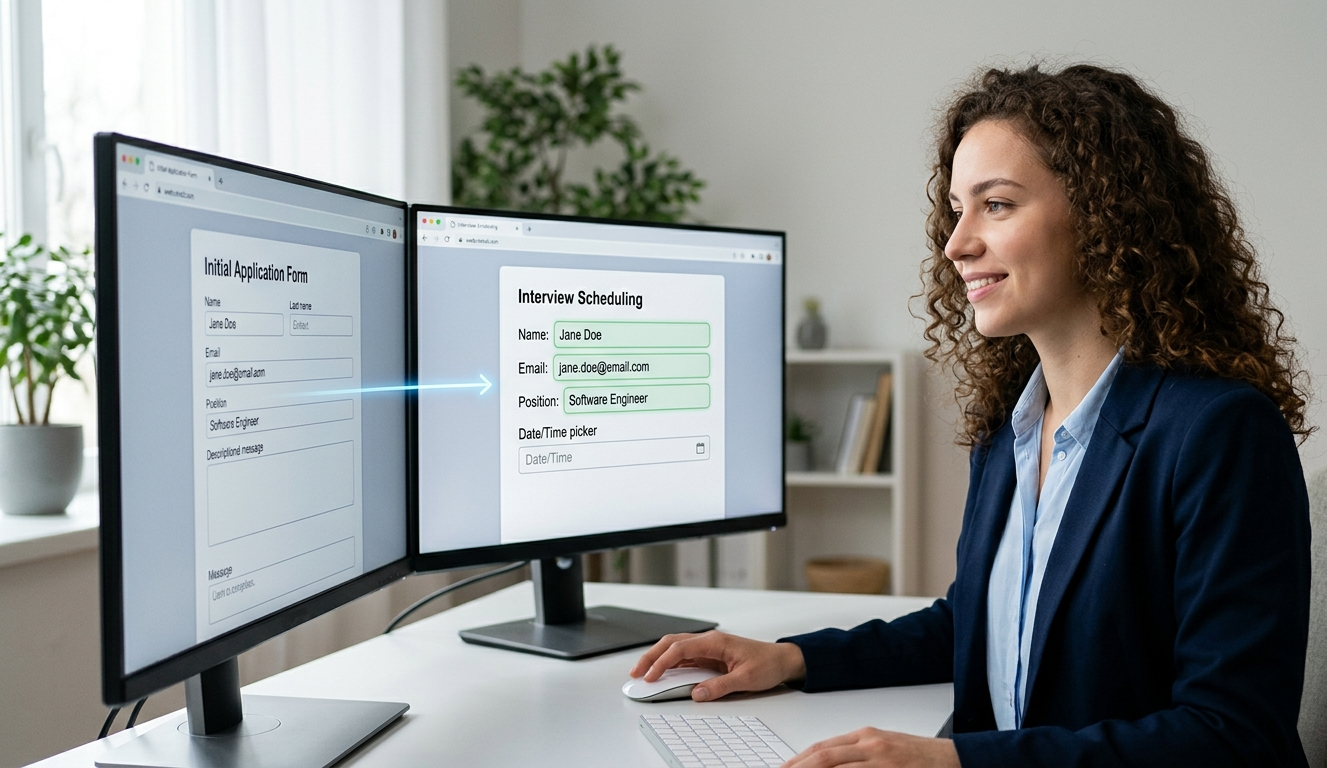
When a candidate applies on your site, they submit Form A (Job Application). Once you review their submission and decide to move forward, you don't send them a generic link to Form B (Interview Booking). Instead, you let FormBuilder do the heavy lifting behind the scenes.
Using the data already sitting safely in your FormBuilder dashboard, the interview form fills in that candidate's details for them. When they open it, their name, email, and position applied for are already filled out. All they have to do is pick a time slot and hit submit.
How to Set It Up in Under 2 Minutes
You don't need to be a developer or write complex code to map your forms together. Here is the workflow to get this running in your account:
-
Open your interview form. Log in to FormBuilder and open the Interview Booking form (the one the candidate will fill out next).
-
Add a prefill configuration. In the form settings, open the Prefill tab and add a new configuration. Choose the Related Form or Previous Submission source and pick your Job Application form.
-
Map the fields. Match the name, email and position fields on the interview form to the same fields on the application form, then save. Use the test button to check the mapping against a real submission.
-
Send the invitation. Share the interview form link in your own email to the candidate. When they open it, the mapped fields are already filled in. For a one-off, you can also pass values in the link itself with URL prefill parameters.
Real-World Benefits of a Prefilled Pipeline
Pivoting to a prefilled form strategy does more than just look professional - it directly impacts your team's operational efficiency:
- Zero Missing Matches: Because the form pulls the exact email from the first submission, you’ll never accidentally create duplicate or unlinked candidate records.
- Flawless Contact Info: A candidate typing quickly on their phone might mistype their phone number on a second form. Prefilling fields eliminates human error.
- Higher Conversion Rates: Shortening the time-to-completion means candidates book their slots immediately rather than "saving it for later" and forgetting.
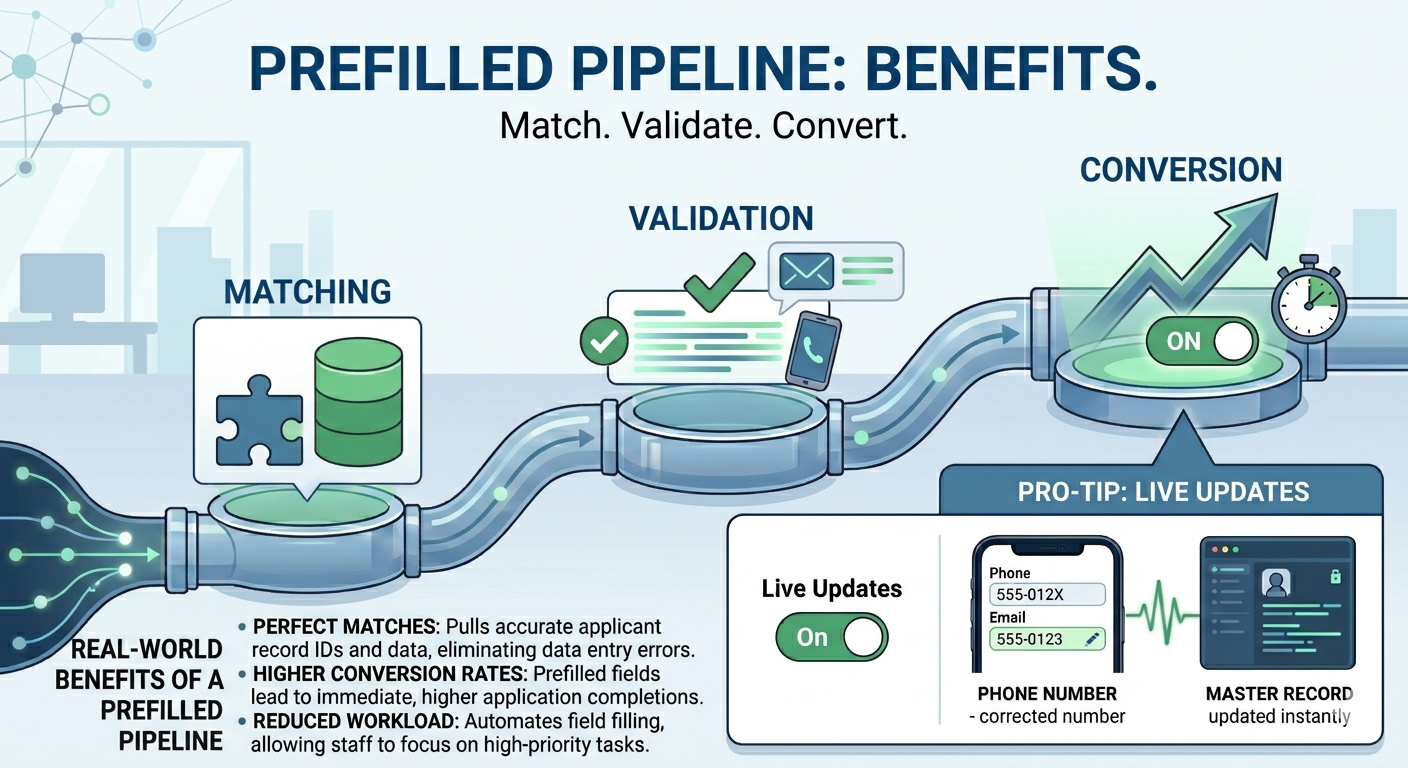
Pro-Tip for HR Teams: Keep the prefilled fields editable. If a candidate notices they made a typo in their phone number during the initial application, they can fix it on the interview form, and you get the corrected value with the booking.
Stop Making Your Audience Repeat Themselves
Whether you are moving a job applicant to an interview, asking an existing client to renew a contract, or sending a follow-up survey to an event attendee, never ask for the same piece of data twice.
Log in to FormBuilder, explore the Prefill tab in your form settings, and start building workflows that respect your users' time.