Can Google Forms be anonymous? This is how you anonymize Google Forms
Can Google Forms be anonymous? Of course! This post will cover everything you need to know about how to make Google Forms anonymous.

Creating an anonymous survey with Google Forms is really easy. Below, we’ll walk you through a five-step process that only takes a couple of minutes.
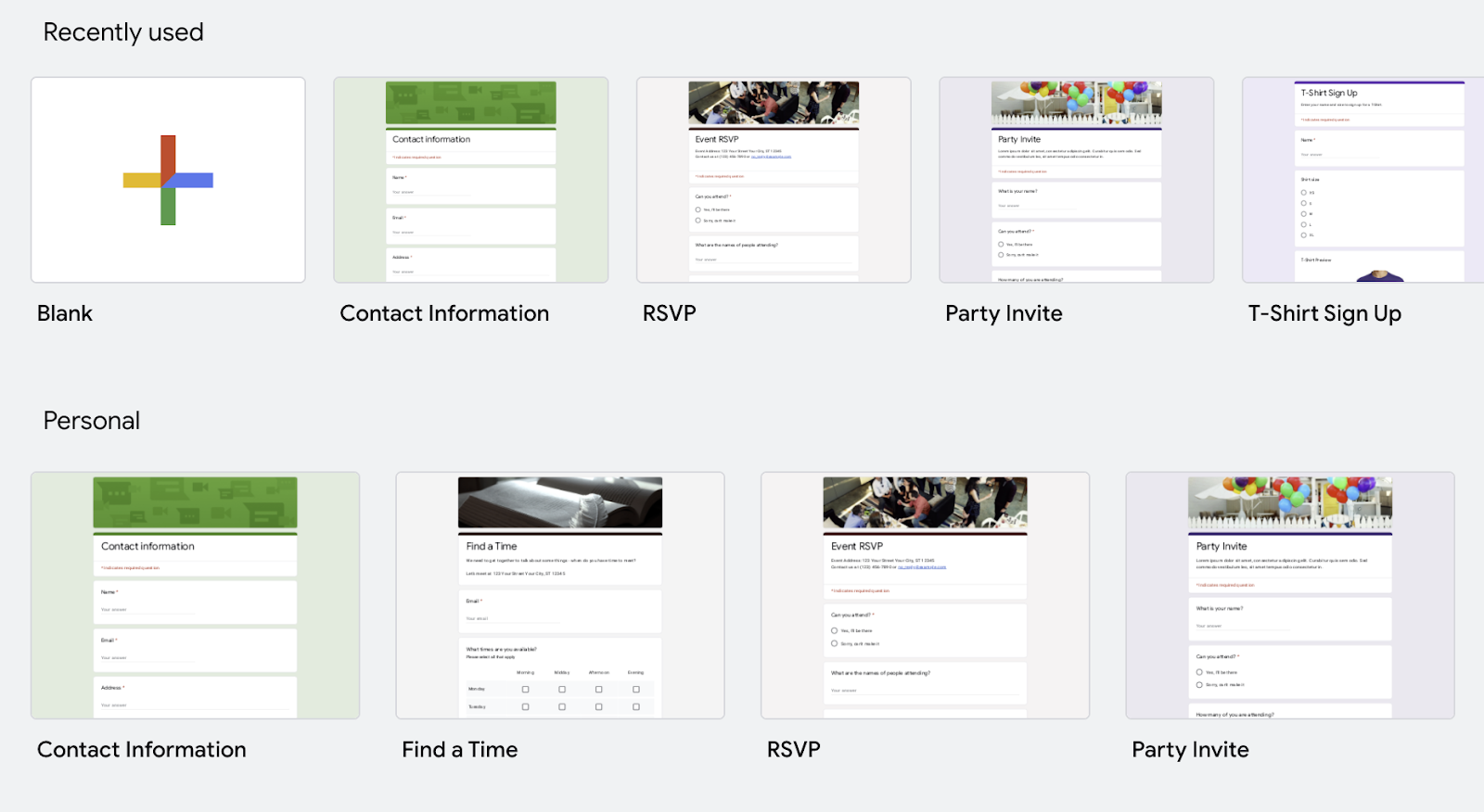
- Log into your Google Forms and create a blank form or choose one of the pre-built templates in the template gallery.
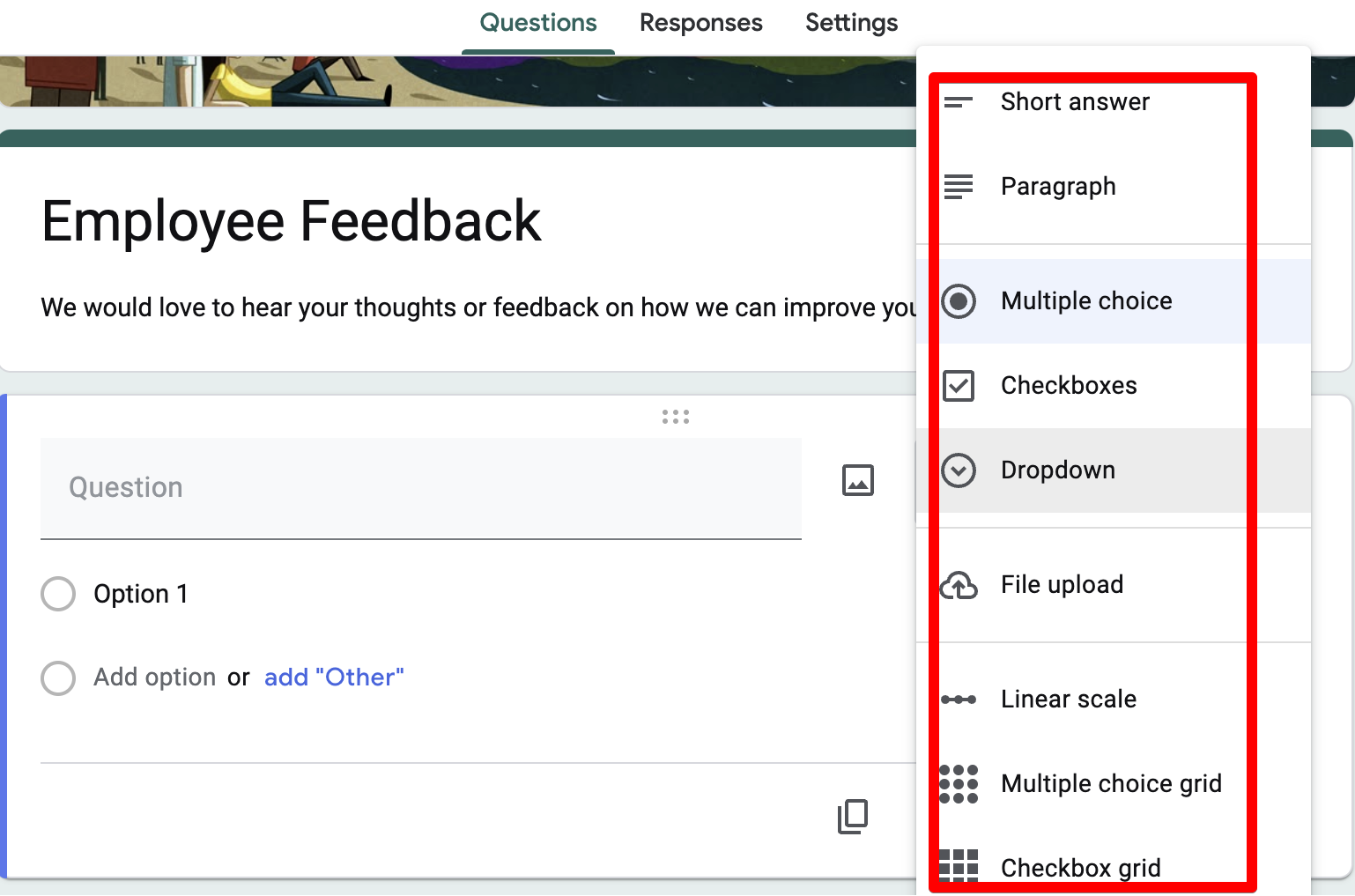
- Add questions to your form by first choosing a question type in the dropdown menu and then writing your question. In Google Forms, you can choose between over 10 different question types, including multiple-choice, open-field, and linear scale questions.
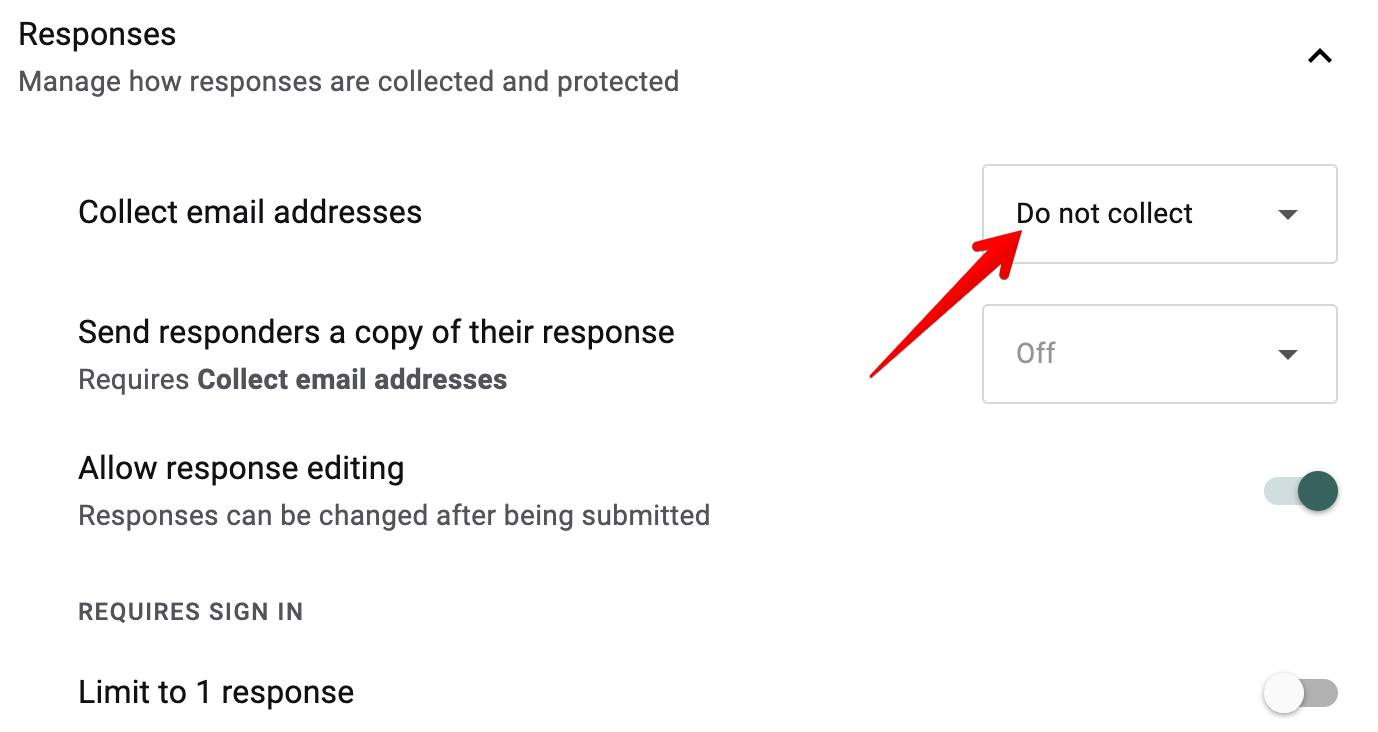
- In the settings tab, choose “Do not collect” next to the “Collect email addresses” field. This allows users to submit responses without you seeing their email address.
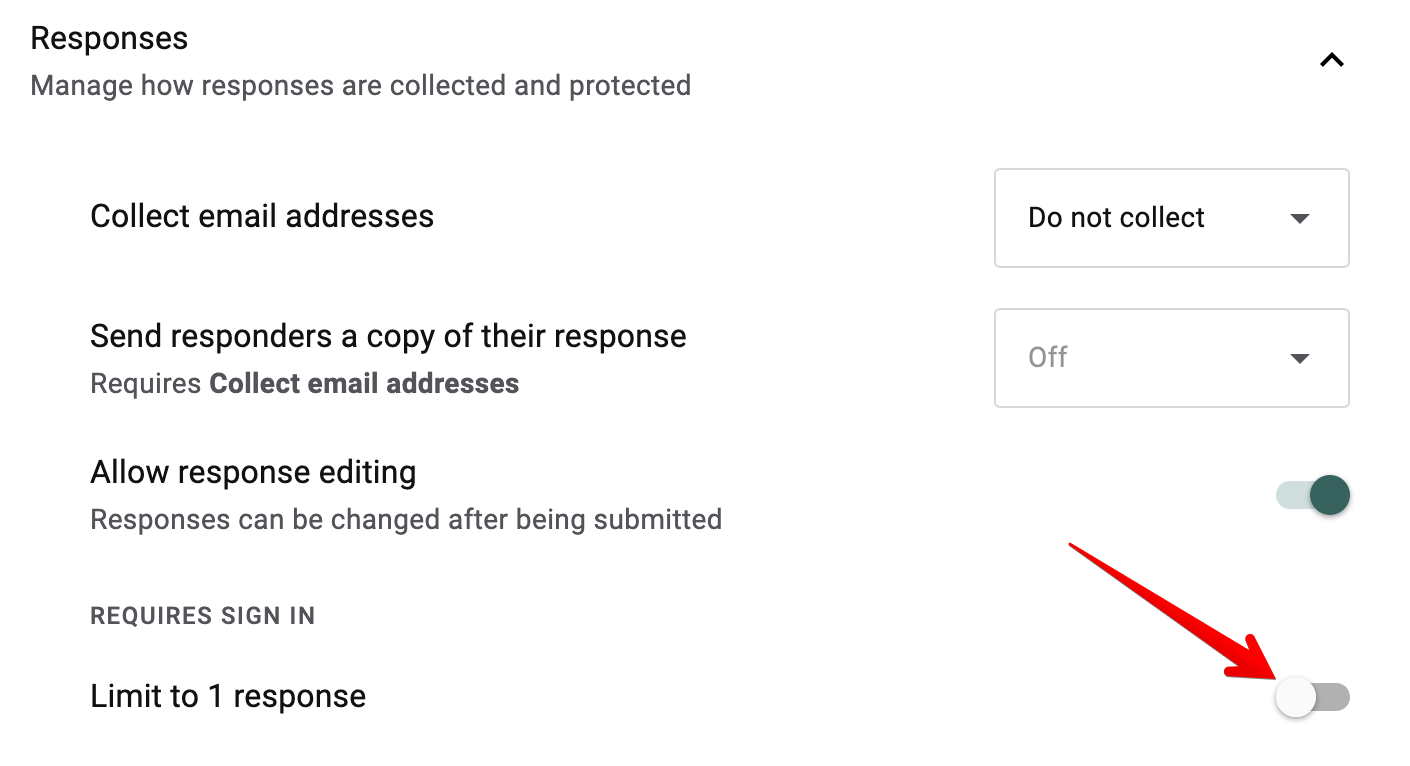
- You also want to leave the “Limit to 1 response” toggle off, because turning it on requires users to sign in with their Google account before filling out your form. With it off, users won’t have to log in to complete your form. If you use a Google Workspace account, also make sure any “Restrict to users in your organisation” option is switched off, since that setting records the responder’s account.
- Double-check that your form is anonymous by clicking the send button in the upper right-hand corner and emailing it to yourself.
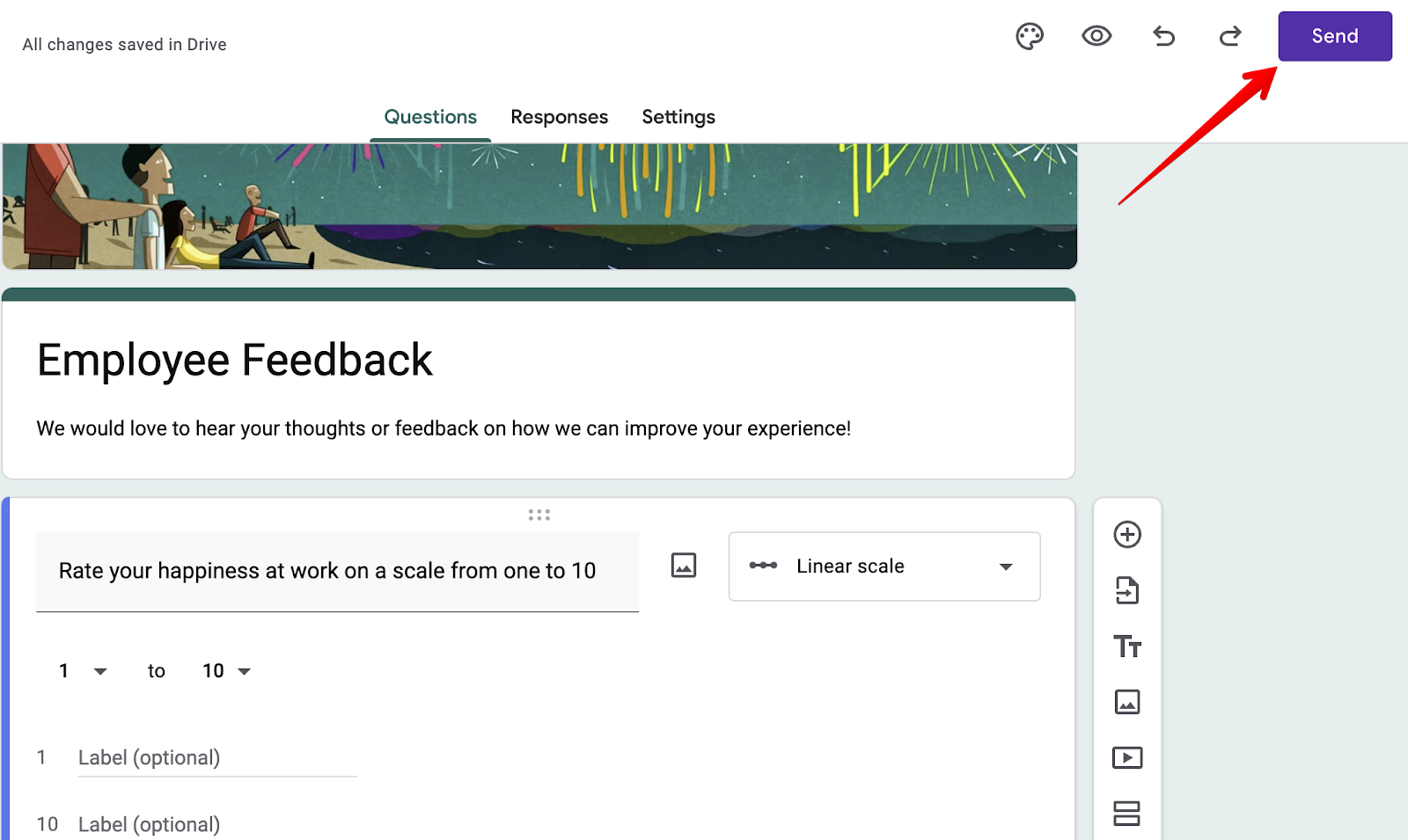
Head to your email inbox, fill out your form and jump back into your Google Forms dashboard. Under the responses section, check to see if you aren’t collecting personal information like email addresses and full names.
That’s it! Your form is now anonymous.
However, there are a few problems we faced when creating anonymous surveys inside Google Forms:
- The analytics features were very basic
- You can’t customize your forms much
- The conditional logic features aren’t very advanced
- You can’t automate workflows without either learning to code or downloading an add-on
- You can’t add signatures or payments to your forms
These factors were major reasons behind why we started FormBuilder. We wanted to give you access to a form builder that solves everything we believe is wrong with the form building industry.
Below, we’ll show you how FormBuilder solves these problems:
- You can see exactly where users are dropping off
- You can automate almost every part of your workflow
- Your customization options are endless
- You can create advanced conditional logic questions
- You and your users can add signatures to forms, and you can collect payments
Who are we: We are a form builder that allows you to do things that Google Forms and other form builders don’t. For example, our AI form generator can draft a survey from a one-line description, and our analytics show you views, starts and completions for every form. So if you’re looking for a form builder that’s more advanced than Google Forms, consider signing up for a free plan.
You can see exactly where users are dropping off
Even though you’re creating anonymous surveys, you still want to understand where users drop off so you can improve your survey’s completion rate.
Google Forms will just give you a summary of the responses that came in.
You’ll get a vague understanding of your survey’s performance, but you won’t know how many people opened the form and left, or what to improve to increase completion rates.
This is why we built FormBuilder with form analytics so you can understand exactly where users are dropping off. Every form reports views, starts, completions and completion rate. This makes it easy to find sticking points. For example, if a form gets plenty of views but few completions, it might be a good idea to swap a long open-field question for a multiple-choice question, make fewer fields required, or split the survey into pages.
Because responses are anonymous, none of this depends on knowing who the respondent is. The numbers are about the form, not the person.
You can automate almost every part of your workflow
Once you’ve collected feedback, you’ll need to do manual work to put this feedback into action. This could be copying and pasting responses into your CRM or messaging your team.
With FormBuilder, you can automate this process so that when someone fills out your form, you automatically send responses to Google Sheets, Slack, Trello, Salesforce, Mailchimp, or any tool of your choosing through our native Google Sheets sync, webhooks, or the Zapier integration.
For example, let’s say you’re surveying employees on how you can improve their working environment. You could use the Google Sheets integration to send responses directly into a spreadsheet, where the rest of your HR team can view them.
Note: While it is possible to automate your workflow with Google Forms, you’ll either have to use Apps Script, in which case you need to know how to code, or you’ll need to download an add-on or third-party application like Zapier.
Your customization options are endless
Another problem with Google Forms is that the templates are very limited. Sure, you can customize the font size, background color, and header image, but all the templates look the same. You’ll have the headline block with a couple of question fields and a submit button at the end of your form.
This can make blending your form into your website’s theme challenging.
This is why we added a library of pre-built templates into FormBuilder, each with a different style. You have templates for customer feedback, employee feedback, and market research forms, and an AI form generator if you’d rather describe the survey you need.
You can customize almost every part of these templates, from colours and fonts to the thank-you page, making it easy to match your website’s design. See our customize form design guide for the details.
You can also split a survey into pages with a progress indicator, showing a few questions at a time. This can help reduce survey fatigue, where users view your entire survey, decide it’s too much work, and bounce.
You can create advanced conditional logic questions
While Google Forms does offer conditional logic features, i.e. questions that change based on a user’s responses, it’s very limited.
In Google Forms, branching works at the section level: you can send a respondent to a different section based on a multiple-choice or dropdown answer, but you can’t show or hide an individual question, and you can’t combine conditions.
When building FormBuilder, we fixed these problems. You can show or hide individual fields, or whole pages, based on what a respondent has answered, and combine several conditions in one rule. This lets you keep the survey short for each person while still asking everything you need.
You can add signatures and payments to your forms
If you work in HR and you’re constantly running employee feedback surveys and handling internal paperwork, you might’ve noticed that Google Forms doesn’t allow you or your users to add signatures to forms, and it can’t take payments at all.
This can be a hassle since you’ll have to use external tools like Adobe or download signature add-ons.
Fortunately, with FormBuilder, you can easily add signatures to your forms by dragging and dropping the signature field from the panel on the left-hand side of the builder onto your form. Respondents can sign by drawing with a mouse or finger or by typing their name. The same panel gives you a Stripe payment field and a file upload field, and respondents don’t need an account of any kind, so you can still keep a survey anonymous by simply not asking for a name or email.
Next steps
If you’ve been using Google Forms for a while and are looking to switch to a more advanced form builder, then FormBuilder is a good choice.
Alongside the ability to easily create anonymous forms, you get a better understanding of how users interact with your form so you can improve completion rates, and you can connect FormBuilder with other tools inside your workflow and automate redundant processes. Sign up for a free FormBuilder plan, or start a 14-day Pro trial!