Create a semantic differential scale in 6 steps with FormBuilder (No coding required)
Do you want to create a semantic differential scale without having to code? This guide will cover everything you need to know.

Companies often turn to semantic differential scales when trying to understand what customers think about their product.
However, many companies struggle to create advanced semantic differential scales because most form builders suffer from these limitations:
- The logic features are very basic
- Embedding the form on your own site takes code
- You can't see how the form performs
- You can't use AI to build a form for you
Companies are then forced to code these forms themselves and embed them on their website, which is time-consuming.
This is why we wanted to propose a better solution.
We built FormBuilder with the sole purpose of helping businesses create advanced forms within minutes and making it easy for them to embed it on their website.
In the guide below, we wanted to show you how you can create a semantic differential scale using FormBuilder:
- Have the AI create a new form for you
- Personalize your form
- Add conditional logic
- Customize your form design
- Embed the form on your website
- Monitor your form analytics
The best part is that the entire process is free. You can sign up, create your semantic differential scale, and export it to your website, all without entering your credit card information.
1. Have the AI create a new form for you
Log into FormBuilder and the web app will take you to this dashboard:
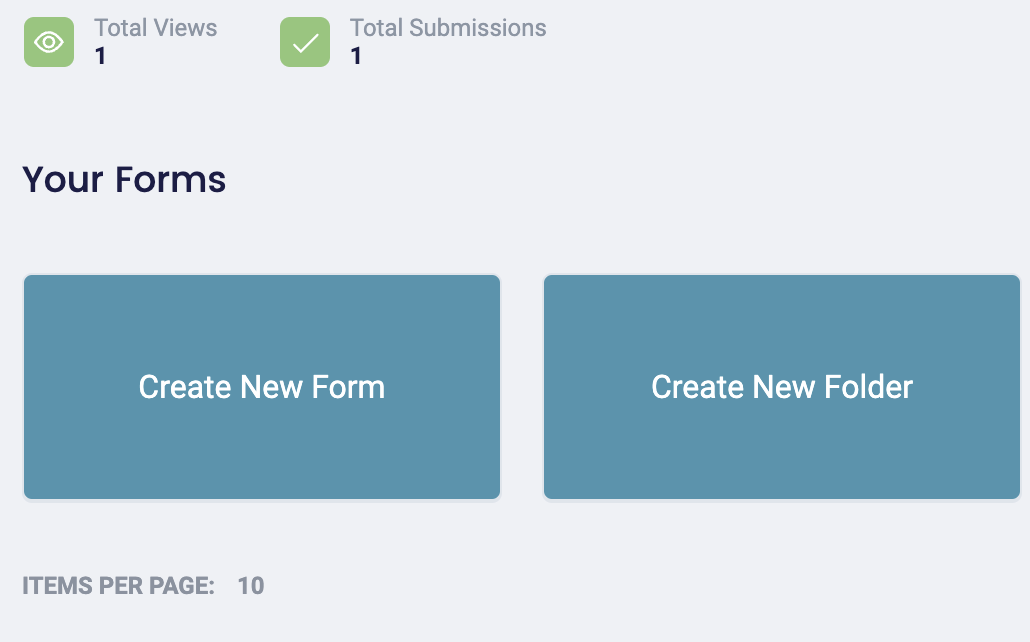
You can choose to create a new form or select an existing one. For this guide, we'll be creating a new form, so select "Create New Form."
FormBuilder will ask you to choose a form template you'd like to use for your semantic differential scale. However, we highly recommend using our AI form generator:
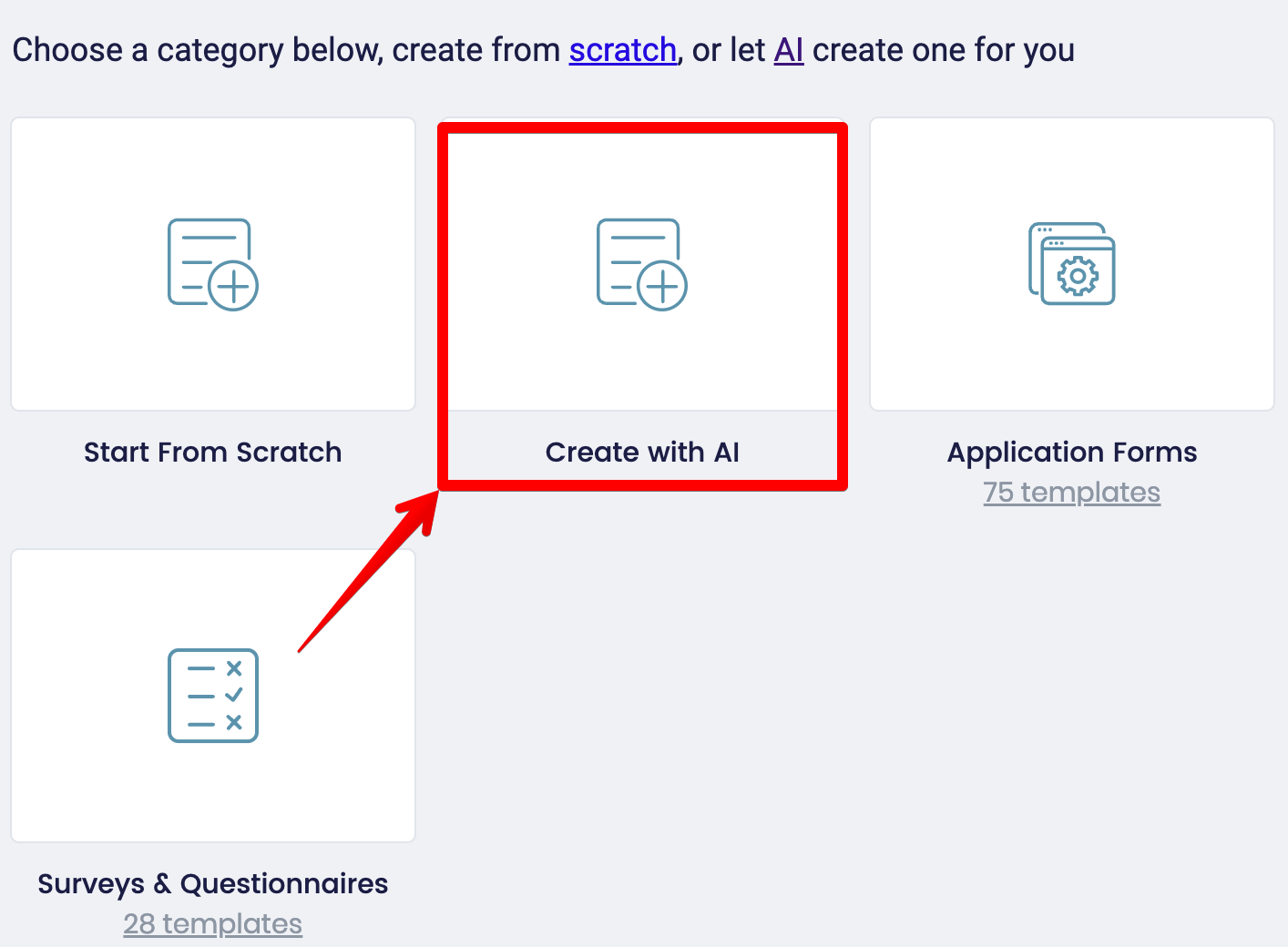
You can type a prompt into the AI chatbot, and the AI will create a form based on your specific requirements. This drastically reduces the time you spend building forms.
As an example, if you want to understand what customers think about the new features inside your CRM tool, you could ask something like this:
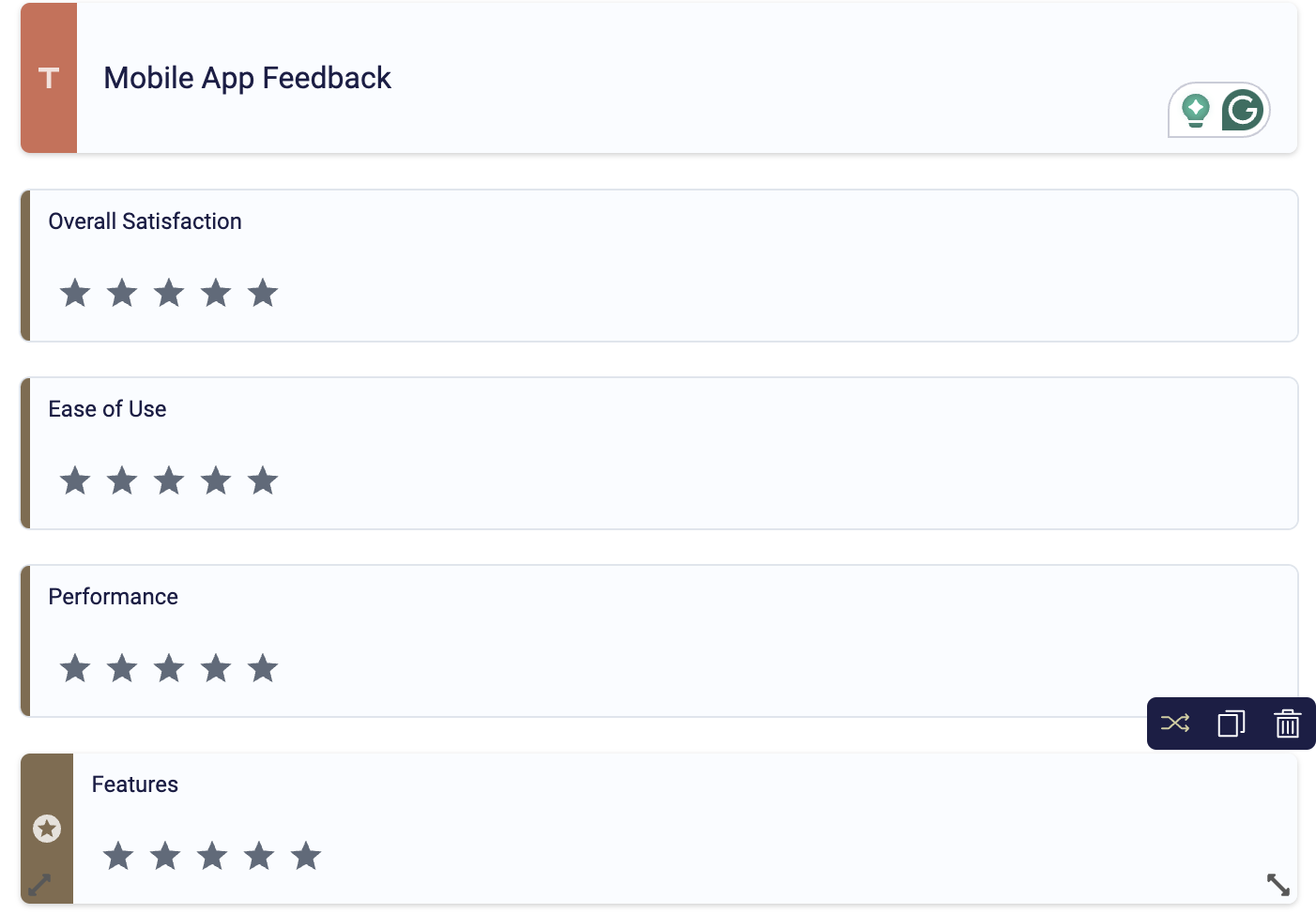
“Create a semantic differential scale asking my customers what they think about my new CRM mobile app.”
The AI will then output something like this:
2. Personalize your form
Once the AI has created your form, you’ll be taken to the editor’s dashboard:
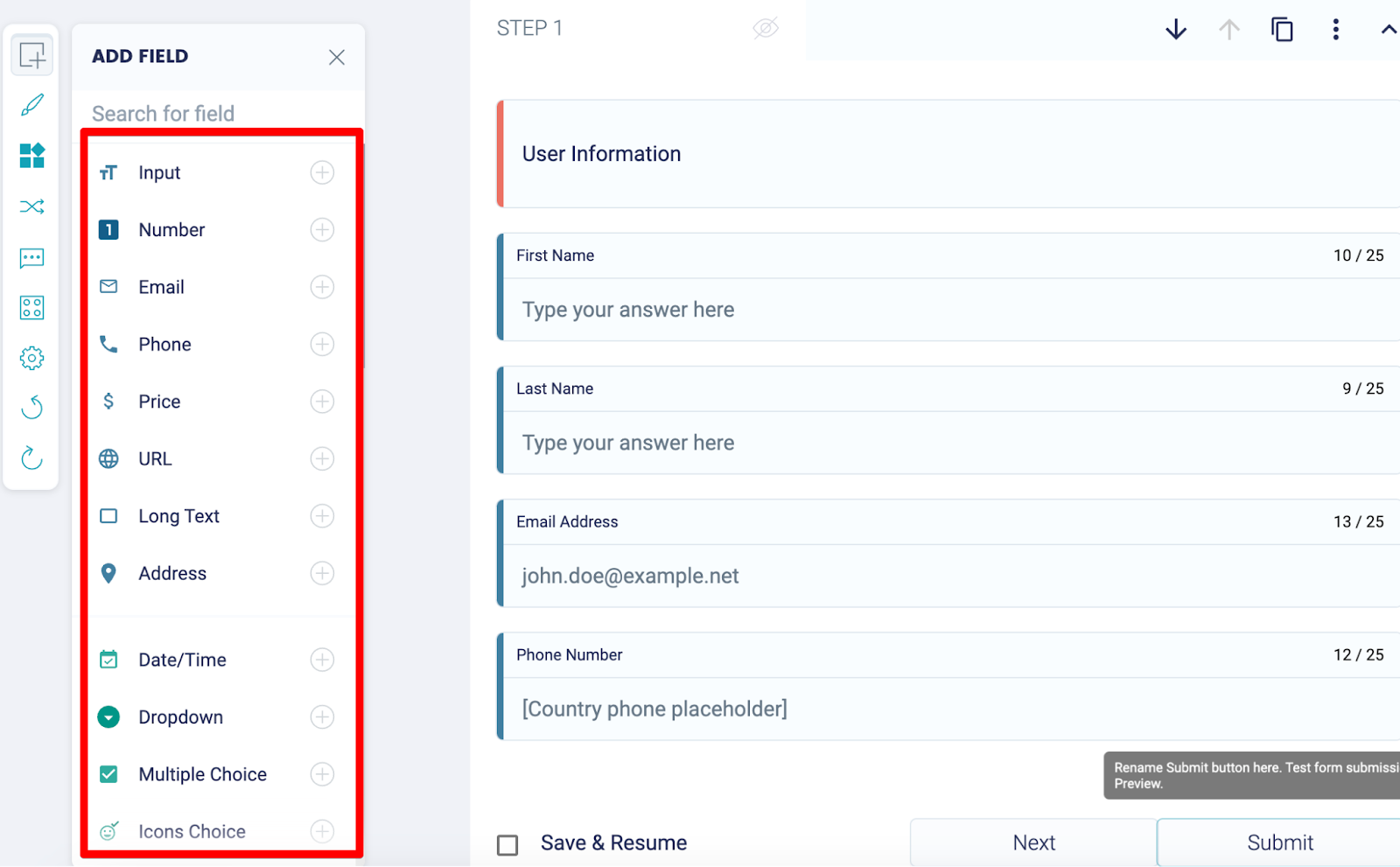
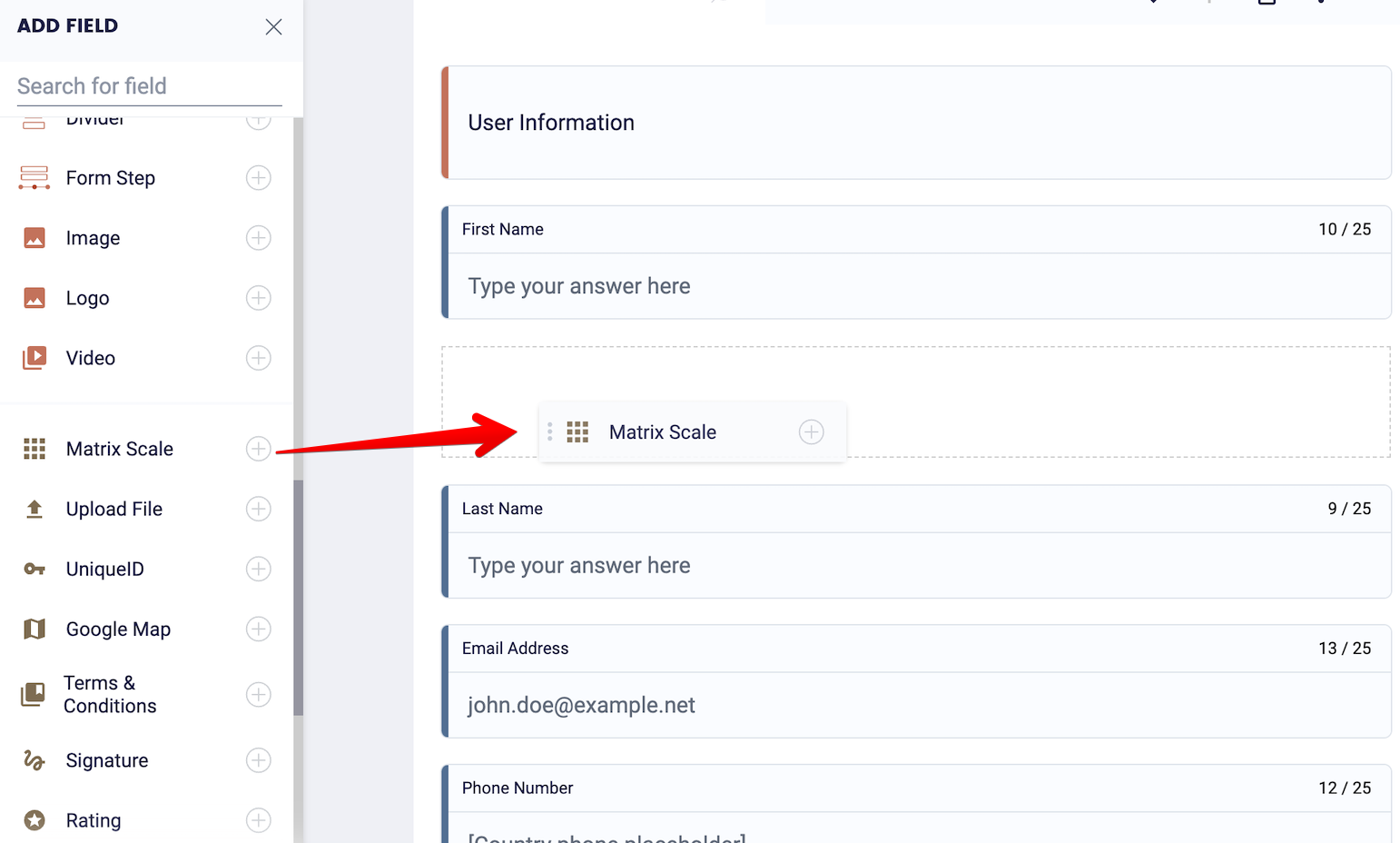
Here, you can tweak the form that the AI gave you by moving the headings around and adjusting the questions and answers. On the left-hand side of your screen, you’ll find the builder’s toolbox, where you can add different things to your form, such as:
- Matrix scale questions
- Rating questions
- Stripe payment fields
- E-signature fields
- File upload fields
- And more!
To add these questions to your semantic differential scale, drag and drop them from the builder’s toolbox onto your form.
3. Add conditional logic
Advanced conditional logic is what sets FormBuilder apart from most form builders.
You can automatically change the next question in your form depending on how the user responded to the previous question.
For example, if a user rated a feature inside your app poorly, you could take them to a question prompting them to explain the problem and what they’d like fixed.
To add these logic rules to your form, click on the button with the two overlapping arrows next to each question.
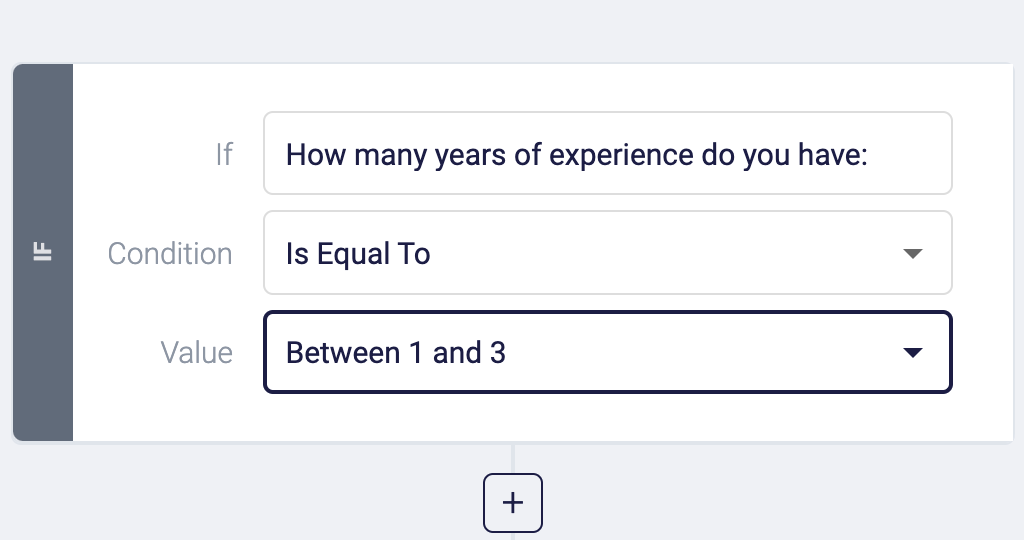
You'll be greeted by an interface containing if/then statements. This lets you tell FormBuilder what to do when a certain condition is met. So, start by choosing everything that needs to happen for a condition to be met.
Then, choose what needs to happen when this condition is met. Should FormBuilder take users to a particular question, should it skip the next question, or should it end the survey entirely?
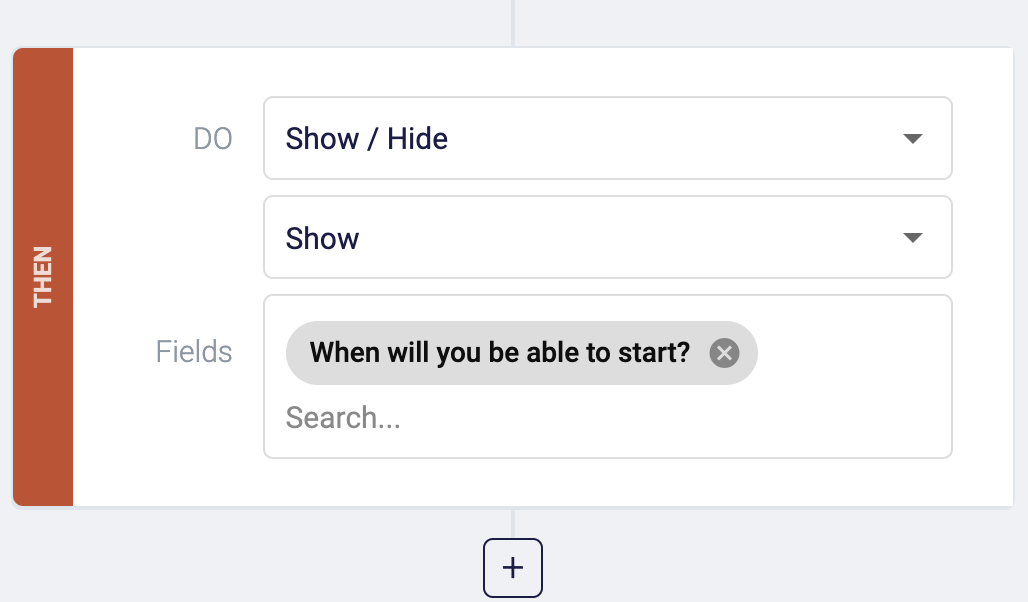
This effectively allows you to create more engaging forms by tailoring the next question based on what a user has entered. For example, you could say, IF the user responds with a rating of five or lower, THEN take them to the question “How can we improve?”
4. Customize your form design
Once you're happy with the contents of your form, customize the design by clicking on the paintbrush logo on the left of your screen.
This will take you to the customization dashboard. On the left, you'll find countless themes that you can use to match your website's design.
On the right, you'll find more advanced settings that allow you to:
- Change the font size and style
- Adjust the color scheme
- Add a background image
- Change the background color, border color, and font color
- Adjust the size and style of buttons, placements, and labels
- And more!
All these settings ensure you can perfectly match your form's look and feel to your website.
5. Embed the form on your website
When you’re ready to share your form with your audience, save all your form changes by clicking the “Publish” icon in the top right hand corner. Next, click the “Share” button and FormBuilder will take you to this screen:
There are two options for sharing your form:
- Embed it on your website
- Send it via link
The first method involves copying the embed snippet under the heading “Embed on Website” and going to your WordPress editor. Navigate to the page you’d like to embed your form on and add a custom HTML block.
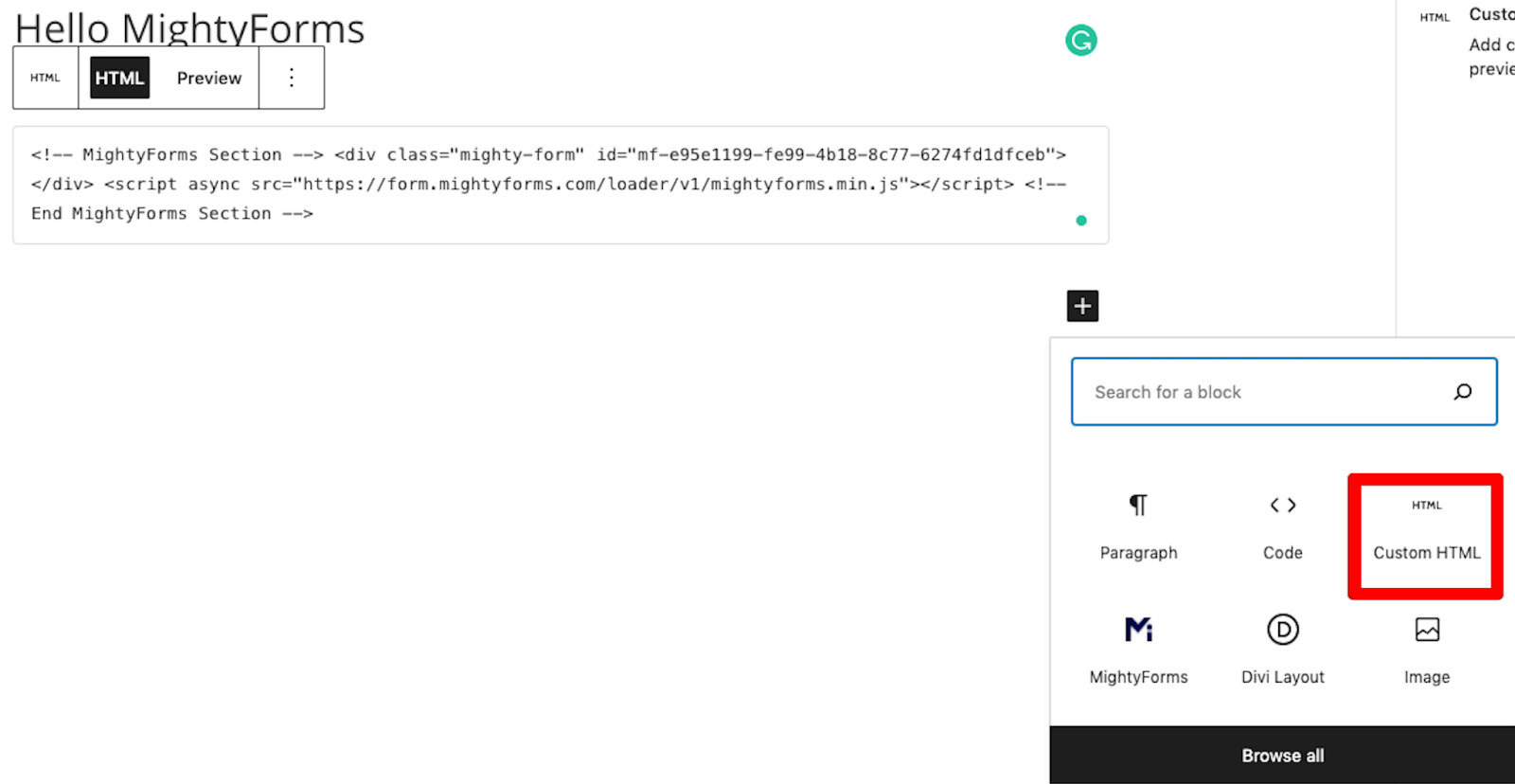
Paste your FormBuilder embed snippet into this HTML block, save your changes, and when you go to the front end of your website, your form should be live.
Alternatively, you can share your form by copying the form link and sending it directly to respondents via text or email.
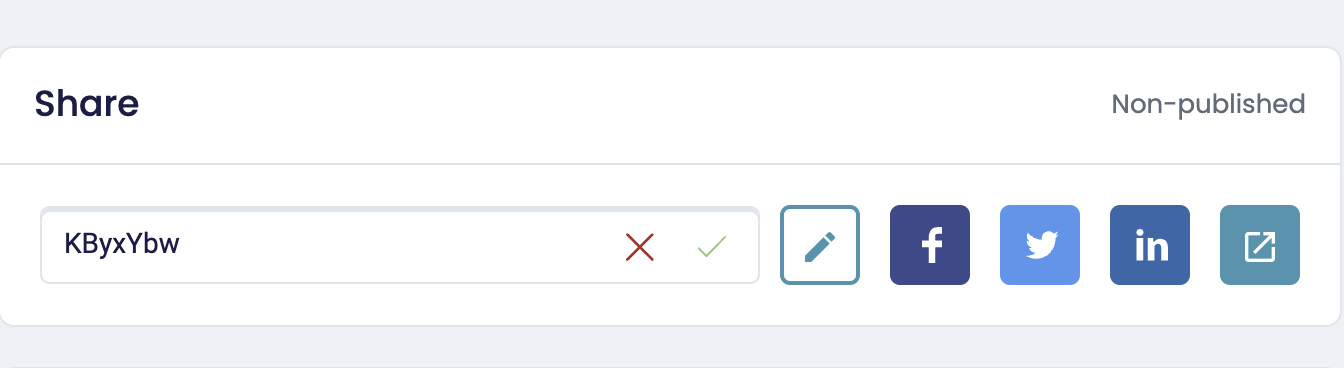
You can also paste that link into your email newsletter and send it to your subscribers.
6. Monitor your form analytics
Once you've published your form, you want to get an idea of how many people view it, how many submit it, and how that changes over time. This gives you a clear understanding of whether your form is working.
This is a problem with most form builders. They won't tell you how the form performs. You'll have to guess and make random changes, hoping your form completion rate goes up.
This is why FormBuilder includes form analytics. Compare views to submissions, and if the gap is large, shorten the form, split it into pages, or make optional questions optional.
Why we believe FormBuilder is the best online form builder
Here are a couple of features that differentiate FormBuilder from the alternatives like Google Forms and Microsoft Forms:
- Conditional logic and multi-page forms
- Thousands of integrations
- AI form builder
Conditional logic and multi-page forms
Most basic form builders show every respondent every question. That makes a semantic differential scale longer than it needs to be, and long forms get abandoned.
FormBuilder lets you show or skip questions based on earlier answers and split the survey into multiple pages, so each respondent only sees what applies to them.
Thousands of integrations
You can connect your form with thousands of applications through Zapier, webhooks and the native Google Sheets integration. FormBuilder’s form automation features will have things automatically happen inside these applications when someone gives your product a certain score. For example, if someone gives you a bad score and an explanation backing it up, you could automatically send it to your product development team’s Slack channel.
You can also export every response or view them in the FormBuilder dashboard, so you never miss a customer review.
AI form builder
You can also utilize AI to speed up the form building process. Instead of building a form from scratch, tell the AI what type of form you'd like to build, and the AI will build one for you.
You can get very detailed by telling the AI what specific features you'd like to survey, what information you're trying to gather, how many questions you want to ask, etc.
The AI will then present you with a form that meets all your criteria, drastically cutting down the time needed to build a semantic differential scale.
Next steps
If you’re looking to create a semantic differential scale and you want to avoid the limitations that most online form builders have, start on the free plan or a 14-day Pro trial.