How to Add a Form to a Website in 5 Easy Steps
Are you wondering how to add a form to a website? This guide will show you how to do just that in five easy steps and without needing coding skills.

If you’re looking to add a form to a website without having to write lines of code or go through a tedious sign up process, then you’ve come to the right place.
Below, we’ll show you how you can add a form to your website in under five minutes and without having to write a single line of code.
To demonstrate this, we’ll be using our own tool FormBuilder, an online form builder that makes embedding and sharing forms easy. Don’t worry, you can sign up for free and without entering your credit card details, so there’s zero commitment required from your side.
If you’d like to add a form to your website while reading this guide, sign up for a free account in a new tab and follow along.
Step 1: Create a form or select an existing form
To add a form to your website, log into your free FormBuilder account and on the main dashboard, click "Create New Form."
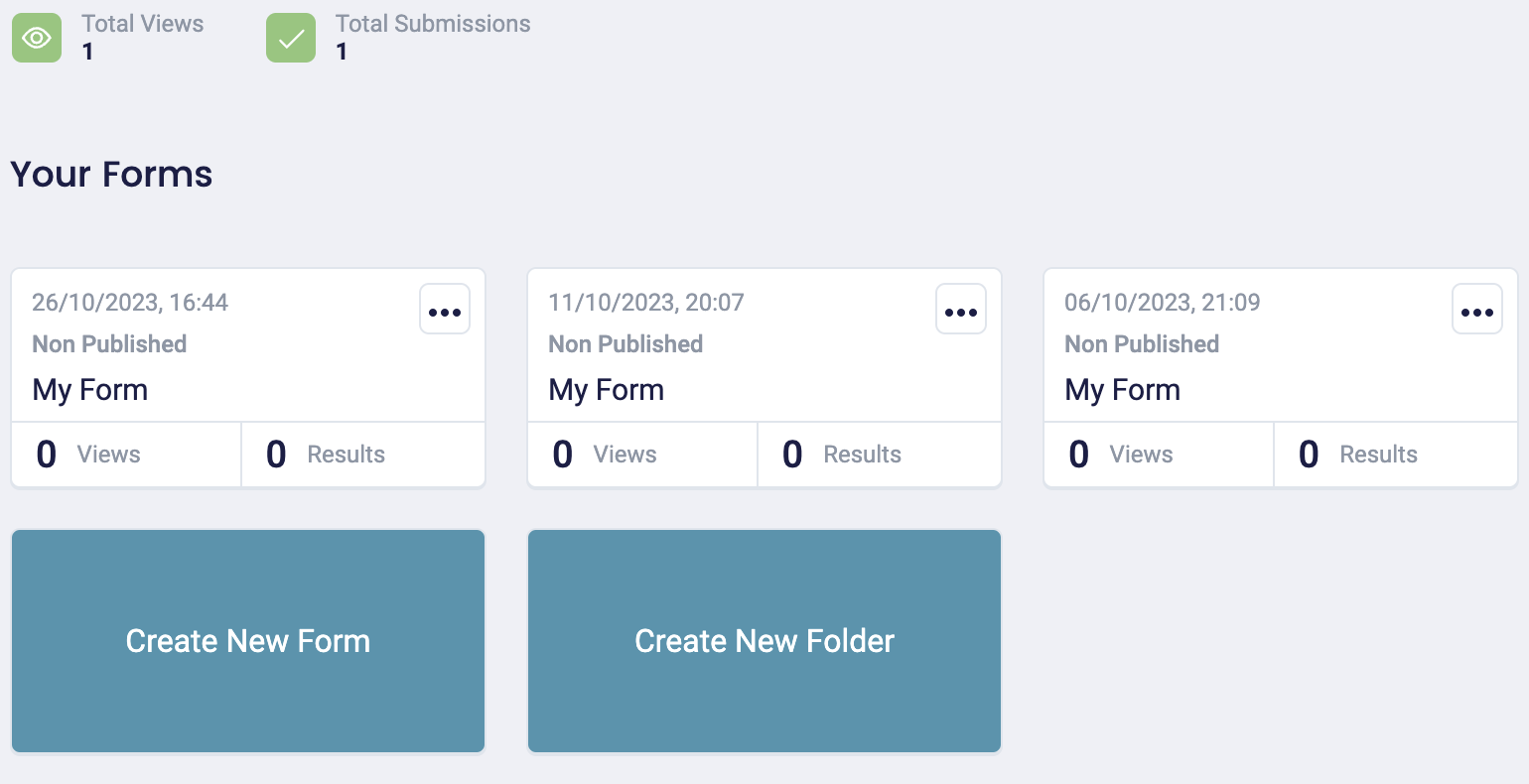
Alternatively, if you already have a form you'd like to add to your website, select this existing form.
From here, FormBuilder will take you to a dashboard where you can add elements to your form:
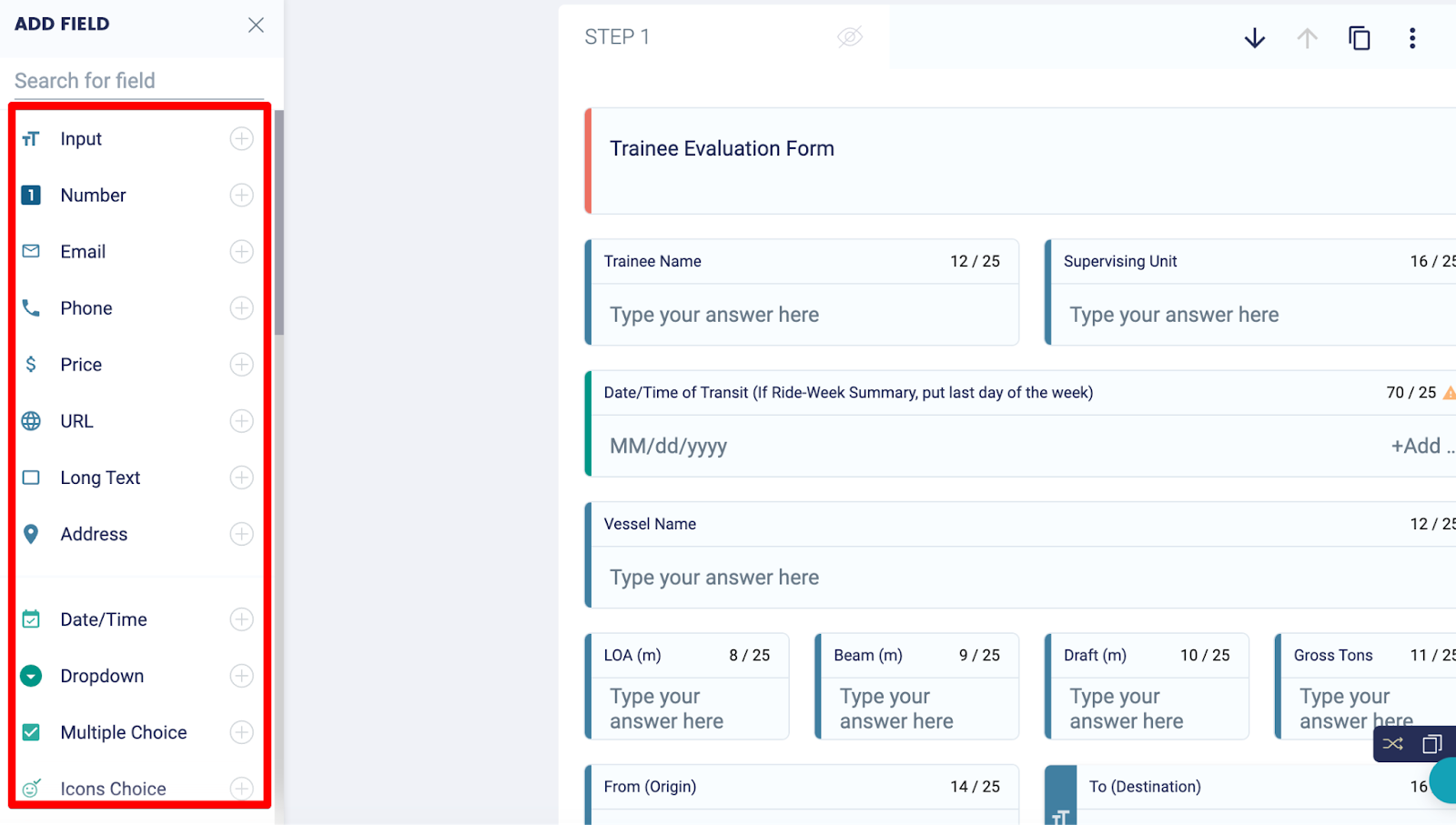
On the left-hand side, you'll find question fields, signature fields, file upload fields, Stripe payment fields, open fields, you name it!
Drag and drop the fields you want to add to your form and begin writing your questions.
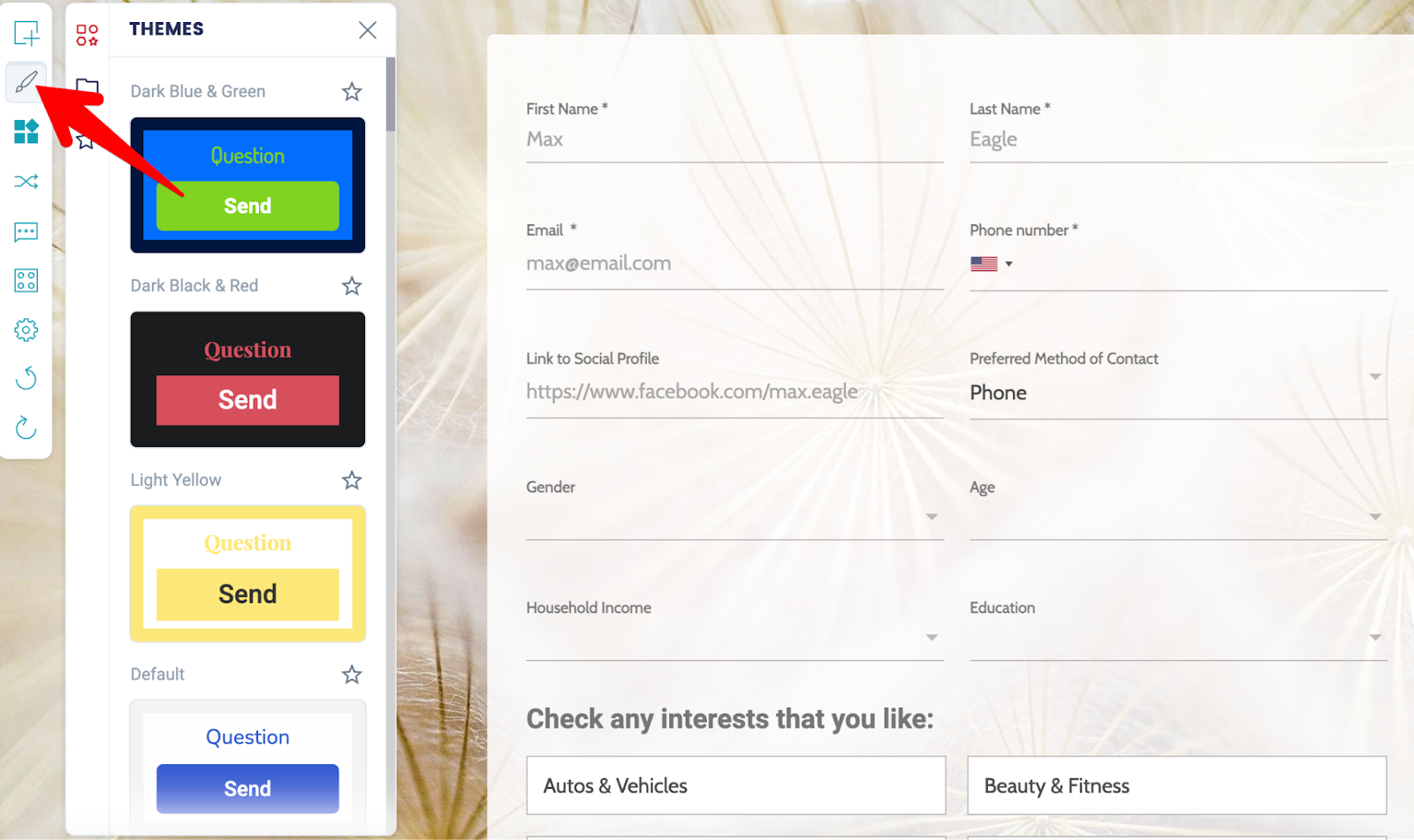
Once you're happy with your form's contents, click on the paintbrush logo on the left, and this will allow you to customize your form's theme, colors, fonts, and style.
Step 2: Add logic rules
If you'd like to change future questions based on what users previously entered into your form, use FormBuilder's conditional logic features. You can add logic to your questions by clicking the icon with the two overlapping arrows.
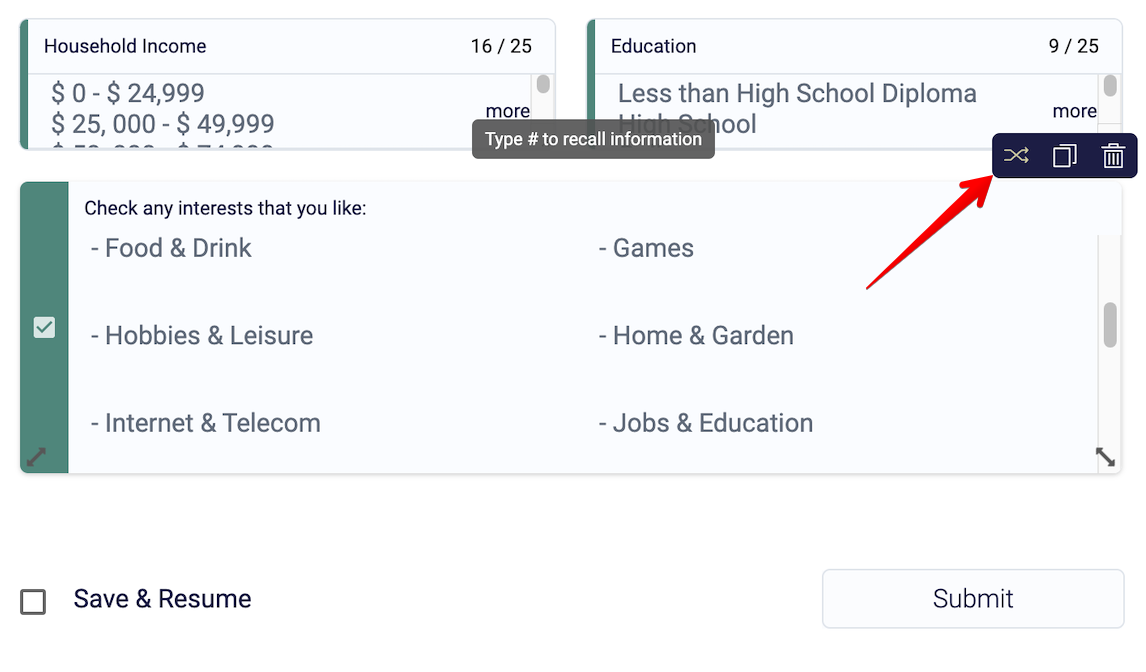
Here, you can use IF/THEN statements to determine where to take a user based on what they answered.
For example, let’s say you’re creating a job application form. You could use logic rules to say: IF the user says they have more than three years experience, THEN take them to the next question. IF the user says they have no experience, THEN end the application form.
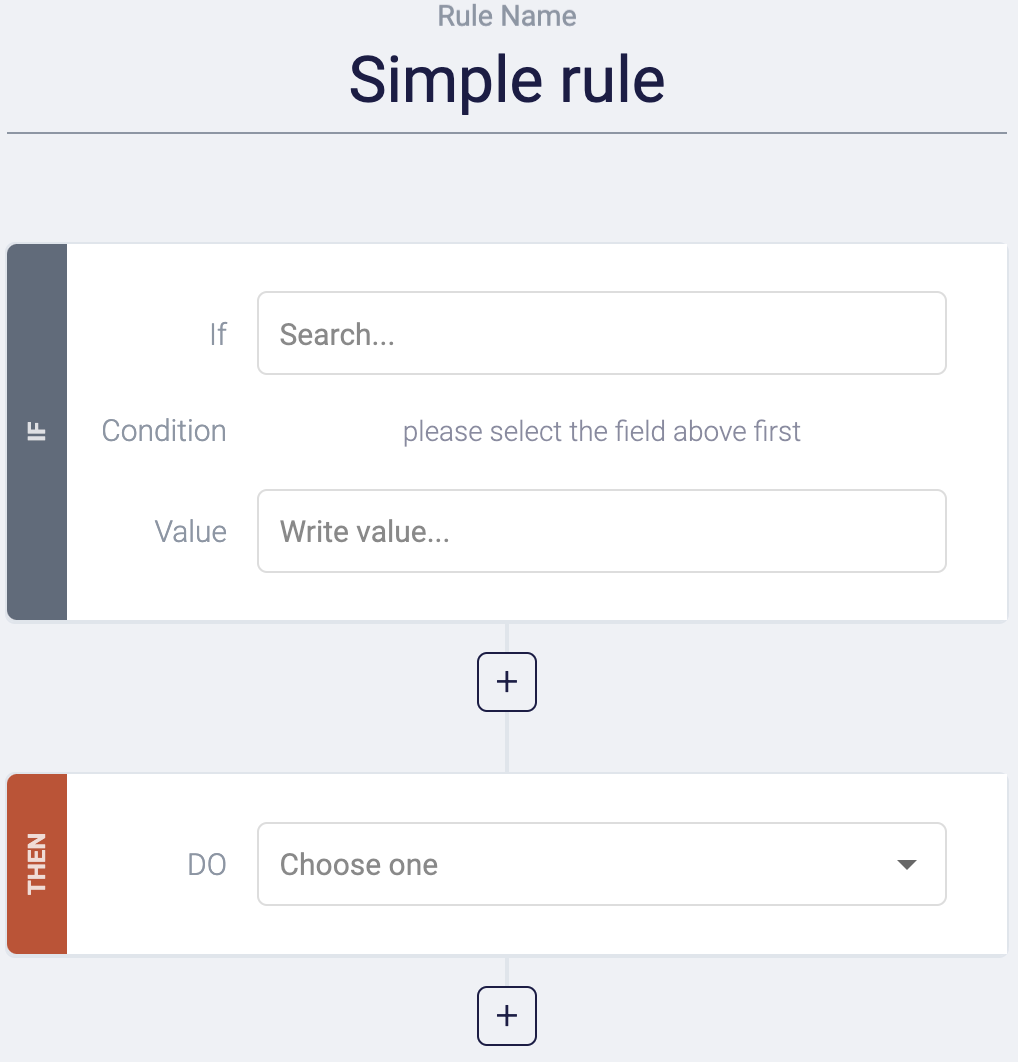
Or, if you’re collecting employee feedback, you could say: IF the employee responds no to the question “Are you happy in this role?” THEN take them to the question, “What can we do to improve your working experience?” IF the employee responds with yes, THEN continue to the next question.
Step 3: Save your form
When you're ready to embed your form, click the "Publish" button in the upper right-hand corner of your screen, and this will save all the changes you made.
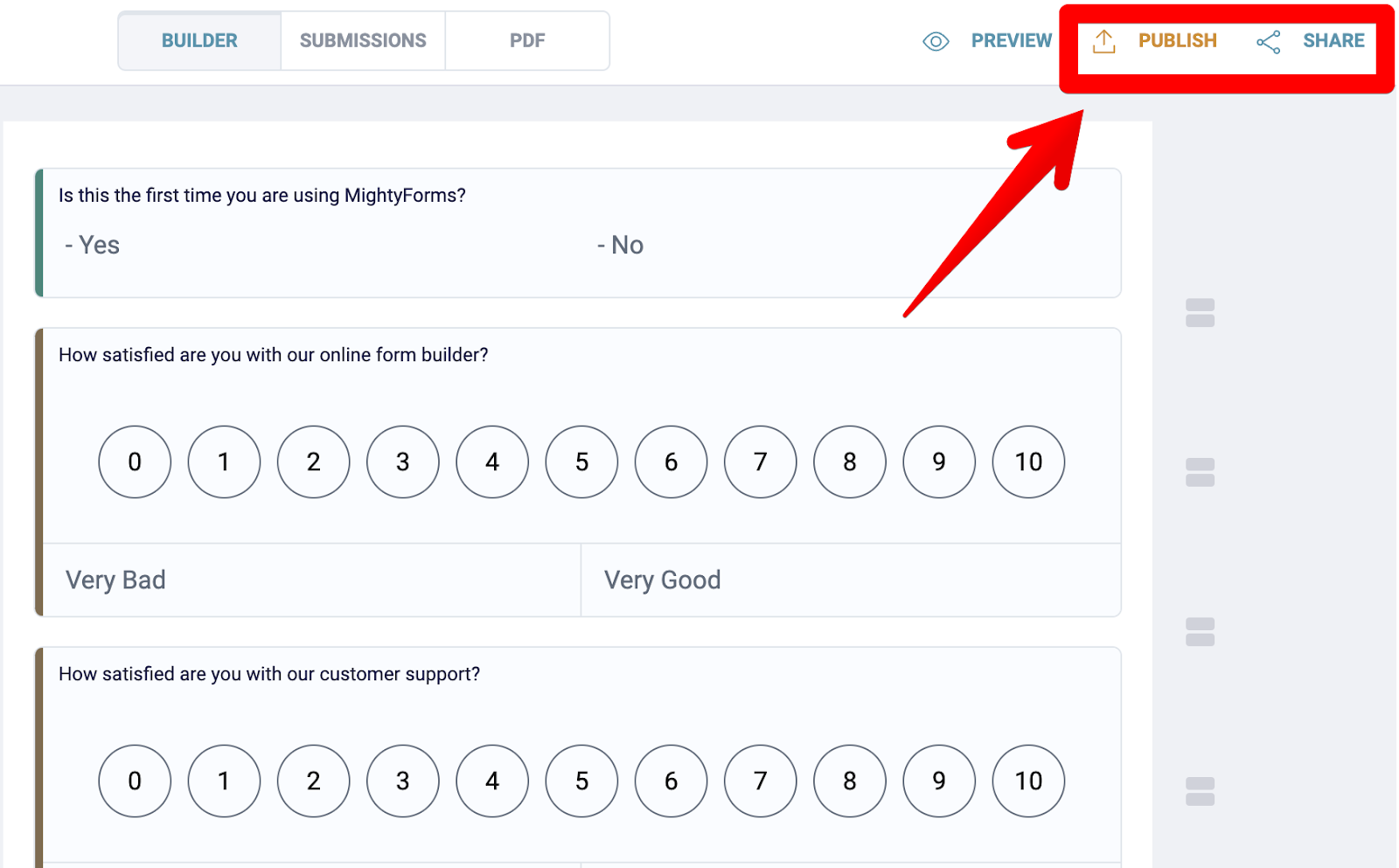
From here, click the "Share" button to open the sharing options.
Copy the code snippet under the “Embed” section; you’ll need to paste this code into your website builder later on. Our publish, share and embed guide covers every option in detail.
Step 4: Open your website editor
No plugin or app is needed. The embed snippet works on WordPress, Wix, Squarespace, Shopify, Webflow, BigCommerce, or a plain HTML page. Open the editor for your site and go to the page where you want the form to appear.
Step 5: Copy and paste the form's code to any page/post
Head to the webpage on which you want to install your form and add a custom HTML code block (in WordPress, that is the "Custom HTML" block in the block editor).
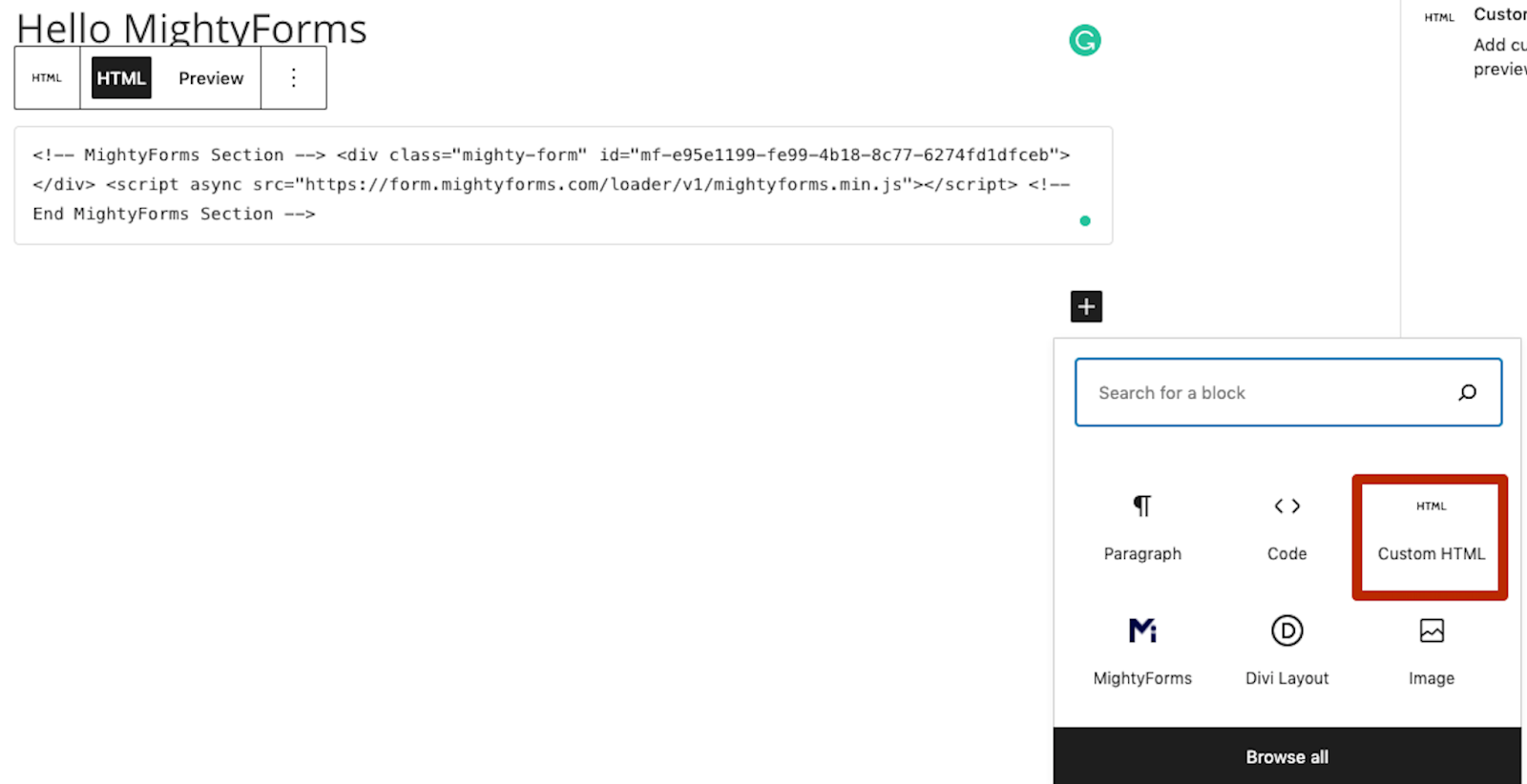
Paste your FormBuilder code snippet into this block, save your changes, and when you land on the front end of your new webpage, you’ll find your form.
Why we believe we're the best online form-building app
On top of making it super easy to add forms to your website, this is why we believe FormBuilder is the best online form builder:
- AI form generator
- Form analytics
- Survey templates
- Payment forms
AI form generator
The fastest way to get a form onto your site is to not build it by hand at all. Describe the form you need in a sentence, and the AI form generator drafts it for you, fields and all. You can then drag, drop and edit as normal.
You can also import an existing form from a PDF, a URL, or from Jotform or Typeform, so moving a form you already have onto your website takes minutes.
Form analytics
Another standout feature that users love is our form analytics. FormBuilder shows you how many people view your form, how many start it, and how many complete it, so you can see your completion rate at a glance.
This way, if you see a pattern developing, maybe a long form has a low completion rate, you could optimize completion rates by splitting it into a multi-page form or removing a field.
Survey templates
If you're trying to measure customer satisfaction or your product's NPS (Net Promoter Score), start from one of the survey templates on your dashboard.
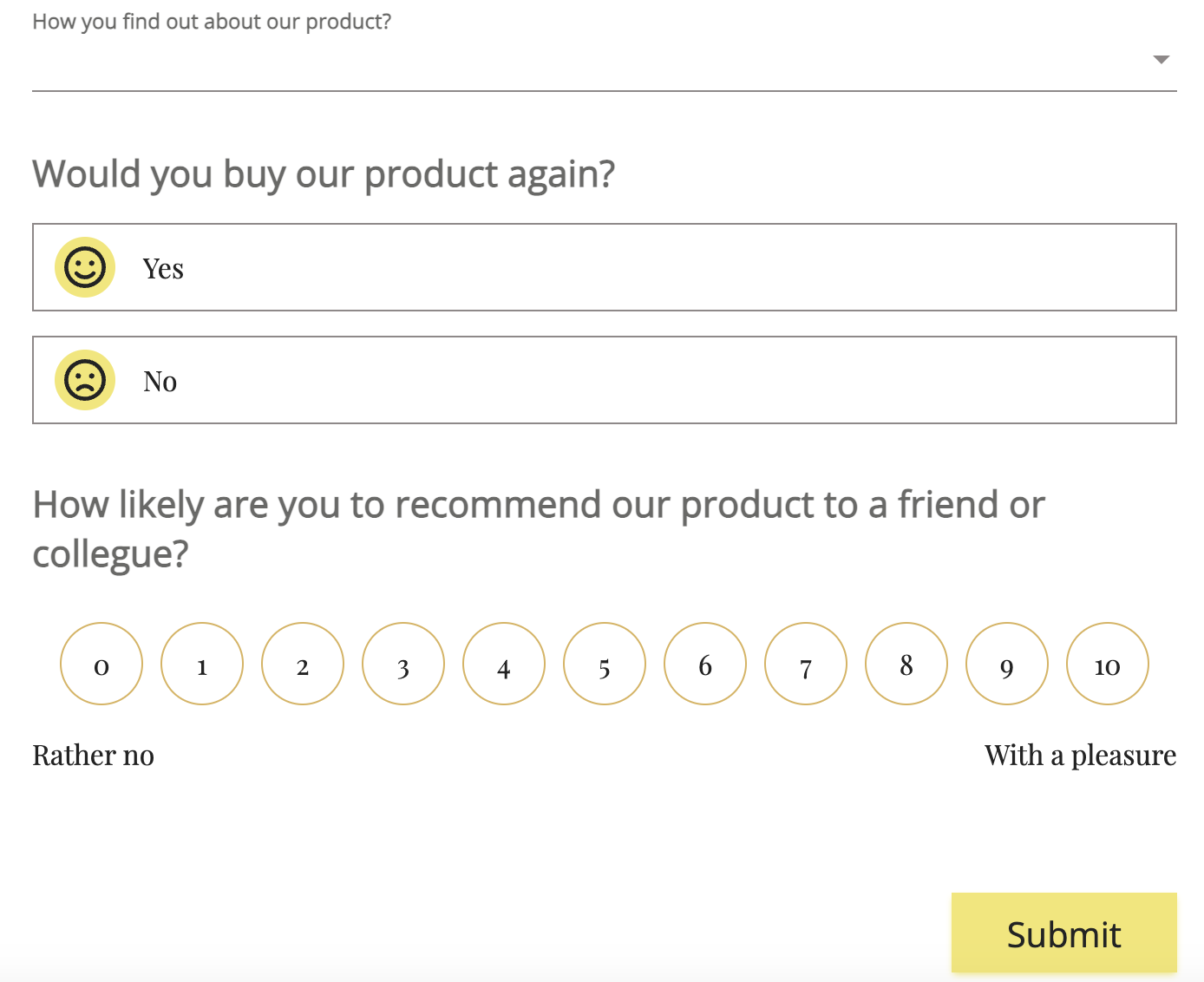
From here, create a form like you normally would and publish it or send it to your customers. When respondents submit your survey, FormBuilder collects all the results in one place, and you can export them to CSV or send them to Google Sheets to work out your score.
Payment forms
If you want to add a payment form to your website without having to buy a dedicated payment processing app, consider using FormBuilder's payment features.
You can add a payment option to any form by searching for the Stripe field on the left-hand side of your dashboard and dragging and dropping it onto your form.
From here, you'll have to connect your Stripe account, but once it's set up, you can begin collecting payments and have the money go directly into your bank account.
Integrations with thousands of apps
FormBuilder connects natively to Google Sheets and to any app that accepts webhooks. On top of that, FormBuilder connects to Zapier, which in turn connects to thousands of apps.
Here are a few examples of apps that FormBuilder integrates with:
- Google Sheets
- Slack
- HubSpot
- Mailchimp
- Trello
So, for example, if you're collecting customer data and don't feel like copying and pasting each response into a spreadsheet, you can connect FormBuilder with Google Sheets. FormBuilder will send all responses to your Google Sheets as soon as customers submit your form.
Or, let's say customers contact you through a page on your website. You offer different services, and different teams within your company fulfill these services. You could connect FormBuilder to Slack and send an automatic reminder to the respective team, notifying them there's a new customer.
Next steps
If you want to add a form to your website without having to code or go through a long and tedious set up process, sign up for a free FormBuilder account.
You don't have to enter your credit card details, and the free plan includes 5 active forms and 100 responses per month, with the AI form generator, conditional logic and form analytics all included.