How to Import Data from Google Sheets to Create Online Forms
Google Sheets is one of Google Workspace’s most used applications. Learn how to turn the data you already keep in a spreadsheet into an online form, and how to send every response back to Sheets automatically.
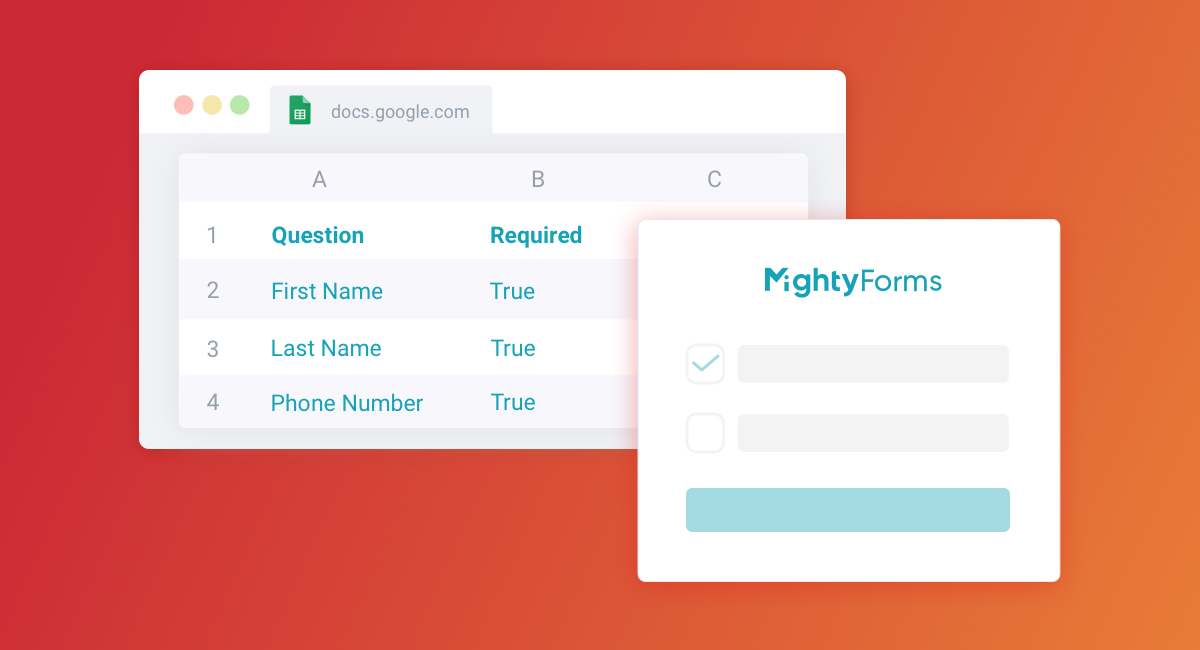
Google Sheets is one of Google Workspace’s most used applications. Whether you use it to track team goals, plan ahead on content, or even track attendance, Google Sheets brings even more value to a business when it is paired with a powerful form builder.
While you can spend time comparing the benefits of Google Forms vs. other form builders, the truth is that a form builder with built-in business solutions, like FormBuilder, is an excellent choice to pair with Google Sheets. You can build the form from the lists you already keep in a spreadsheet, then have every response appended to a sheet automatically, without exporting anything by hand.
With a proper integration, such as Google Sheets, your form data and your spreadsheet stay in sync and your processes get simpler.
Building your forms doesn’t have to be a tedious task, much less a time-consuming one. If the questions, options, prices or team roster already live in a spreadsheet, you can reuse them instead of typing them again.
In this article, we discuss why Google Sheets and forms belong together, how to turn spreadsheet data into a form using FormBuilder, and how to do it in Google Forms with an add-on.
Why use a Google Sheets integration
The possibility to create spreadsheets for numberless purposes is given by this powerful and free tool by Google. Google Sheets can do more than help you organize your team and content. Generate incredible reports from your form responses, using FormBuilder’s native Google Sheets integration.

But our focus here is to talk about how and why you can use the data in Google Sheets to build your forms, making it quicker and easier, adding your entire team to the process, and streamlining your work.
Reasons to build your forms from Google Sheets data
Google Sheets is a free tool where you can build spreadsheets, charts, reports, plan your next actions and contents, and countless more functions, all to help and organize your work.
One more, very efficient and practical, way to use Google Sheets is as the source of truth for your online forms.
Instead of being in the loop of adding field question after field question and typing out answer options, which can go on forever depending on the type of form you’re building, you can prepare the whole list in your spreadsheet, review it with your team, and then move it into the form in one go.
One list, reused everywhere
One big advantage if you continually improve your forms, by adding new steps and answer options, is that the spreadsheet holds the master copy. A product list, a price list or a list of available staff can be kept in one sheet and pasted into the dropdown of every form that needs it.
Let’s say you have an order form and need to update the price of your products for a special deal. Update the sheet, copy the column, paste it into the choice field, and republish. Because the sheet is the master copy, every form you maintain gets the same values.
Simplify forms that require constant updates
Do you have a complex form that needs to be updated periodically? Perhaps an order or booking form, that requires a permanent update. Keep the changing parts (products, dates, staff) in a sheet your team can edit, and keep the form itself stable. When the sheet changes, the form update is a paste rather than a rebuild.
So if you have a big team of salespeople, lawyers, or hairdressers, let the lead know who is available by keeping the professionals’ list in a sheet and refreshing the dropdown from it. No more overbooking, nor complications to settle a form properly.
Allow the team to participate in the process
In Google Sheets, anyone you’re inviting to edit the spreadsheet can do so. Therefore, if you add your team as editors, they will be able to add new options, questions, and values for the form. And they can do it simultaneously.

Imagine you have a subscription form, and you realize that the questions must have their order changed, or just one word must be added or removed. Or maybe you have a team of salespeople and they have to add their availability, and you don’t have to be part of such a process. Anyone in your team can prepare the update in the spreadsheet, and the form owner applies it in minutes. No time-wasting or unnecessary tasks in addition for you.
Why choose FormBuilder
Although very efficient, importing data from Google Sheets isn’t a native option to add questions to Google Forms. For this reason, you must use another tool to turn spreadsheet data into a form. It can be a full form builder, such as FormBuilder, or an add-on that builds Google Forms from a sheet, which we’ll talk about later.
It is not that we are tooting our own horn, but you can believe when we say that FormBuilder has what it takes to gain your trust and let your forms be great, beautiful, and fully automated.
Here are a few reasons for you to choose FormBuilder for forms that work with your spreadsheet data:
Responses go straight to Google Sheets
A good integration can make any job faster, without losing its quality. FormBuilder’s native Google Sheets integration appends every new response to the spreadsheet and sheet tab you choose, the moment it is submitted. Connect your Google account from the form’s Integrations panel, pick the spreadsheet and tab, and send a test response.
The importance of having such integration lies in the practicality of working with your data where your team already is. Pivot tables, charts and formulas run on live form data. No extra work.
You can automate your forms to streamline your processes
Automatically receive the responses in your email, send each new submission to the proper team through webhooks or Zapier, and let the lead know how you appreciate their submission by sending an automatic Thank-You note after the submission. These, and more, can be done with form automation.
With a contact form on autopilot, as an example, you can increase productivity, reallocating your team to more challenging and bigger results tasks, as writing messages to delight the lead.
Track how your forms perform
FormBuilder’s form analytics show views and submissions for each form, so you can see how many people start and how many finish. With this information, you can update the fields, change the wording, add more information, or exclude what seems to be too much.
You can also use some other ways to track your forms, and then make them better at collecting more leads and data. You can use Google Analytics, as an example, so you can know more information about your audience, giving you the possibility to produce better-targeted content.
How to build a form from Google Sheets data with FormBuilder, step-by-step
With your FormBuilder dashboard open, select an existing form, or create a new one. You can create a form from scratch, from a template, by describing it to the AI form generator, by uploading a PDF, or by importing it from Jotform or Typeform.
Step 1 - Prepare the sheet
Keep one column per list you want to reuse in the form: product names, prices, time slots, team members. One value per cell, no blank rows in the middle. If a list has both a label and a value (for example a product and its price), keep them in adjacent columns.
Step 2 - Add a choice field
With your form opened, add the choice field you’d like to use, by dragging and dropping it from the field list. Choice fields that take a list of options are Dropdown, Radio Button, and Checkbox.
Step 3 - Paste the options from the sheet
Select the column in Google Sheets and copy it. In the field settings on the right, paste the values as the field’s options, one per line. Do the same for each list you keep in the sheet. If you are starting a brand new form, you can also paste the whole question list into the AI form generator and let it draft the fields for you, then adjust the draft in the builder.
Step 4 - Connect Google Sheets for the responses
Open Integrations in the builder, connect your Google account, and choose the spreadsheet and sheet tab where responses should go. From now on, every submission is appended to that sheet, so the data flows back into the same spreadsheet your team already uses. When the lists in your sheet change, repeat step 3 and republish the form.
Import data from Google Sheets to Google Forms using an add-on
Importing data from Google Sheets into Google Forms is also possible. Although it is not a native connection, as said above, you will need an add-on to complete the task. In the Google Workspace Marketplace you can get several add-ons that convert your spreadsheets into forms. Most have a free tier, and they save you from retyping every question.
Why choose Google Forms
Google Forms is a free form builder, with limited design and customization, yet very useful, especially if you’re building simpler forms, and need quick results, in a short time. You can launch small campaigns, surveys, or even feedback forms, collect the responses, and generate reports with Google Sheets to analyze all results collected.
The three top reasons to choose Google Forms for your forms are:
It’s practical and quick to build forms
Google Forms may produce simple forms, but it is also simple, quick, and very intuitive to build a new form on it. And it also has several free templates, to help you in case you’re having trouble starting off or if you have not enough time to start a form from scratch.
It’s free
With a personal Google account there is no limit on forms or responses, and you can access all form-related information, like submissions and summary charts.
It has a native Google Sheets connection
Responses flow into a linked spreadsheet with one click, so you can use pivot tables, charts and formulas on them. Know what is working and what is on the way for more submissions.
Step-by-step to build forms using add-ons
Since you must use add-ons to complete your Google Forms using Google Sheets, this process can be a bit trickier, but nothing too harsh. The first thing to do is to log in to your Google account and create a new spreadsheet.
Step 1
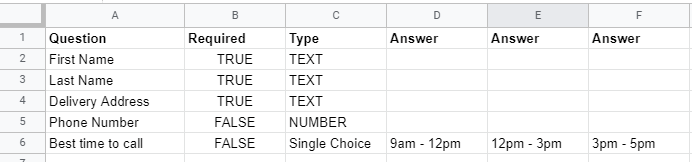
Add all the fields to your spreadsheet, assign each row to a question, and use columns for the field type, whether it is required, and the answer options (and the points, in case of a quiz).
Step 2
Use an add-on to transform your spreadsheet into a form. In Google Sheets, open Extensions, then Add-ons, then Get add-ons, and search for a form builder. Form Builder for Sheets, for example, reads the questions, types and options from your sheet and creates the matching Google Form. Choose one, install it, and see how it works to transfer the cells into form fields.