How to Create a Website Email Form Using Automation
Are you trying to create a website email form? Our guide will show you how to create a responsive website email form within two minutes using FormBuilder.

Before we founded FormBuilder, we’d create forms inside Google Forms. The basic email notification features were fine, but we couldn’t customize the emails, notify the right people, or connect the form to the rest of our tools without extra add-ons.
This is why we built FormBuilder. We wanted to give you email notifications that go to you, your team and the person who filled out the form, plus integrations that pass every submission on to your email marketing tool or CRM.
So if you’re interested in learning how to create an automated website email form within minutes, this guide is for you.
Note: If you’re looking for a form builder that sends automatic emails to you, your team, and your user, then consider signing up for a free FormBuilder account.
Step 1: Log into FormBuilder
To create a website email form, log into your FormBuilder dashboard. If you don’t have a FormBuilder account, you can open one for free without entering any credit card information.
Step 2: Choose a website email form template
Once you’re logged in, FormBuilder takes you to a dashboard that looks like this:
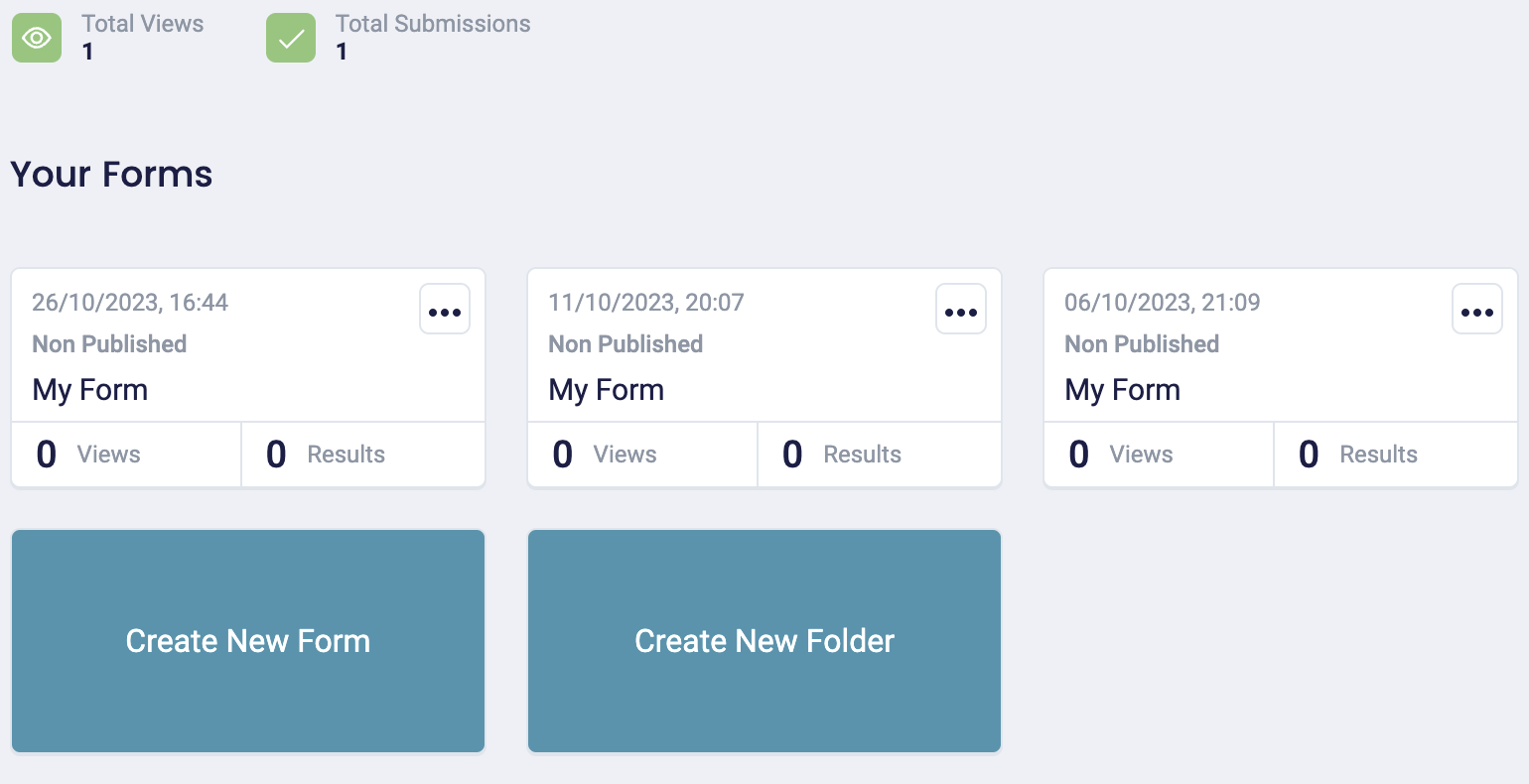
Select the “Create new form” button, and you’ll find templates for contact forms, payment forms, job application forms, surveys, and countless other types of forms.
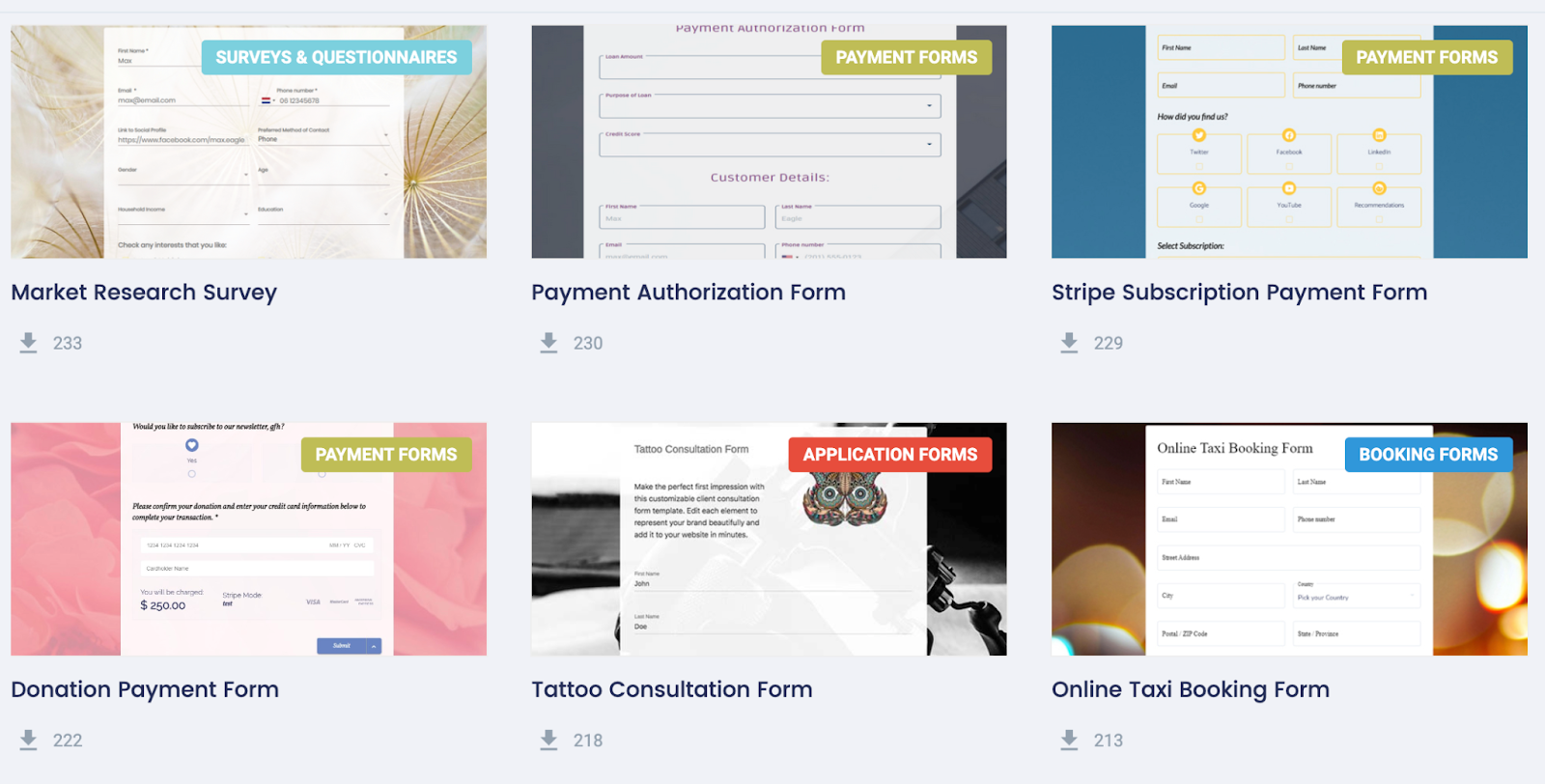
You can choose one of these templates as a base to work from or build a form from scratch.
Step 3: Customize your form using FormBuilder’s easy drag-and-drop functionality
When you select a form template, you’ll land on a dashboard that lets you customize your form.
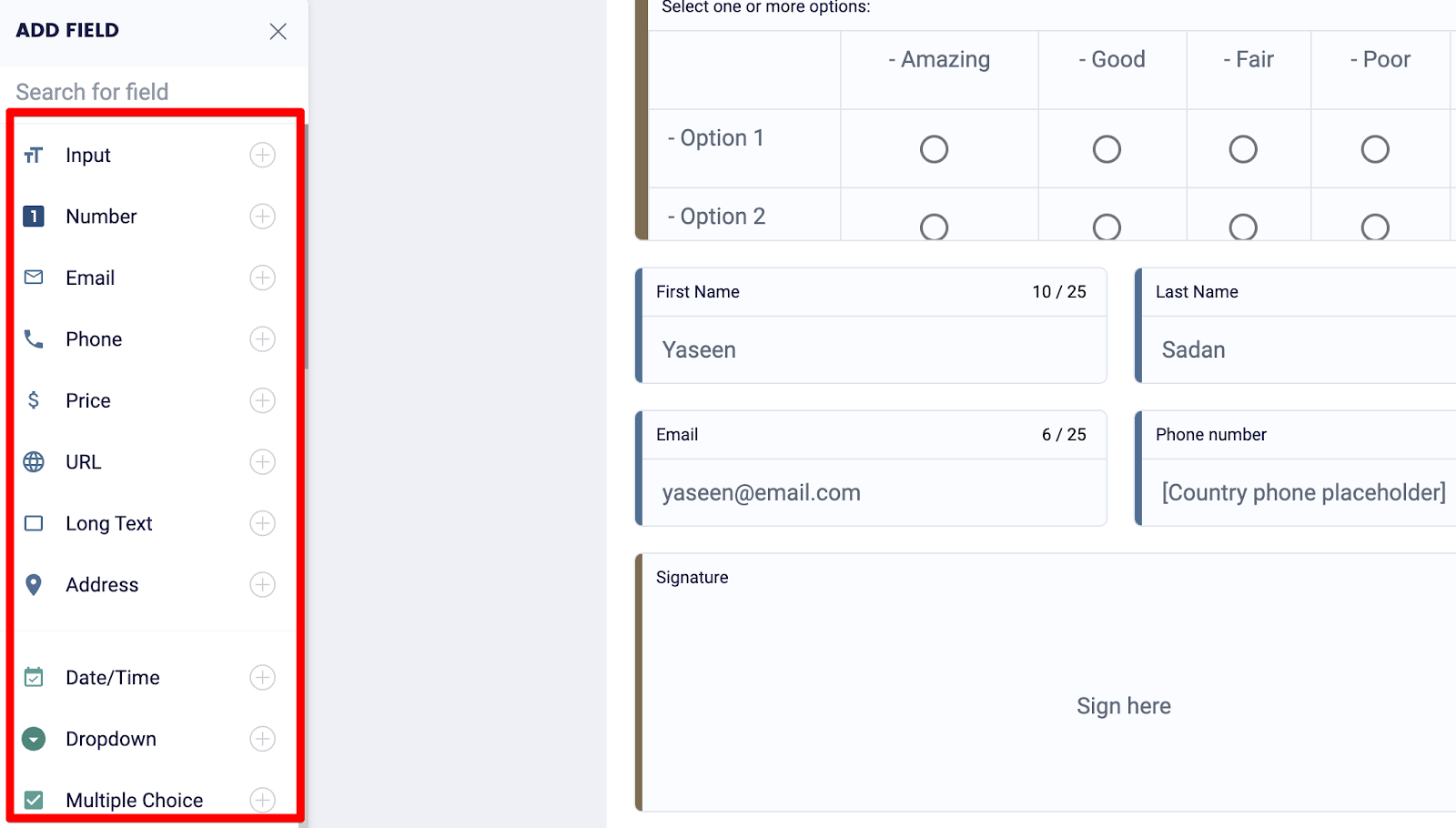
On the left, you’ll find fields for users to add their names, email addresses, credit card details, signatures, file uploads, and more. Feel free to add, remove, or move these fields around depending on how you want your form to look.
For example, let’s say you’re collecting payments within your email form. You could drag and drop a Stripe payment field onto your form and users will be able to add their card details, allowing you to collect payments.
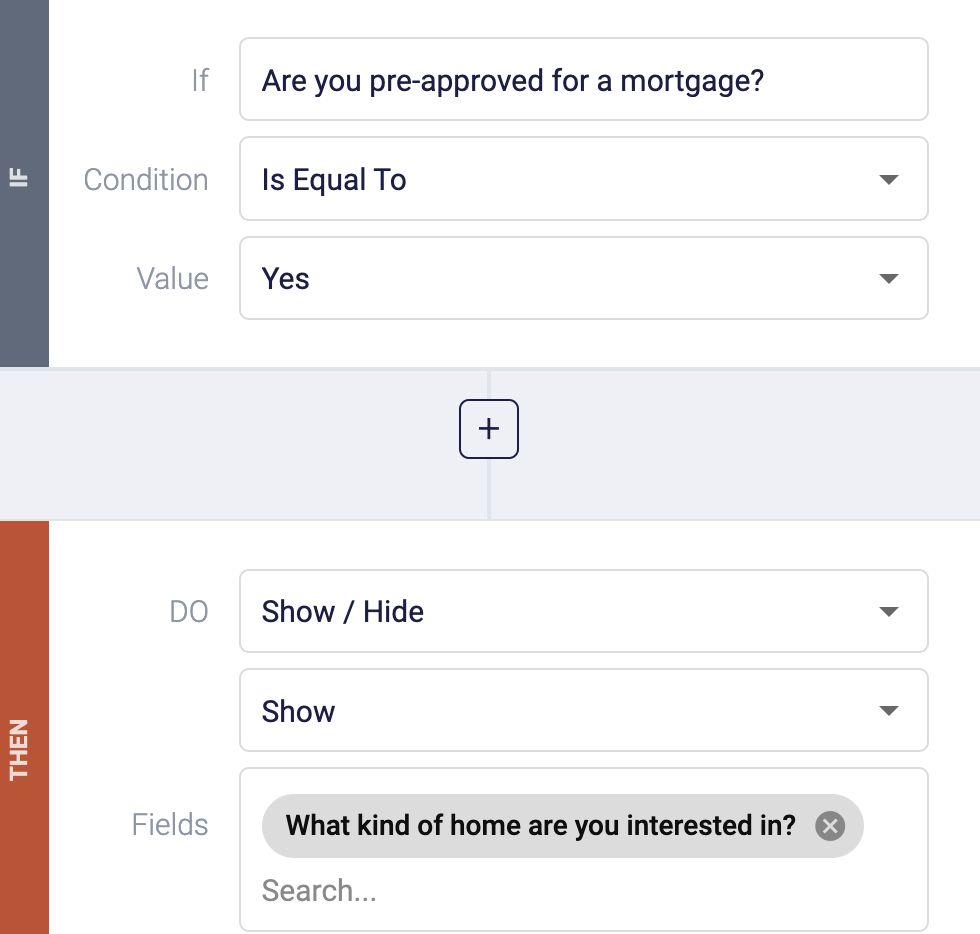
Or, if you want to change the questions you ask users based on what they previously answered, select the icon on the left-hand side of your dashboard with the two arrows, and you’ll be able to add logic rules.
Step 4: Set up email notifications
All our forms come with email notifications.
You can send a new user a confirmation or welcome email as soon as they submit, and let you and your team know someone has filled out your form.
To utilize this function, click the icon with the three dots on the left-hand side of your dashboard, and FormBuilder will direct you to a dashboard that looks like this:
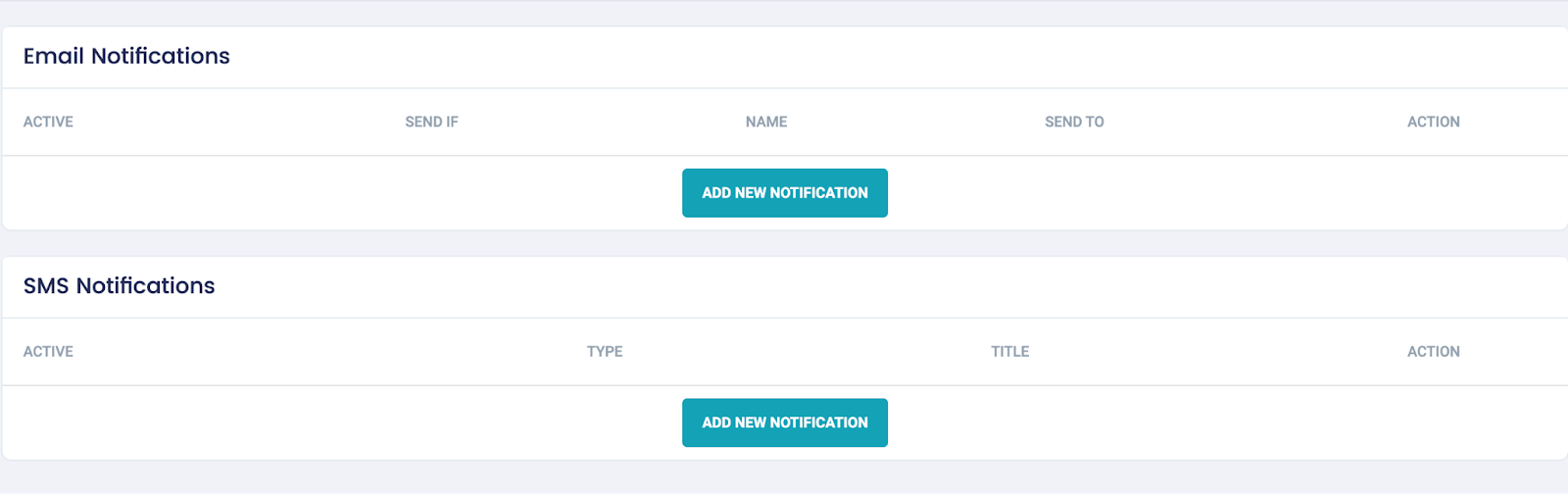
Select “Add new notification” and enter all the details about your message, i.e. the recipient’s email address and your personalized message.
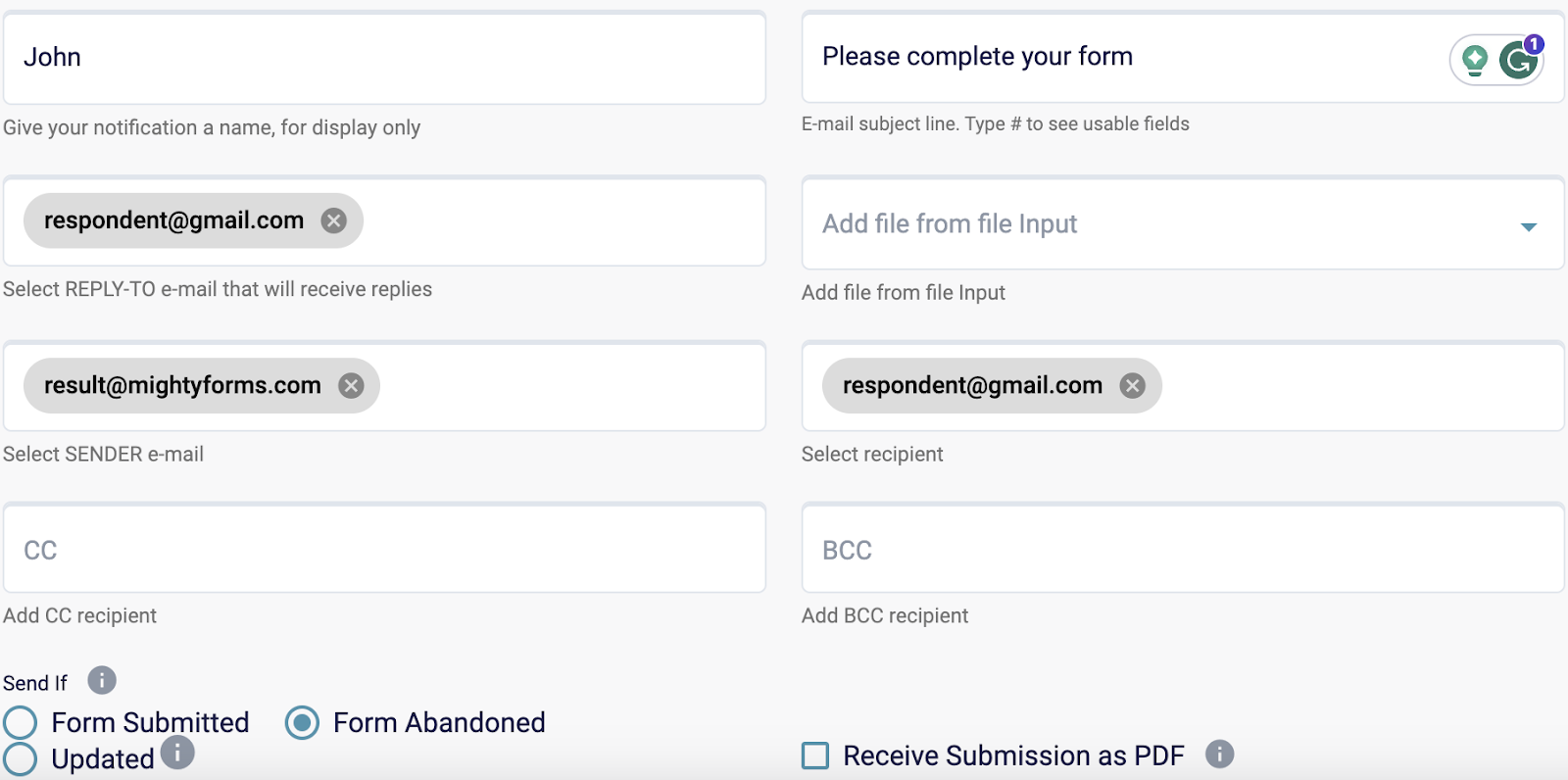
If you want to send different follow-up sequences depending on what a user selected, for example “SEO services” versus “PPC services,” pass the submission to your email marketing tool through Zapier and branch the automation there.
Step 5: Test your form
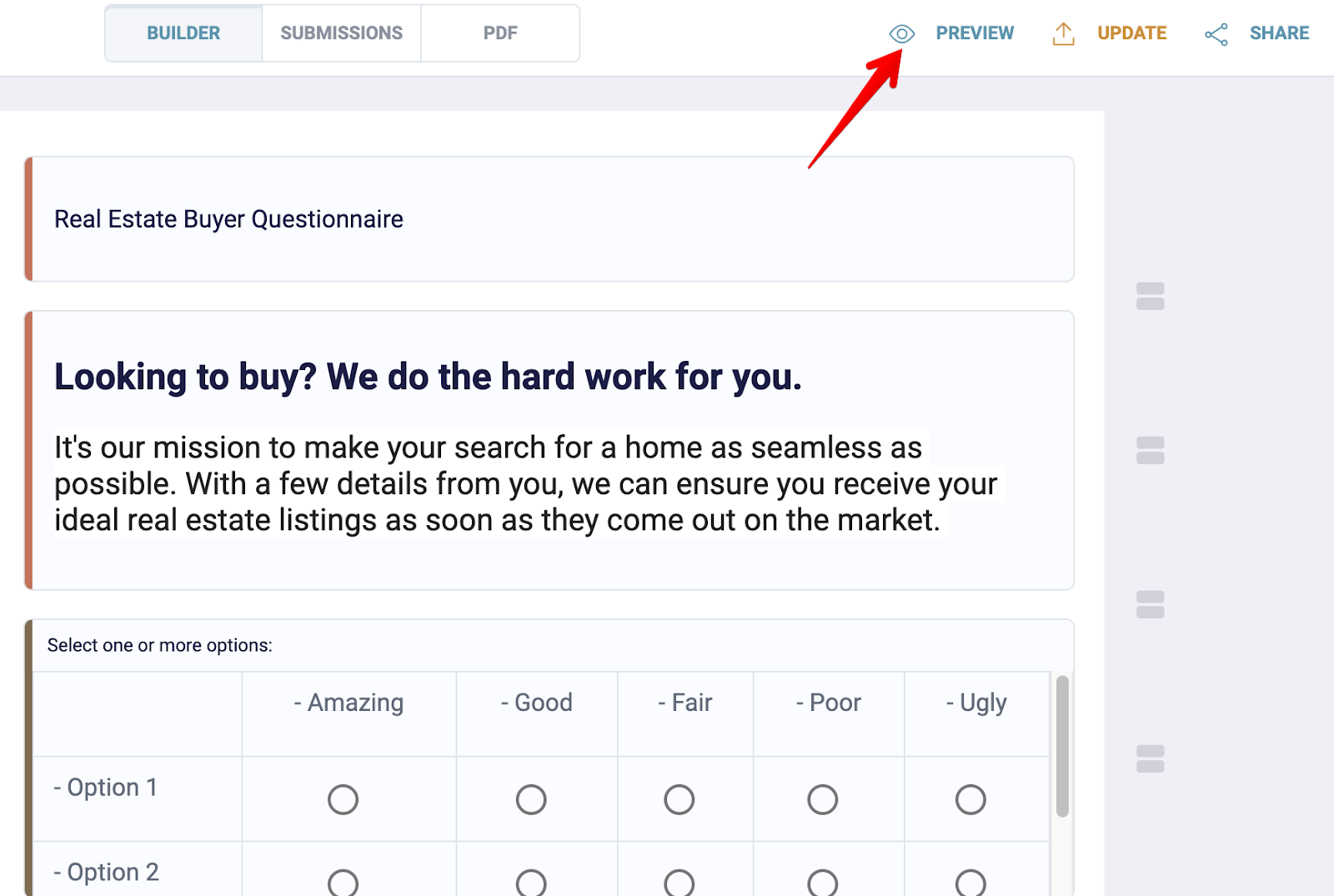
But before you embed your form onto your website, test it by clicking the “Preview” icon in the upper right-hand corner and checking if there are any mistakes.
Step 6: Publish your form on your website
Now it’s time to publish your form on your website, and with FormBuilder, you can do this without having to write a single line of code. The entire process takes less than two minutes.
Navigate to your form, select “Publish,” and FormBuilder will give you an embed snippet that you’ll have to paste onto the page you want to embed your form on.
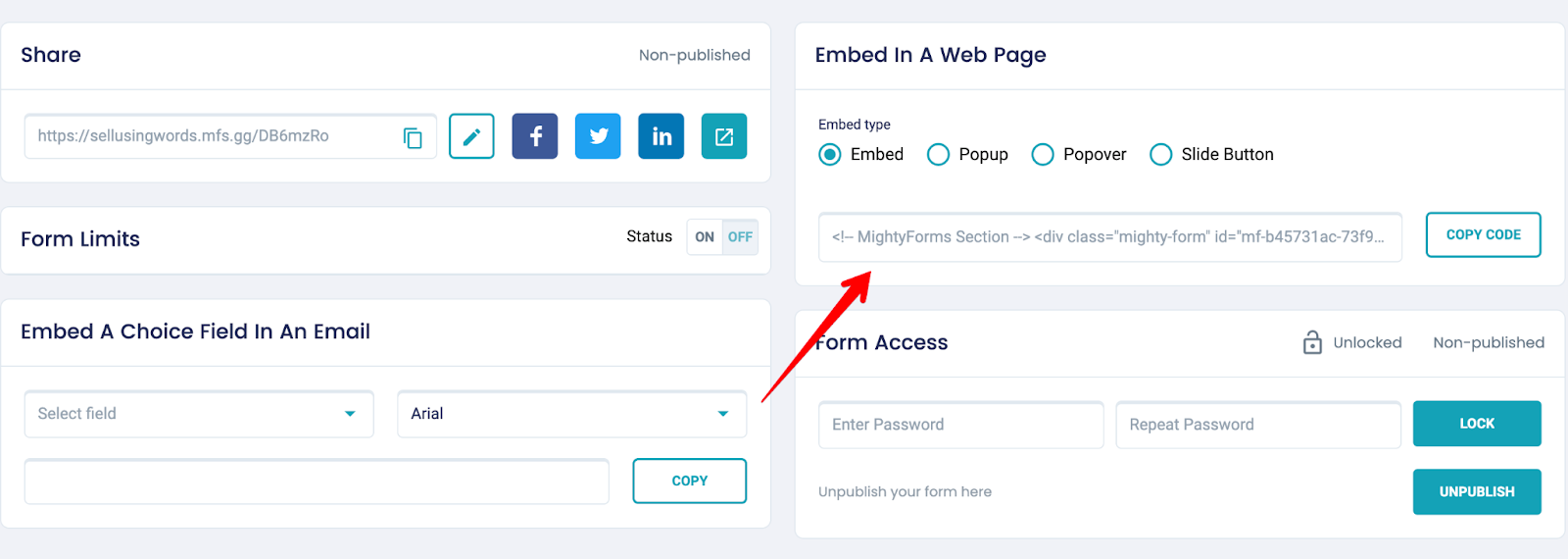
So head to this page, add an HTML block, and paste this snippet.
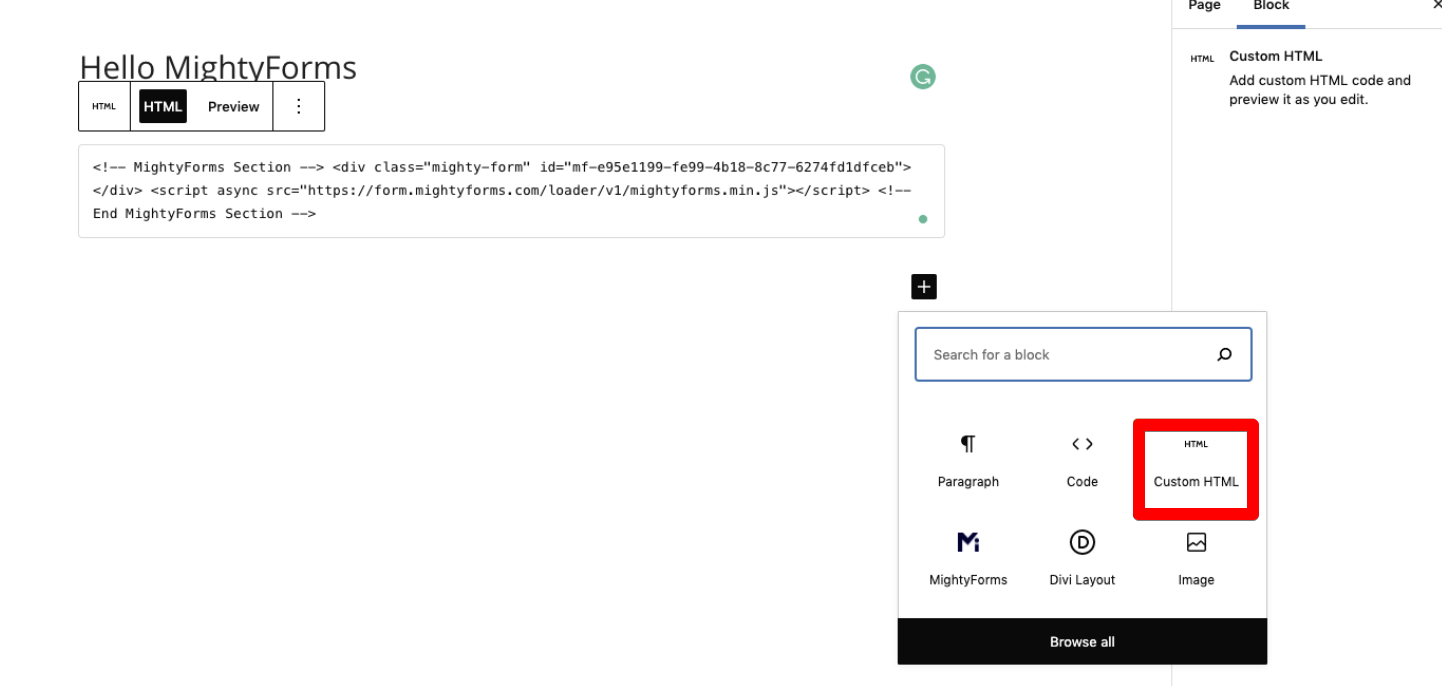
Once you’ve refreshed your website, you’ll find your new form on your webpage.
Step 7: Set up FormBuilder automation
Managing your form responses at scale can quickly get messy. This is why we offer automation features so you can have certain actions automatically take place within other apps when someone submits a form.
For example, if you use Mailchimp for email marketing, you could connect FormBuilder to Mailchimp and have every new email address added to your list, where they’ll receive your newsletter.
Why we believe we’re the best online form builder
In addition to making it easy for you to create and embed website email forms, this is why we believe we’re the best online form builder.
Conditional logic
With traditional form builders like Google Forms and Microsoft Forms, logic is limited. Everyone sees roughly the same questions, so forms run long and people give up.
FormBuilder lets you show, hide or skip questions based on earlier answers, and split long forms into multiple pages, so each visitor only sees what applies to them.
Payment collection
Our secure payment gateway also sets us apart from other online form builders.
Most of our current customers have used Google Forms previously, and they have always complained about the lack of payment collection features. They either had to buy a third-party app or paste a link to their website checkout page.
So when we developed FormBuilder, we built payments on Stripe. Card details go straight to Stripe and never touch our servers. This lets you securely collect payments within your form and have the money go directly to your bank account.
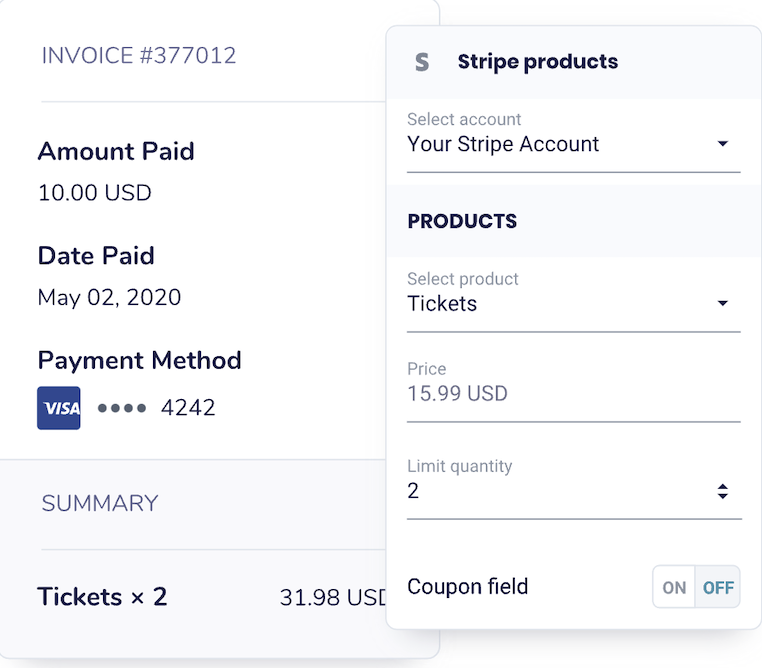
Setting up a payment collection is really easy. All you have to do is select a form on your dashboard, and you’ll see the Stripe payment field on the left-hand side. Drag and drop it onto your form, connect your Stripe account, and the money you collect from users will go directly to you.
Form Analytics
We also give you form analytics. Instead of guessing, you can see how many people view your form and how many submit it, and use that to improve your form’s completion rate.
For instance, if views are high but submissions are low, shorten the form, split it into pages, or make a field like the signature optional.
AI form generator
If you want to skip the drag-and-drop entirely, describe the form you need and the AI form generator drafts it for you, email notifications included. You can then tweak it in the builder.
Next steps
If you’re looking for an online form builder that allows you to easily embed email forms on your websites, sign up for a free FormBuilder account. Pro comes with a 14-day free trial.