How to create a fully visual HTML form online within seconds
In this article, we’ll be guiding you through how you can create an HTML form online within minutes using FormBuilder.

If you’re looking to create an HTML form online without having to code, you’ve come to the right place.
In this guide, we’ll show you:
- How you can embed forms on your website that can collect payments, signatures, contact information, and customer feedback, all without writing a single line of code.
- How you can connect your form to third-party applications like Google Sheets and Trello and have actions happen automatically inside their applications when someone submits a form.
- How you can have AI create a form for you by typing a simple prompt into a chat box.
Note: We're FormBuilder and our goal is to fix everything we believe is wrong with the form building industry. In addition to making it easy to embed forms on your website, we let AI draft your form from a sentence and import forms you already have from a PDF, a URL, Jotform or Typeform. So if you’d like to skip this guide and get a first-hand idea of what FormBuilder can do, sign up for a free account. You don’t have to enter your credit card details.
Step 1: Create a form or select an existing one
For this guide, we'll be using FormBuilder to create an HTML form because the entire process takes less than five minutes, and there's no coding required.
Begin by logging into your FormBuilder account, and you'll find a dashboard that looks like this:
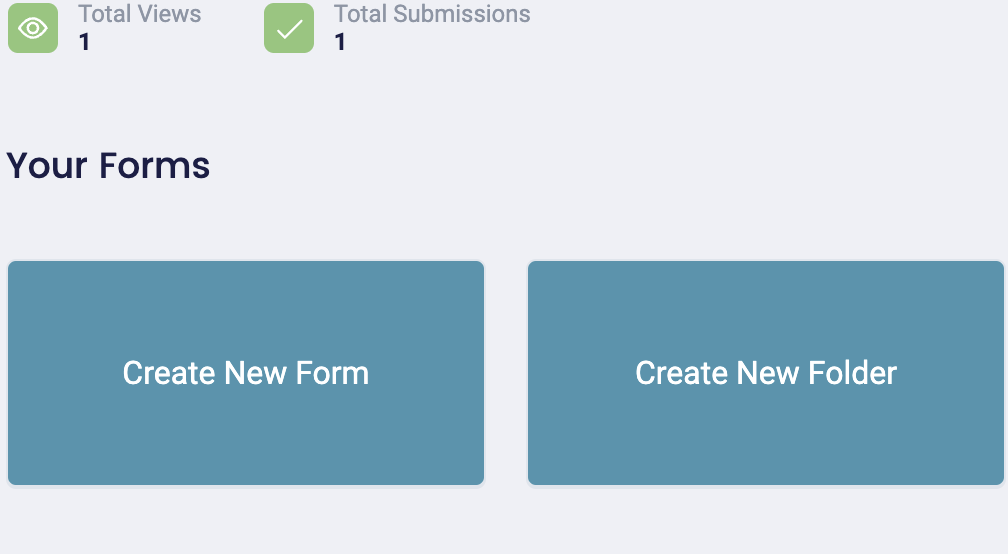
You can create a form from scratch or choose an existing form.
If you're creating one from scratch, click "Create New Form," and FormBuilder will take you to this dashboard.

Choose a template you'd like to use for your form, or you could ask the AI to create a form for you by clicking the "Create with AI" icon.

Simply type a prompt into the input field, and FormBuilder will produce an output.
In the example below, we typed “Create an NPS form asking my customers five questions about my hiring software,” and FormBuilder produced this form:

You can get more detailed by giving the AI a description of your product and its features, talking about your target audience, and mentioning the type of information you want to collect.
Step 2: Customize your form design
Once you've selected a template or had the AI produce a form for you, you'll be taken to the editor dashboard.
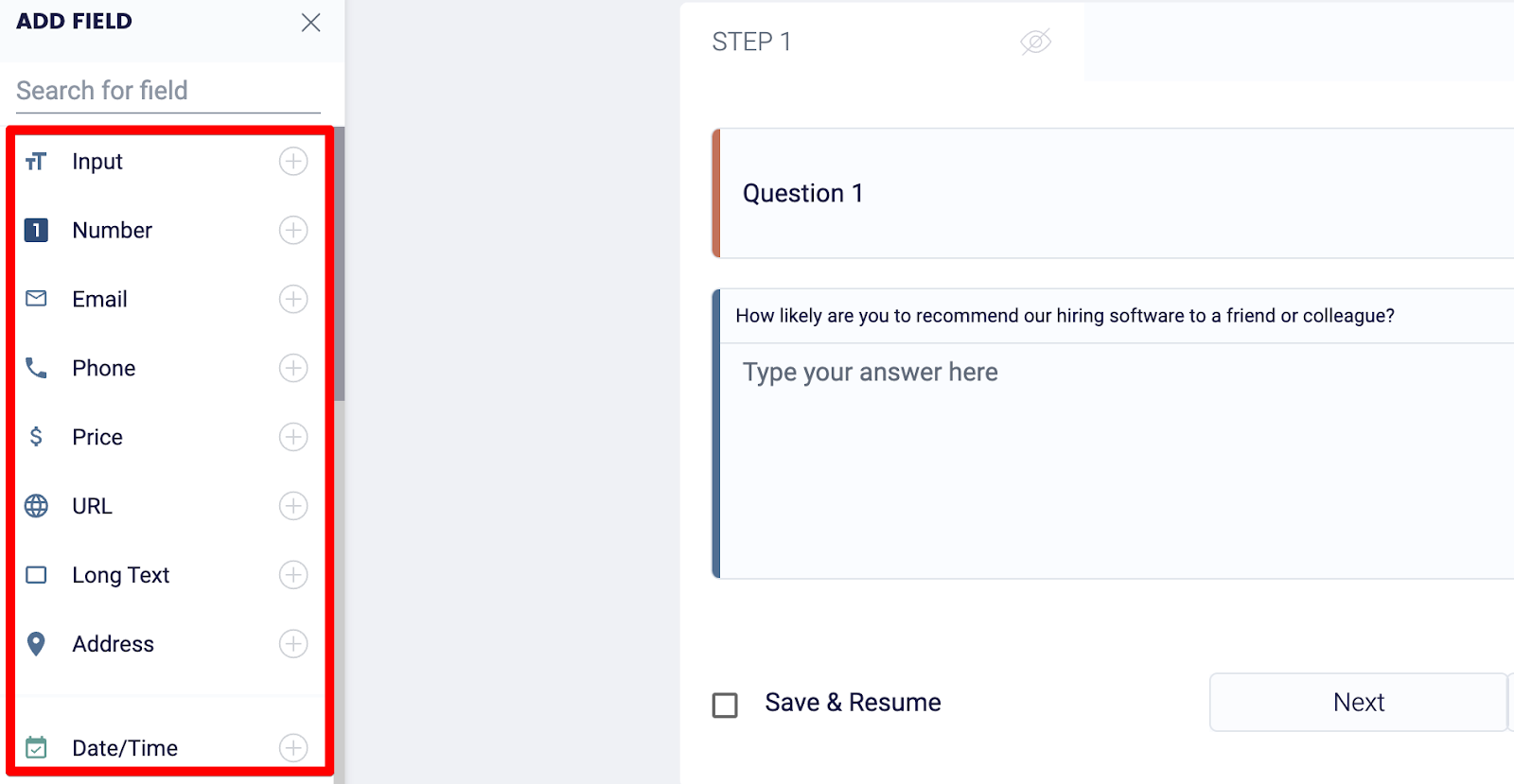
Here, you can add various types of questions and change the layout of your form.
For example, if you want to collect payments from customers, you can drag and drop a Stripe payment field from the left-hand side. Signature, file upload, star rating and calculation fields are there too.
When you're happy with all the questions in your form, click the paintbrush button to customize the design.
On the left, you'll find a bunch of themes that you can add.
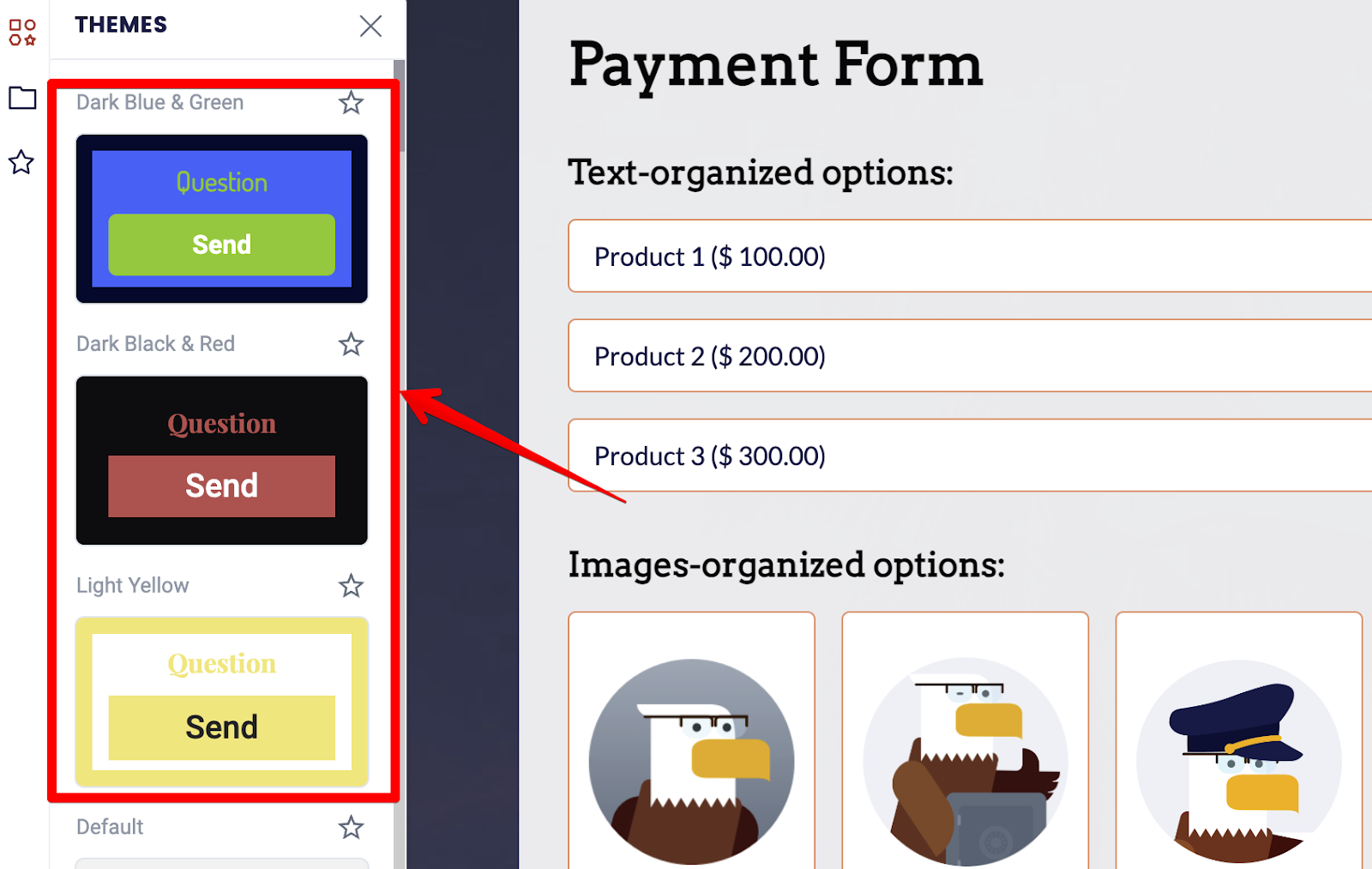
On the right, there are more advanced settings allowing you to change the font size and style, customize the border, add a background image, and more!
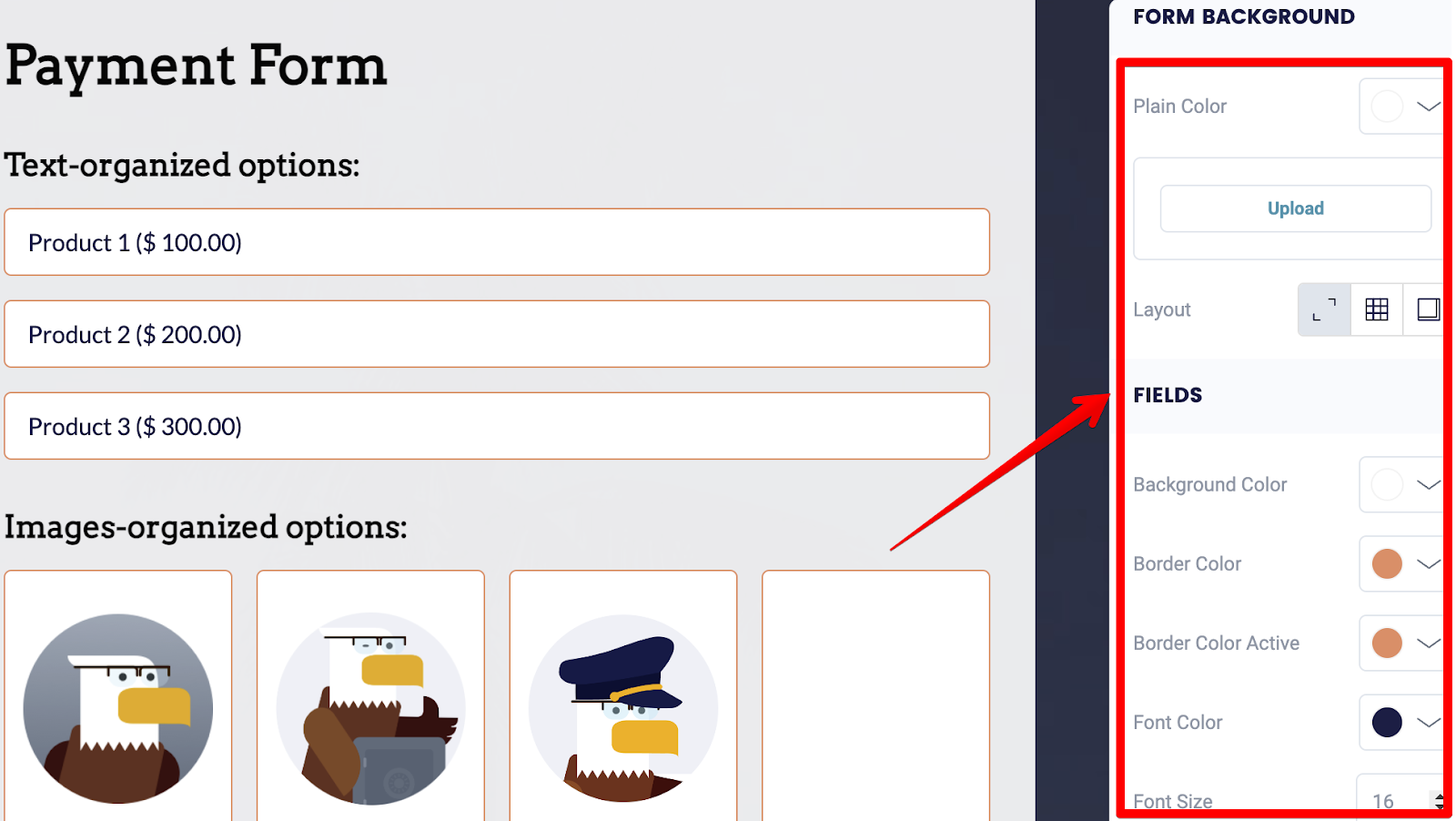
Step 3: Generate the HTML code
Once you're satisfied with how your form looks, click the "Publish" button in the top right-hand corner, and this saves all your changes.
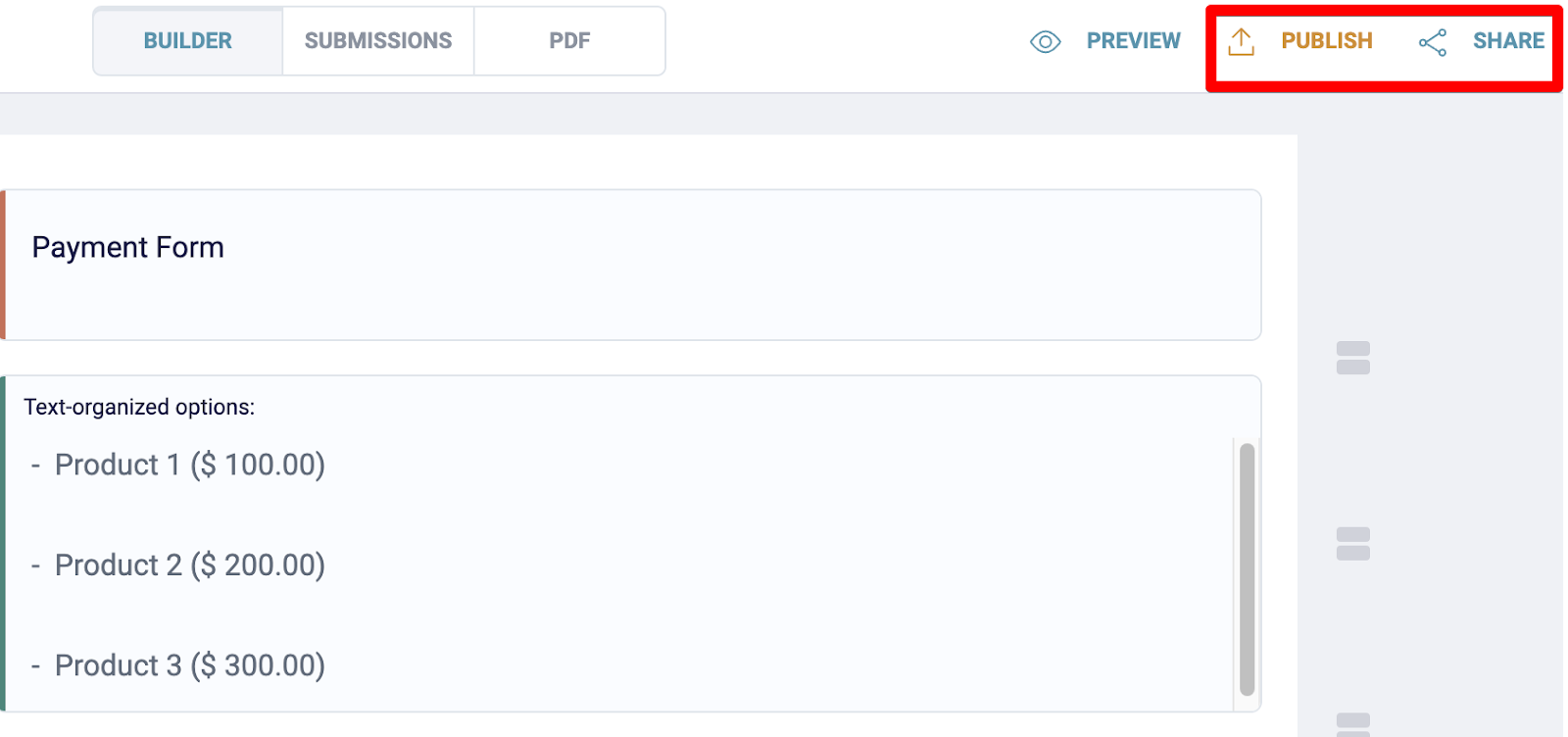
Next, click the "Share" button, and you'll find various ways to share your form:
- Embed on website
- Share via email
- Share via link
For this guide, we'll be using the "Embed on Website" code snippet. Copy this snippet and head over to your website editor (we'll use WordPress as the example, but the same snippet works on Wix, Squarespace, Shopify, Webflow or a plain HTML page). Our publish, share and embed guide covers every option.
Step 4: Add the HTML code to your website
Go to the page you'd like to add your visual HTML form to, right-click inside your editor, and add a custom HTML block.
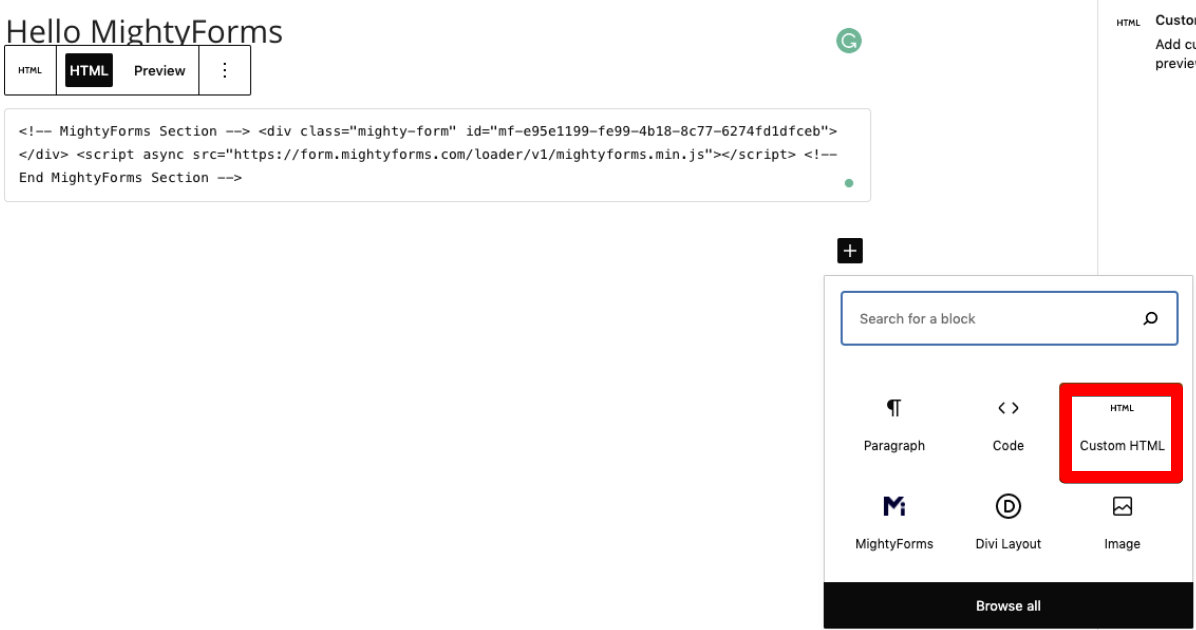
Paste the FormBuilder code snippet inside this code block, save your changes, and you'll find your visual HTML form when you land on the front end of your website. No plugin is needed, and if you edit the form later in FormBuilder, the embedded version updates on its own.
Step 5: Connect to third-party applications
FormBuilder connects natively to Google Sheets and to any app that accepts webhooks, and connects to thousands of other applications via Zapier.
So, for example, if you want to store your form data inside a spreadsheet but you don’t want to manually copy and paste every response, simply connect FormBuilder to Google Sheets. You can do this from your form's settings.
Select Google Sheets and you’ll be prompted to log into your Google account.
Once logged in, FormBuilder will send all form data to your spreadsheet where you can look through it and share it with your team.
Although we used Google Sheets as an example, connecting Trello, Slack or a CRM through Zapier follows the same idea: pick the app, sign in, and choose what happens when a response comes in.
Step 6: Track your HTML form's analytics
Once you've published your visual HTML form, head back into your FormBuilder dashboard and on top of your screen, you'll find a "Submissions" button.
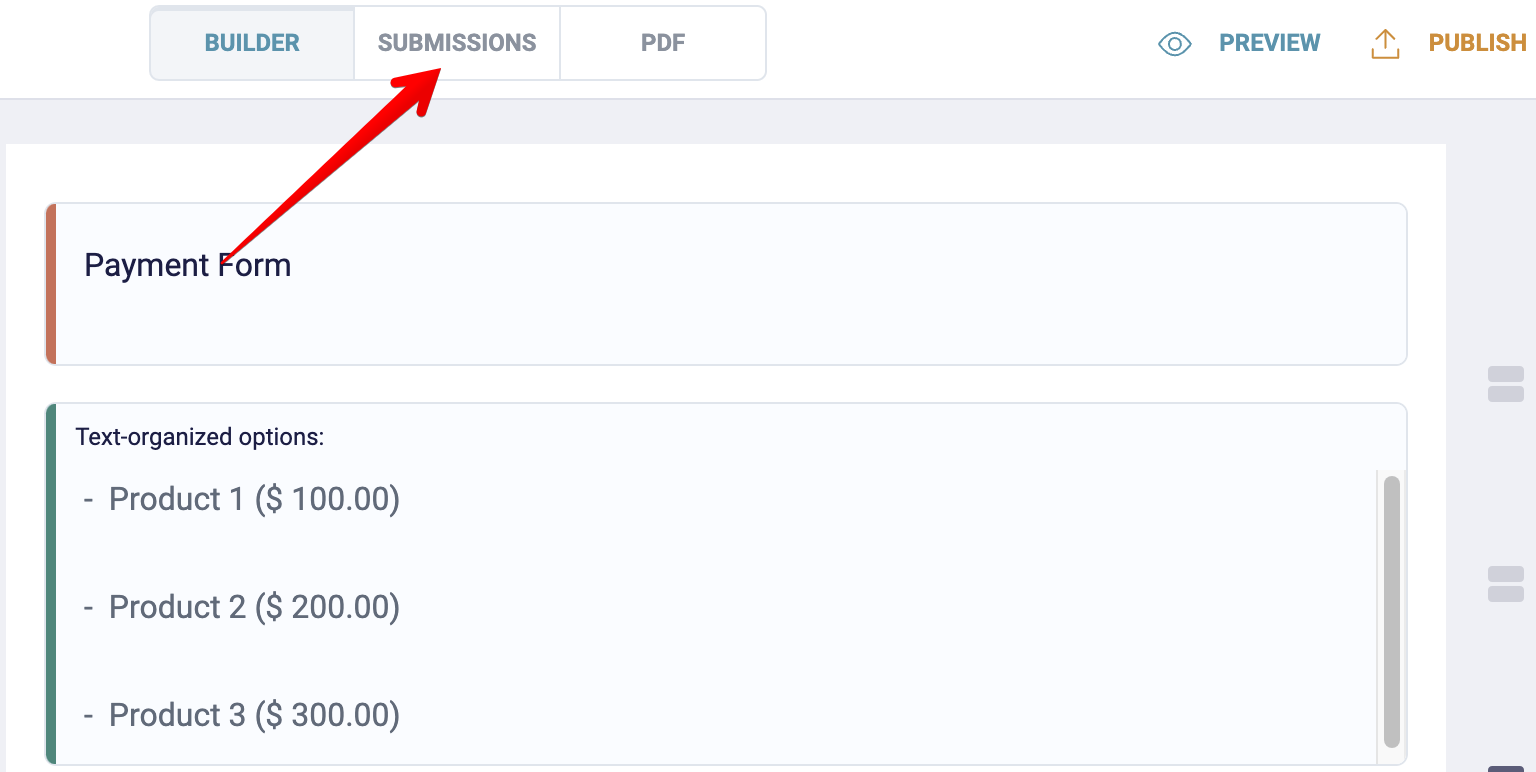
This gives you access to your responses and to form analytics; you can see how many people viewed your form, how many started it, and how many completed it, so you know your completion rate at a glance.
If a lot of people start but few finish, the usual fixes are shortening the form, making optional fields optional, or splitting it into a multi-page form.
What sets FormBuilder apart from other online form builders?
These are a couple of factors that we believe set FormBuilder apart from most online form builders:
- Import from PDF, URL, Jotform or Typeform
- Conditional logic and multi-page forms
- Payment collection
- Survey templates
- AI form builder
Import from PDF, URL, Jotform or Typeform
With FormBuilder, you don't have to rebuild a form you already have. Upload a PDF, paste the URL of an existing form, or import straight from Jotform or Typeform, and FormBuilder turns it into an editable form.
This makes it easy to move a paper process online, or to switch from another form builder without starting over.
Conditional logic and multi-page forms
Many users also like conditional logic because it keeps forms short. Show or hide questions based on earlier answers, so each respondent only sees the fields that apply to them.
Combine it with multi-page forms and a long application or intake form turns into a few short steps, which is the simplest way to raise completion rates.
Payment collection
You can also collect payments inside your form and have the funds go directly to your bank account.
All you have to do is drag and drop the Stripe field onto your form. Connect your Stripe account, and you’ll be able to collect payments from your customers.
This is a major limitation with Google Forms and other form builders. They don't have the security features needed to collect payments. You'll have to paste a link to your website checkout page, which adds extra steps to the process, ultimately increasing bounce rates.
Survey templates
If you want to measure your product’s NPS (Net Promoter Score) or customer satisfaction, you can do so within minutes by starting from one of the feedback templates inside FormBuilder and publishing it on your website.
Use a star rating or range slider field for the score question, then send responses to Google Sheets so the average updates itself every time someone completes your survey.
This way, you don’t have to manually crunch the numbers to calculate your NPS.
AI form builder
The last differentiating factor between FormBuilder and the alternatives is the AI form builder.
FormBuilder uses AI to speed up the time it takes you to build a form. Simply tell the AI what type of form you want, what information you want to collect, and how you want your form to look, and the AI will create one for you within seconds.
From here, you can tweak the form by changing some of the questions, moving the headings around, and adding a background image.
Next steps
If you want to create an HTML form online without having to write code or go through a long setup process, sign up for a free FormBuilder account.