Top 5 Best Software for Teachers to Use in 2026
We’ve tested countless tools and compiled a list of the five best software for teachers to use. We’ll also show you how you can use these tools in your daily life.

We compiled this list by first looking at the tasks that take the most time out of your day, such as creating lessons and tests and grading papers. We then tested tools that can potentially speed up these processes and chose the five best options.
Unlike the other articles on the internet, which give you a basic summary of 50+ random software for teachers to use, we'll actually show you how you can use these tools to make your life easier.
- FormBuilder: For creating self-grading quizzes
- Google Classroom: For collaborating with students
- Kahoot!: For gamifying tests
- Prezi: For creating interactive lessons and presentations
- WeTransfer: For transferring large files
Note: FormBuilder is our own tool, but we tried our best to compile a review that’s honest and transparent. That said, our quiz builder lets you create self-grading quizzes within minutes so you don’t have to grade student papers yourself. So if you’re thinking about using a self-grading quiz builder, consider starting a free FormBuilder account.
1. FormBuilder: For creating self-grading quizzes
Pricing: Free plan with 5 active forms and 100 responses per month, no credit card. Pro is $39 per month with a 14-day free trial. Prices checked September 2026.
When we built FormBuilder, we wanted to give you the ability to create quizzes and tests that grade themselves, so you won't have to spend hours grading student tests. The same builder handles permission slips, sign-up sheets and feedback forms, and keeps every answer in one place so you spend less time on admin.
Mark the correct answer and assign points to each question in your test. Once a student has completed it, FormBuilder adds all their points together automatically and shows them their final score. Every response also lands in your FormBuilder dashboard and, if you connect the native Google Sheets integration, in a spreadsheet.
Below, we'll dive deeper into how FormBuilder's self-grading tests can help you save time.
Create a self-grading quiz
Creating a self-grading quiz inside FormBuilder takes less than two minutes.
First, log into your FormBuilder account. If you don't have a FormBuilder account, you can sign up without entering any credit card information.
Once logged in, create a new form. Pick the Quiz template from the templates library, or describe the quiz to the AI form generator (“10-question multiple choice quiz on the water cycle for grade 6”) and get a draft in seconds.
Both starting points are fully customizable, so you can use them to create tests in any subject: math, physics, biology, history, you name it!
Customize your form
In the builder, you'll find all the field types you can add to your test on the left.
You can add, remove, and move these fields around depending on which questions you want to ask first and how you want your quiz to look.
For each question, mark the correct answer and set how many points it is worth. That is all FormBuilder needs to grade every submission for you.
To customize the look of your test, open the design settings. This lets you change your font, background image, color scheme, button design, and everything else about your test.
Split long tests into pages and adapt questions
Turn a long test into a multi-page form so students see a few questions at a time and a progress bar instead of one endless page.
With conditional logic, you can show follow-up questions only when they apply. For example, IF a student picks “I need more time”, THEN show a box asking what they found difficult.
Once the student submits, FormBuilder automatically calculates the total and shows the student their final score, then your thank-you page, which can include a message, a link to the answer key, or a redirect to your class site.
Choose from many types of questions
You can add almost any type of question to your quiz. This includes:
- Short answer and long answer questions
- Multiple choice questions
- Single choice and dropdown questions
- Star rating and range slider questions
- Date and number questions
- File upload questions for homework submissions
- Signature fields for permission slips and consent forms
All you have to do is look for the specific question field on the left-hand side of your builder and drag and drop it onto your test.
In addition to these question options, you can add images and text blocks between questions to help students understand them better.
Connect FormBuilder with other apps inside your workflow
You can also automate a large chunk of your workflow using FormBuilder integrations.
By connecting FormBuilder to Google Sheets, or to Google Classroom and your SIS tool through Zapier, you can have specific actions happen automatically inside these tools when a student completes a test.
For example, if you're using a SIS tool to keep track of student grades during the year, you can connect FormBuilder to it through Zapier so it automatically documents your student's new test results.
Or, let's say you need to schedule parent-teacher meetings. You could send a scheduling form to your students' parents and connect this form to Google Calendar through Zapier. So when a parent books a slot, it's automatically tracked inside your Google Calendar. Set up email notifications so you hear about each booking right away.
2. Google Classroom: For collaborating with students
Pricing: Free with Google Workspace for Education Fundamentals.
Another good software for teachers to use is Google Classroom. It’s a free learning platform that acts as a central hub for teachers and students to share files. This allows you to create and assign student assignments under one digital roof.
From a student's point of view, they can log into their Google Classroom account, accept your invitation, and on their dashboard, they'll find the tasks and resources you assigned to them.
Here's how you can begin using Google Classroom:
- Log into Google Classroom
- Invite your students
- Communicate inside the stream
- Create an assignment
Log into Google Classroom
To log into Google Classroom, simply type Classroom.Google.com into your browser, and you'll see a dashboard that looks like this:
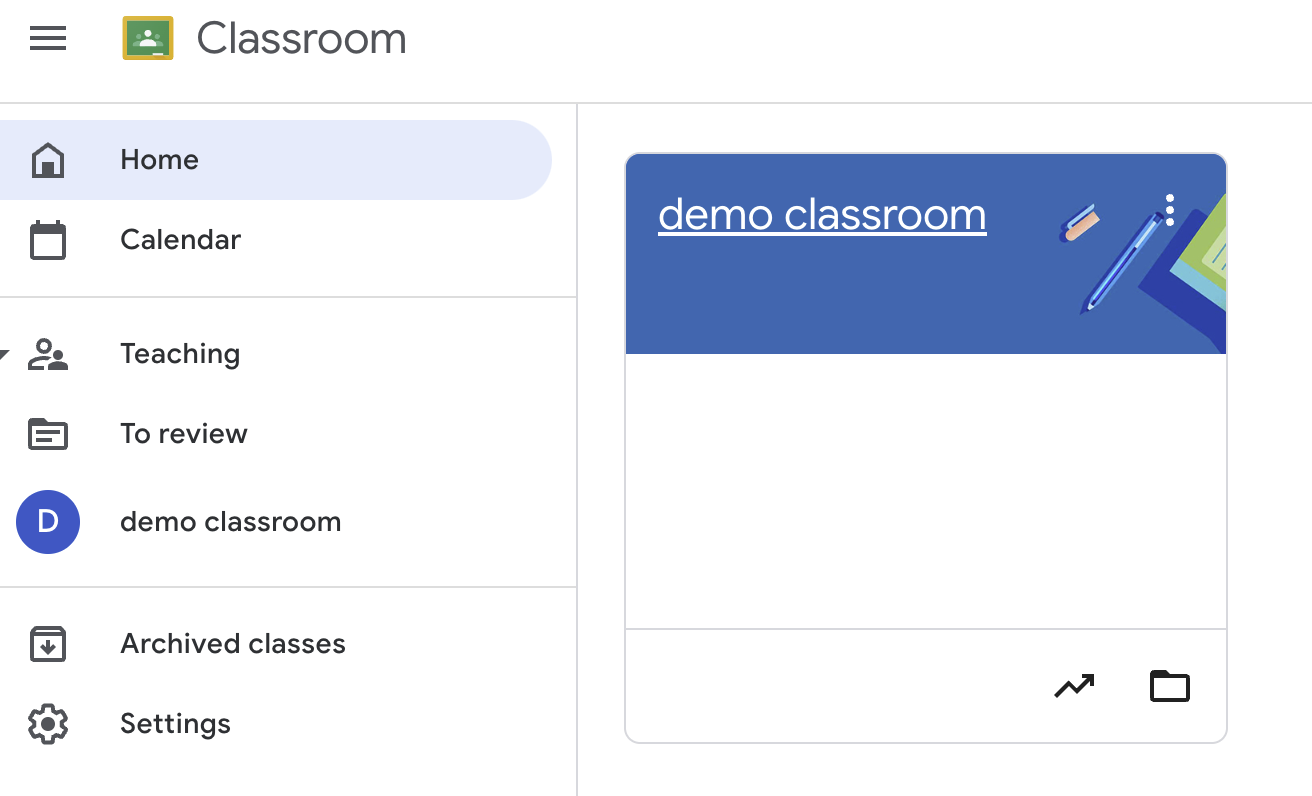
Create a new class by clicking the + button and giving your class a name.
Every new class that you create appears on your dashboard. So, you can create a Google Classroom for each of your classes, and students can communicate inside their respective class.
Invite your students
To invite your students, go into your class, copy the class code you see on the left, and send this code to your students via email or text.
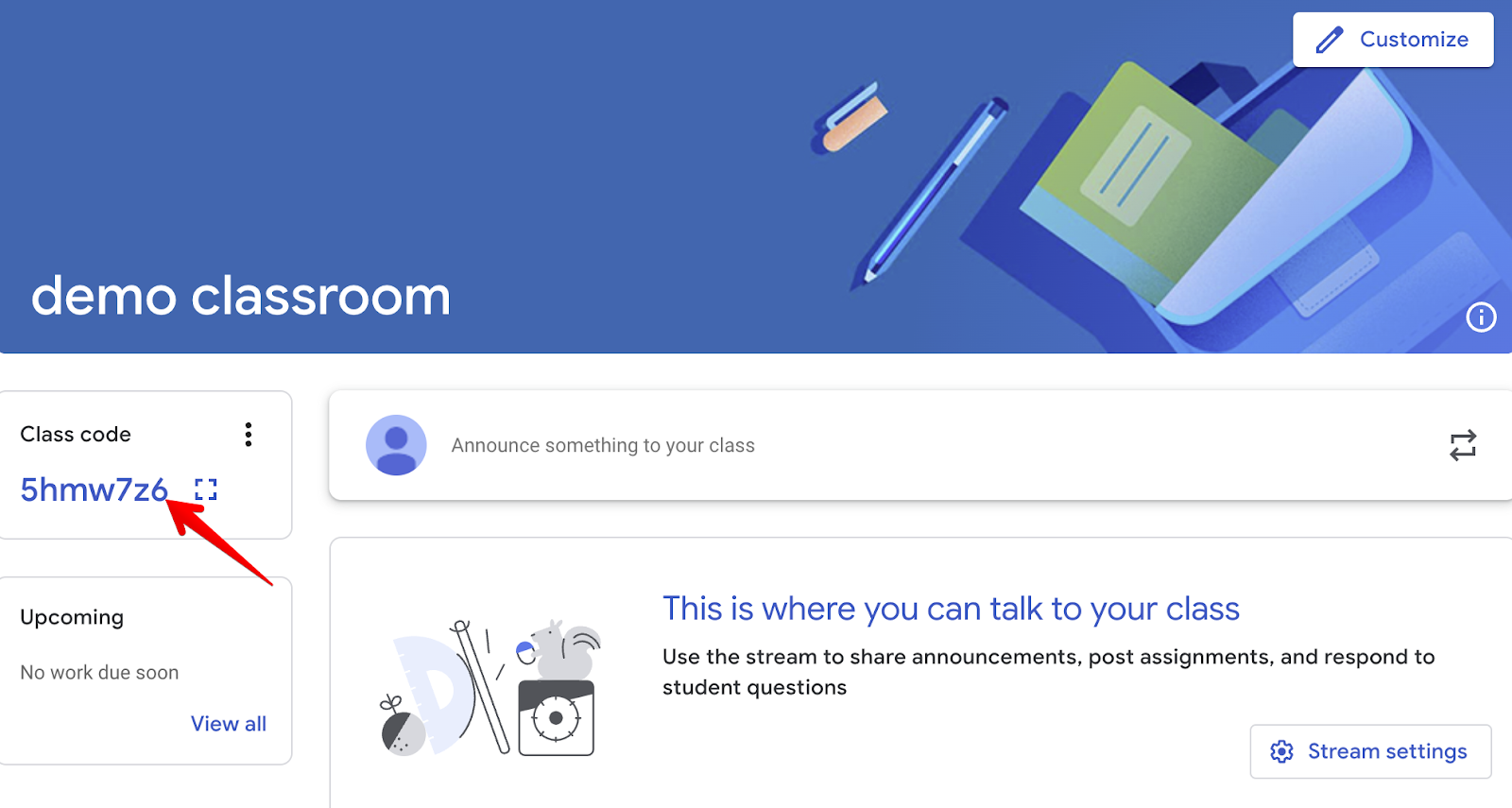
All they have to do is select "Join Class" on their dashboard and paste in this code.
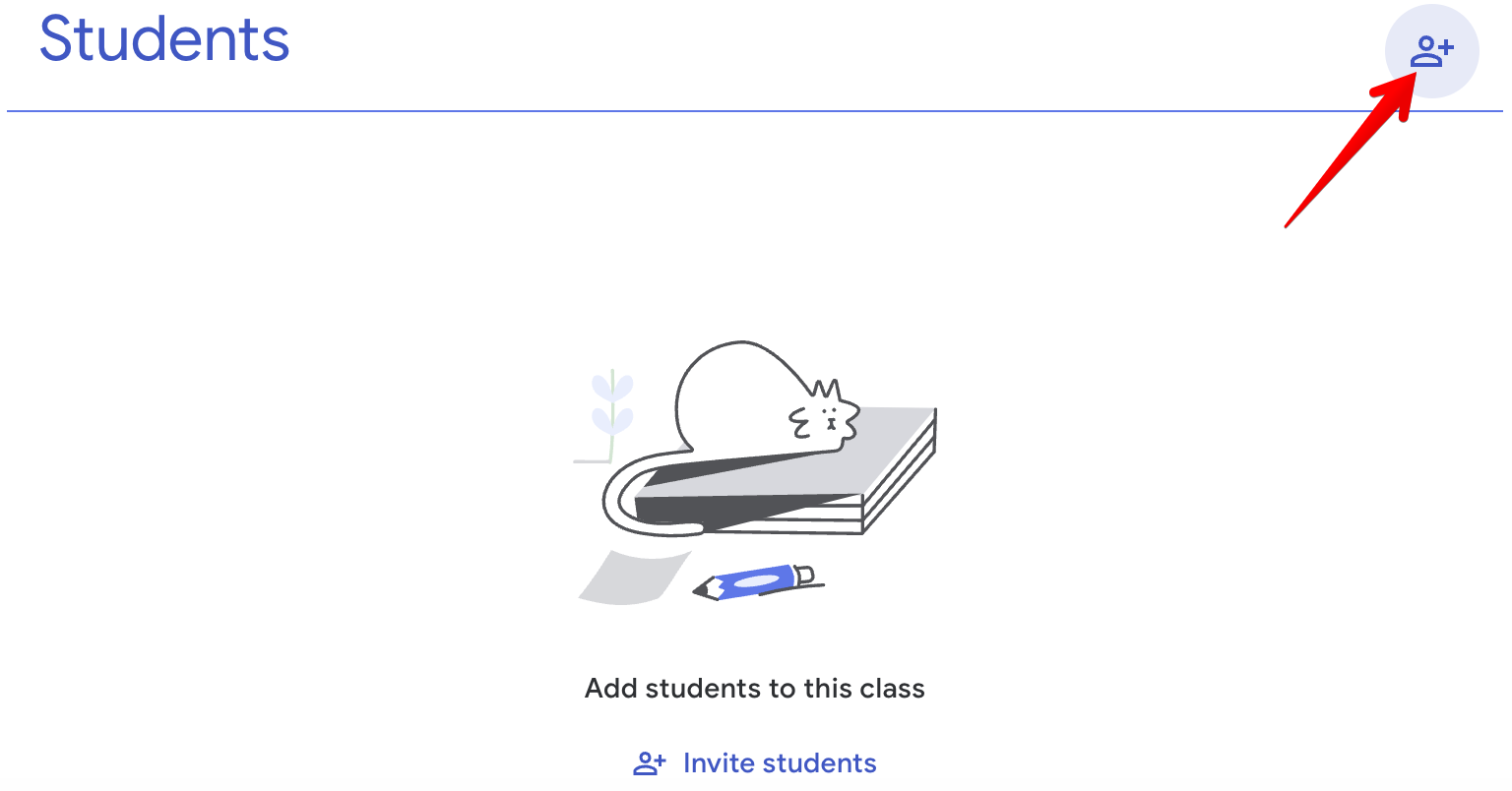
Alternatively, you can head over to the "People" tab, hit the + icon, enter your students' email addresses, and Google Classroom will email them an invite.
Communicate inside the stream
The first tab on your dashboard is the streaming tab, where you'll communicate with your class.
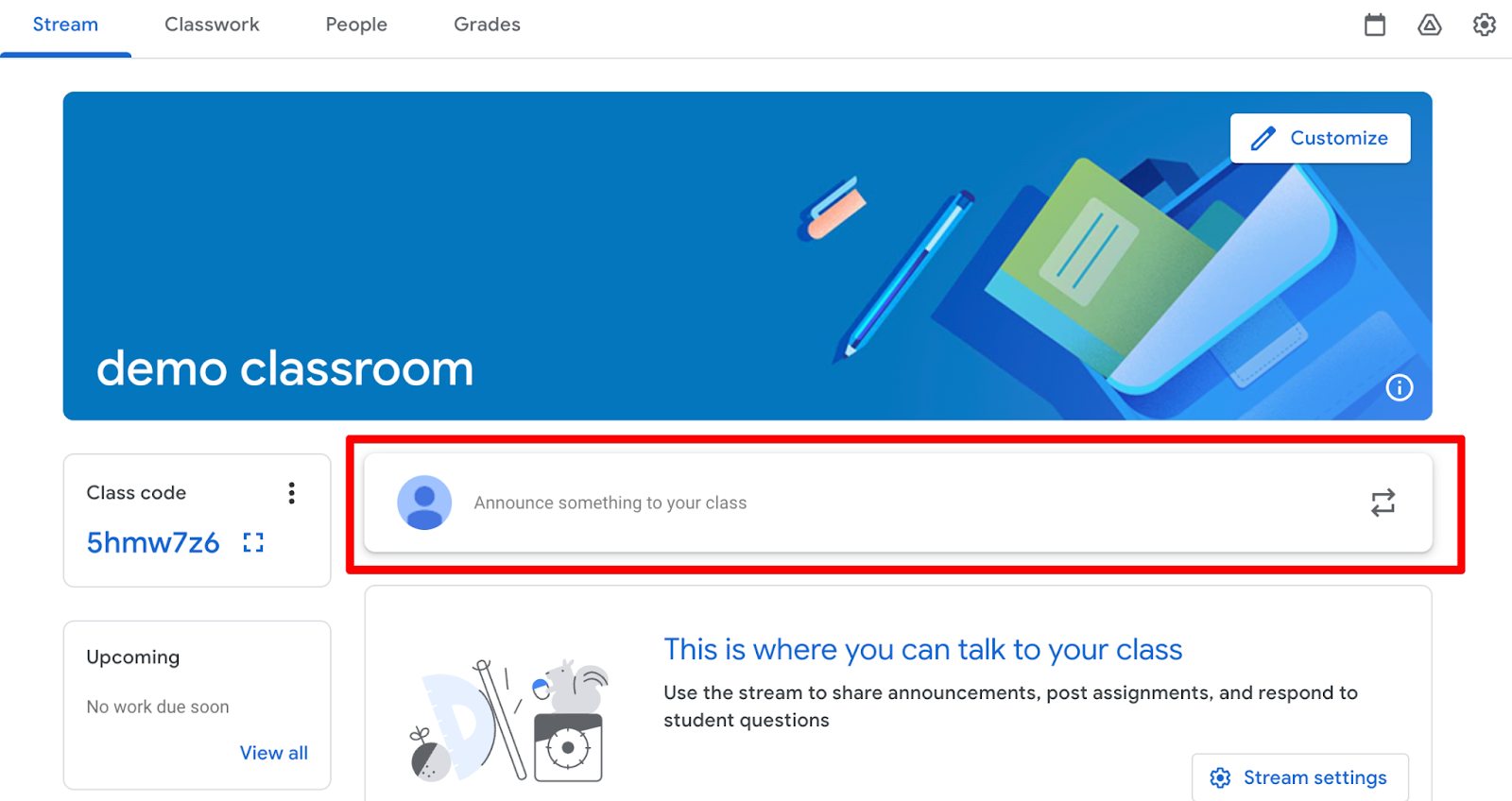
You can send over announcements or tell everyone about a new website, resource, or YouTube video they should check out.
Students can also respond to your messages, ask questions, and attach media they want the rest of the class to see.
Create an assignment
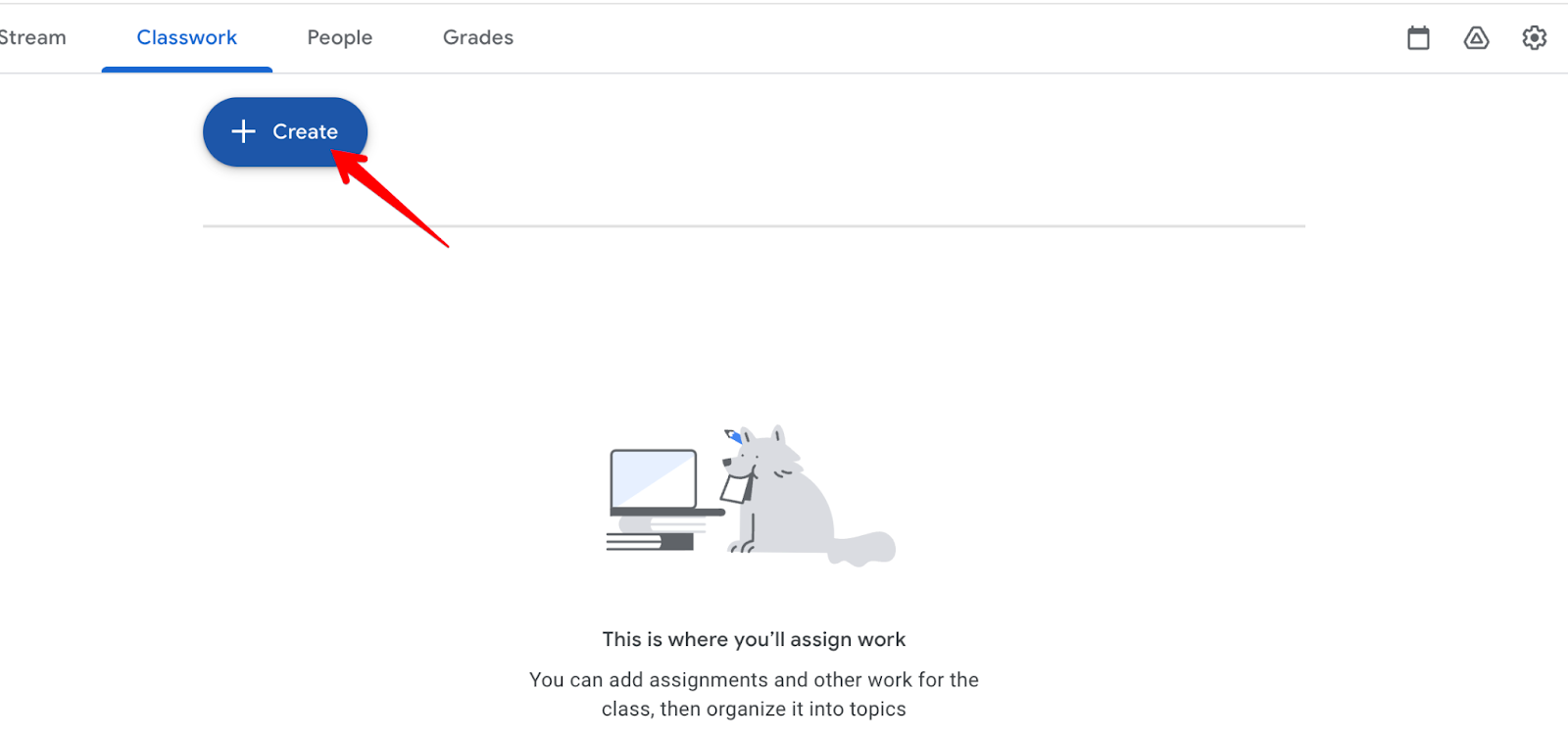
To create an assignment, go to the classwork tab and click "Create."
Give your assignment a name and provide students with some instructions for completing the assignment.
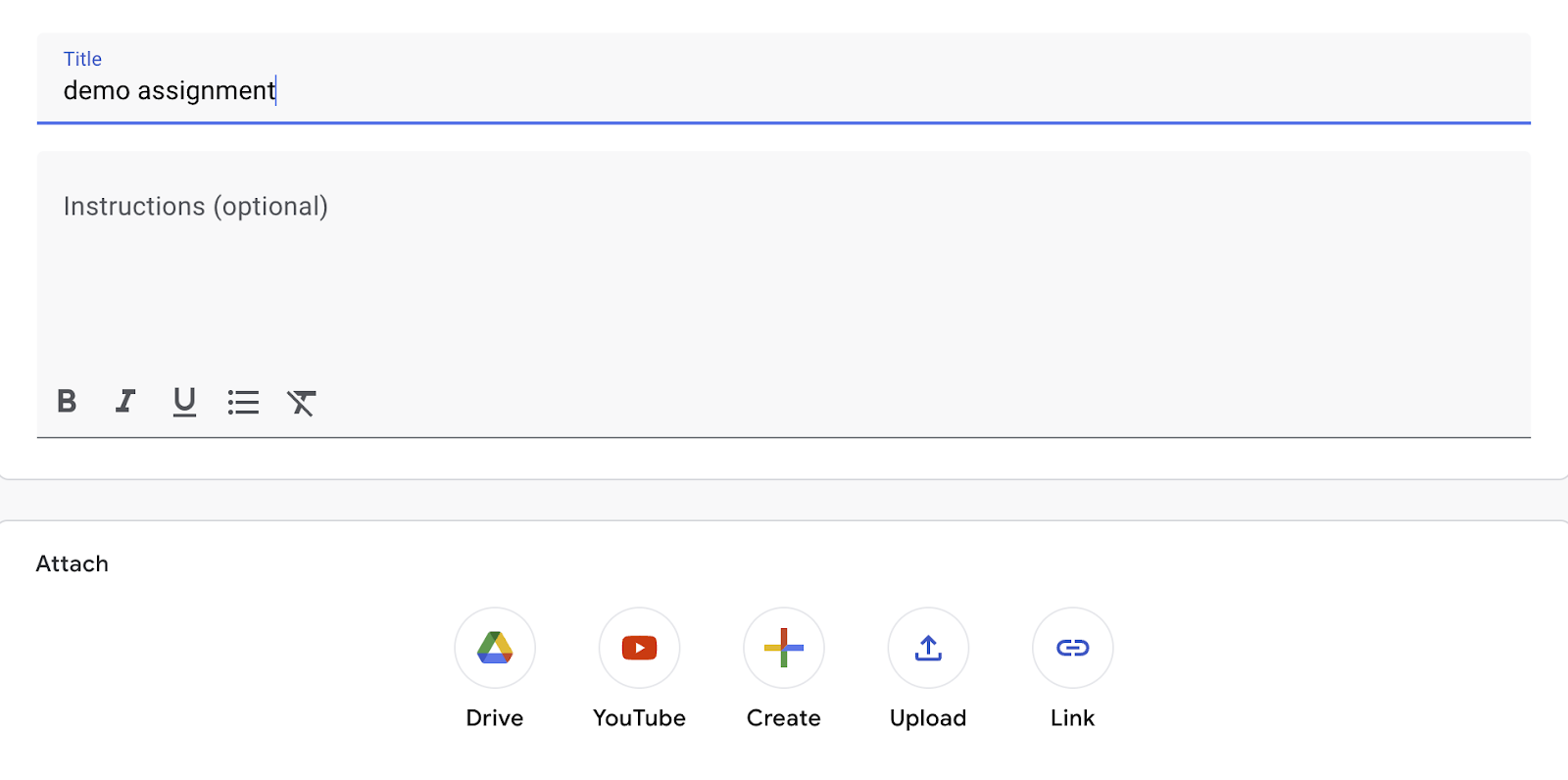
Below the instructions tab, you can add images, videos, audio notes, and links to external resources.
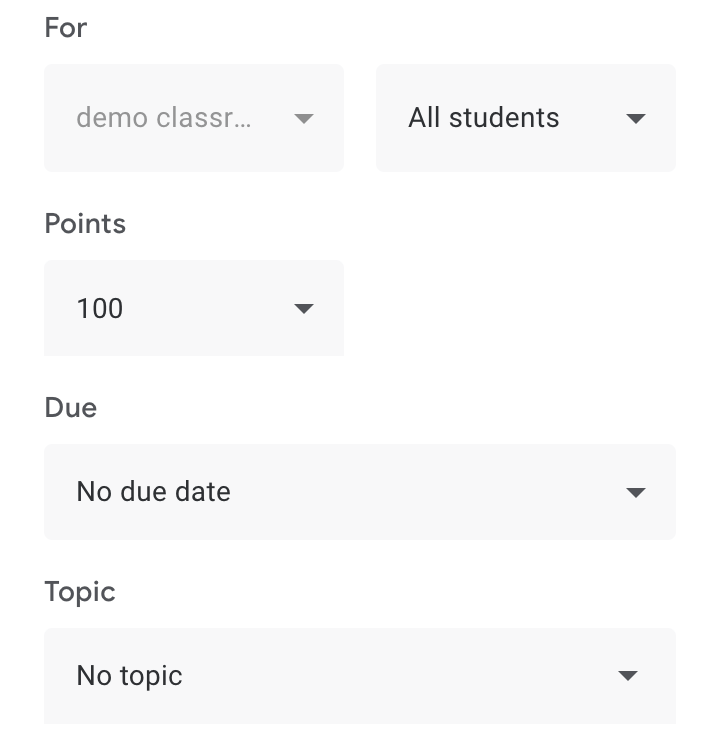
On the right-hand side, choose how many points you want to assign to this assignment and give students a due date for when you want it completed.
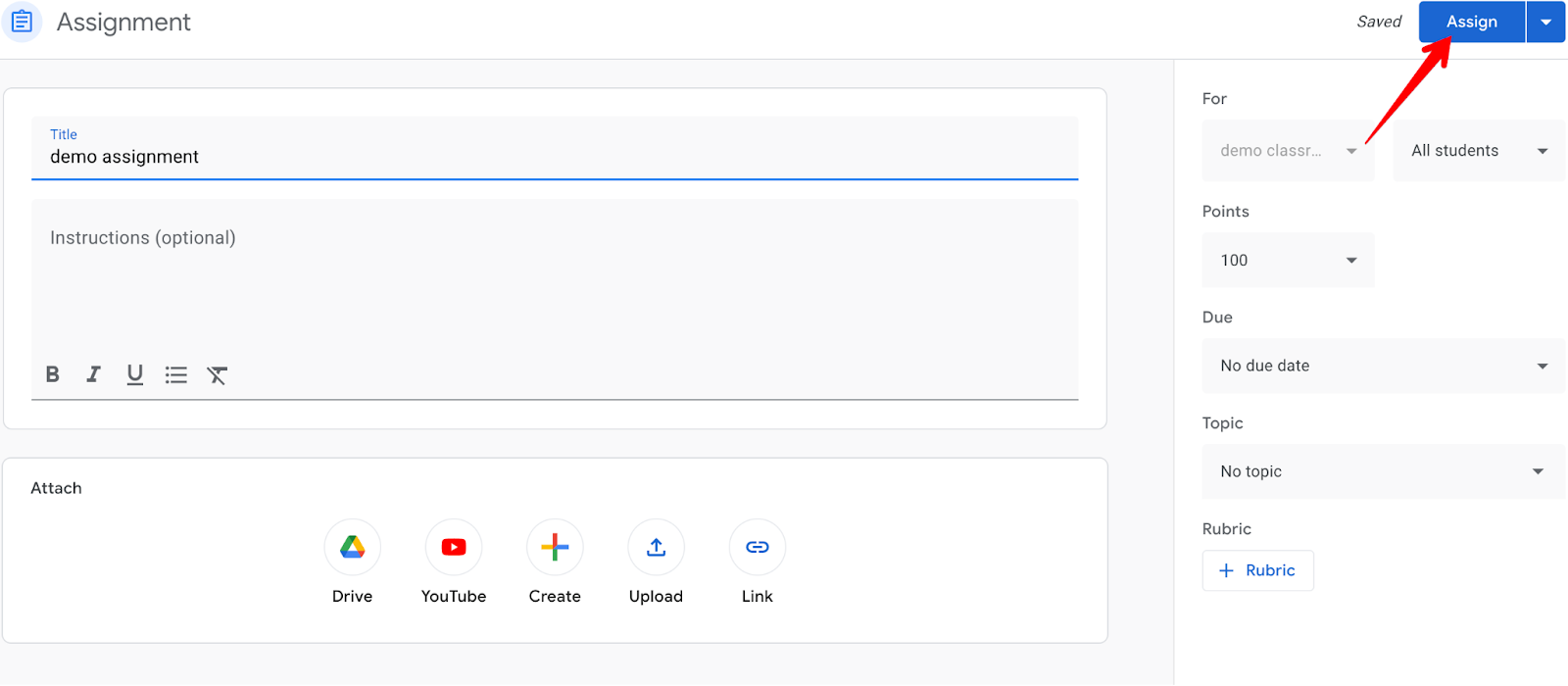
The last step involves clicking the assign button in the upper right-hand corner, and everyone inside your class will get notified that there's a new assignment.
3. Kahoot!: For gamifying tests
Pricing: Kahoot! Go is free for teachers. Paid teacher plans start at $9 per month billed monthly, or $3 per month billed annually (Kahoot!+ Bronze).
Kahoot is a game-based learning platform that aims to make tests fun for students. It uses a combination of countdown timers, interactive graphics, sound effects, and slide layouts to accomplish this.
You can create an account for free, and when you log in, you'll notice that the Kahoot dashboard looks something like this:
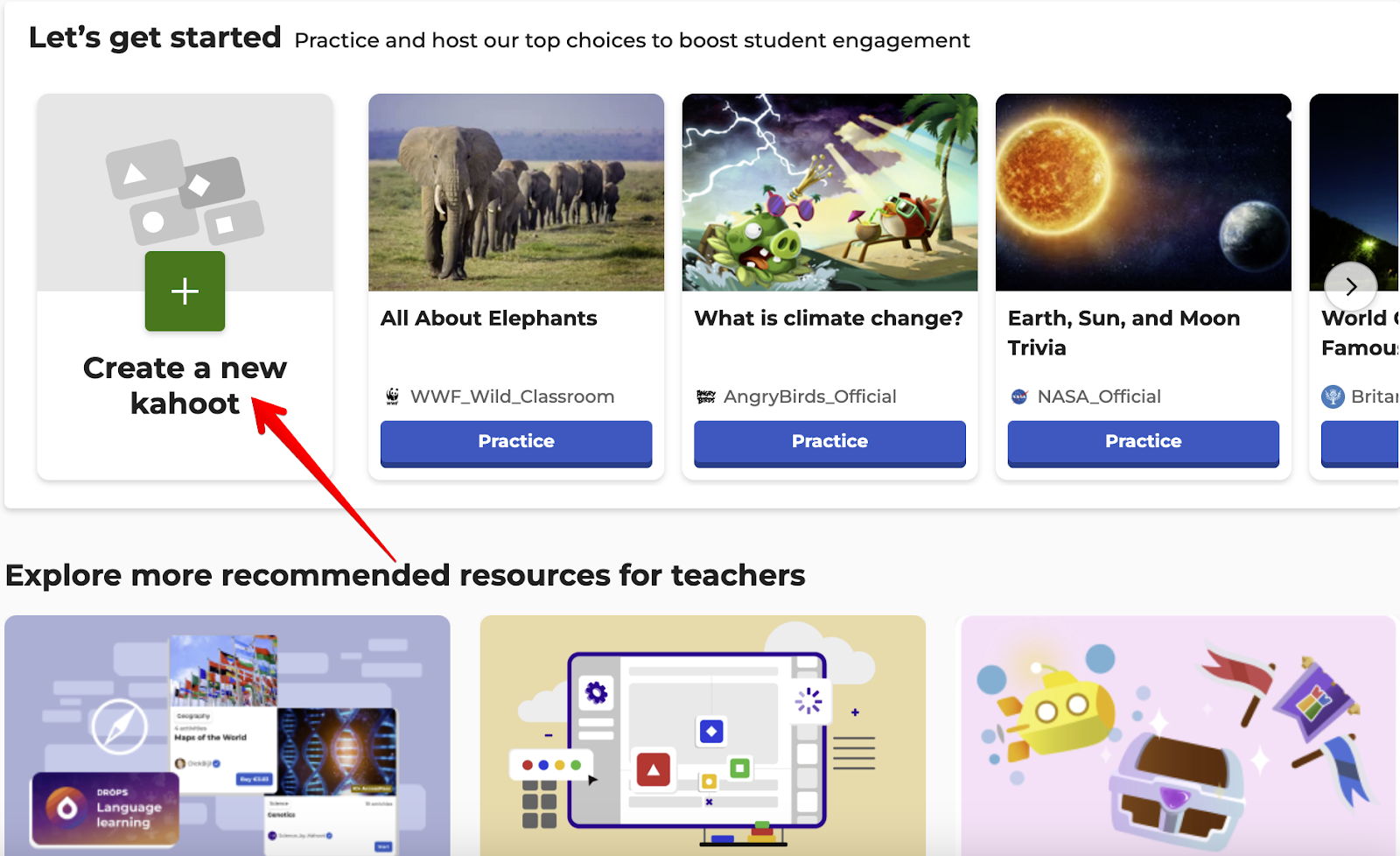
Select “Create Kahoot” and you can begin building your quiz:
On top, type the question you'd like to ask your students and attach an image or video to make your quiz look more beautiful.
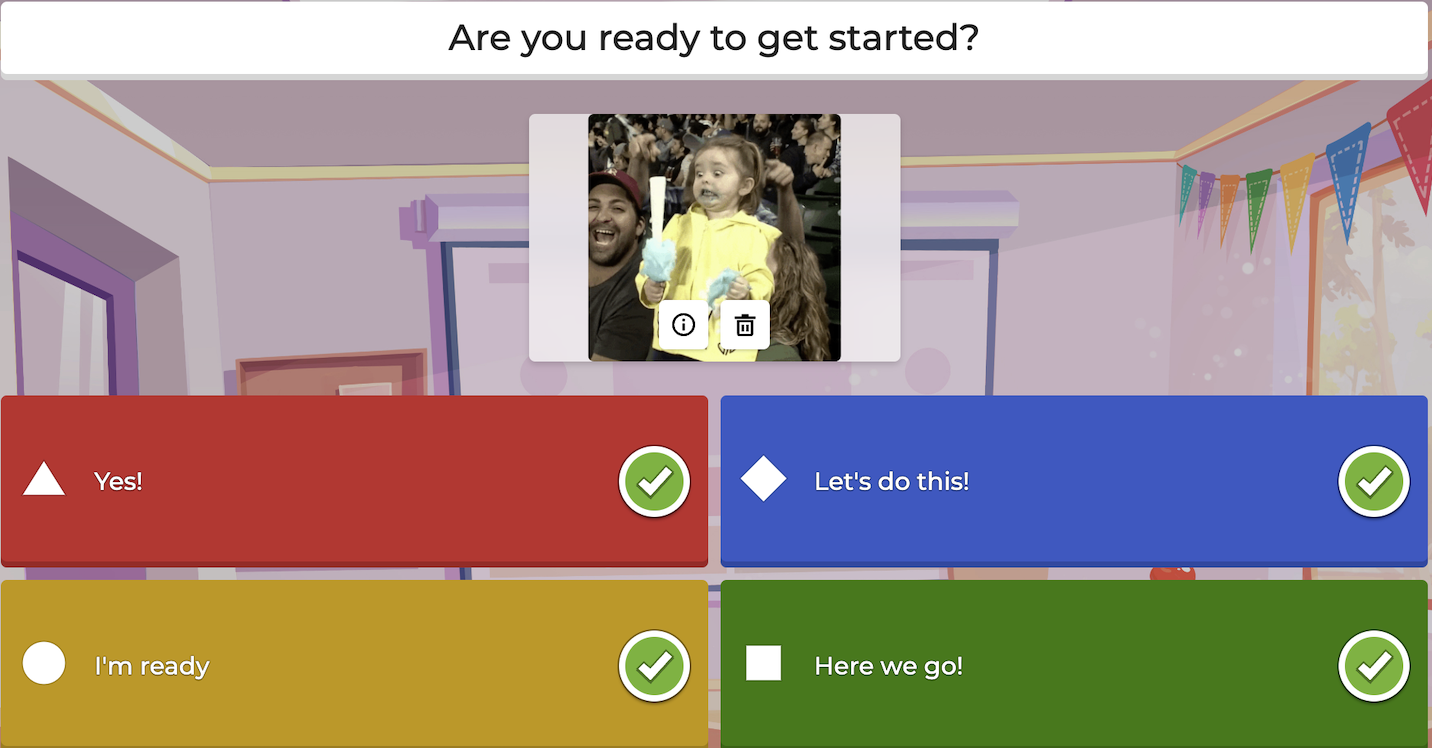
Below the picture, you can add a couple of potential answers that students will have to choose between and the answer you want to assign points to.
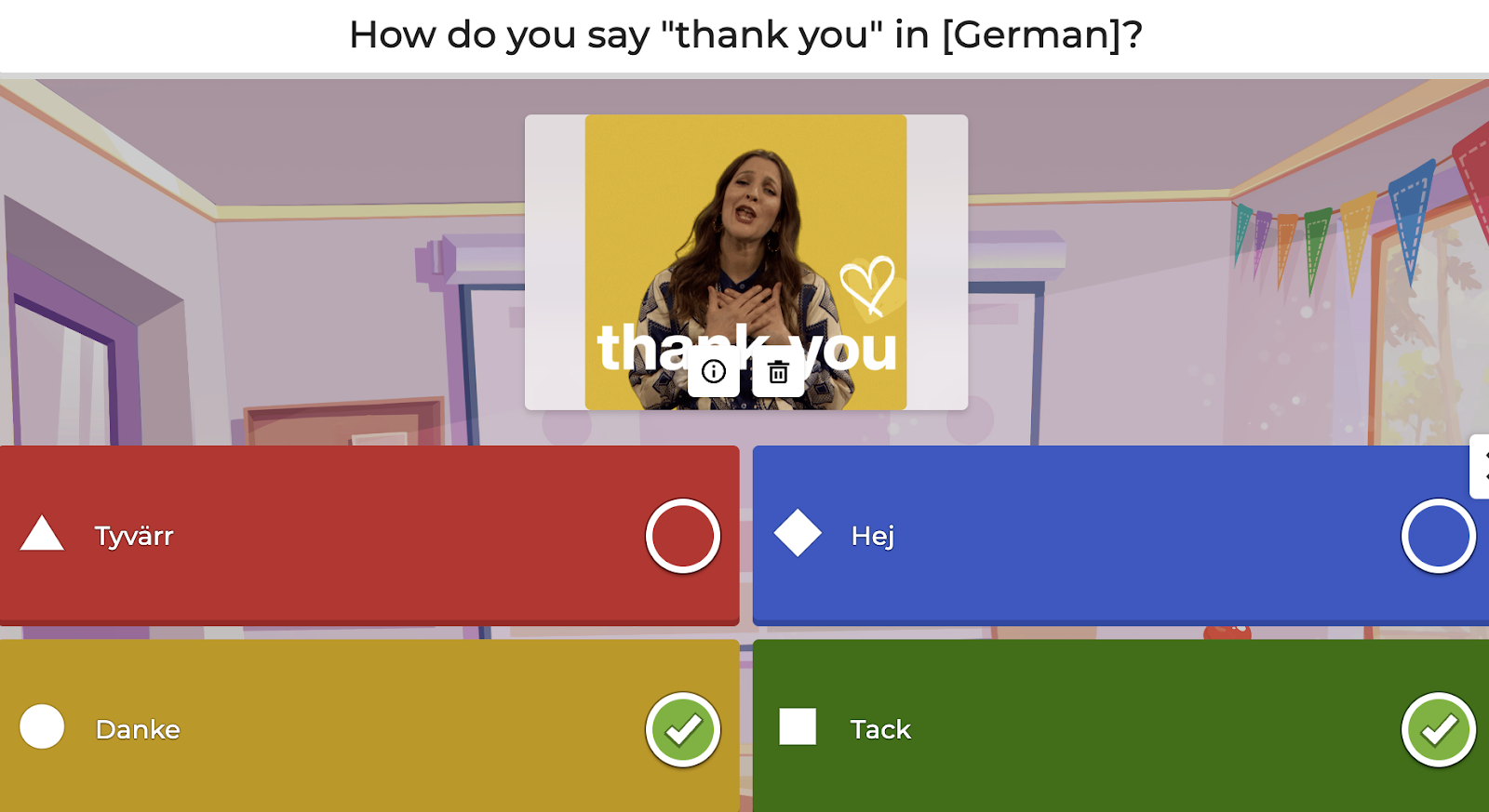
There's also a timeframe button on the right, which lets you choose how long a student has to complete your question. You can choose from between five seconds and four minutes.
Follow this process for every question you'd like to ask inside your quiz, and when you're finished, share your Kahoot by clicking the icon with the three buttons and copying and pasting the Kahoot link into an email or text message.
4. Prezi: For creating interactive lessons and presentations
Pricing: Prezi has a free Basic plan. Paid plans start at $7 per month billed annually (Standard), and discounted EDU plans start at $4 per month.
If you're tired of PowerPoint's basic features and are looking to create more stylish presentations for your students, then Prezi is more customizable presentation software for teachers to use.
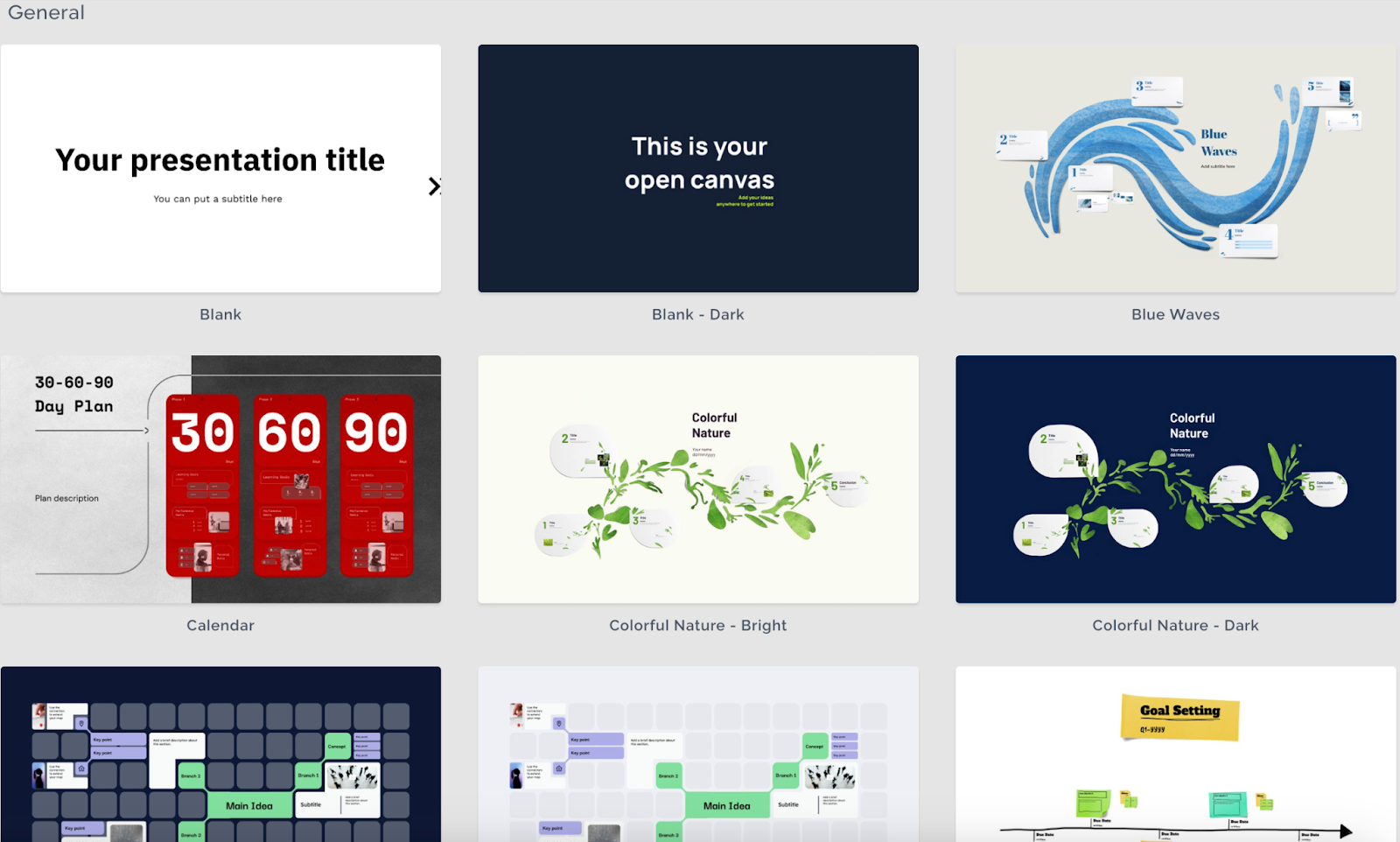
You can say goodbye to static slides by creating interactive ones that can start and stop automatically where you want them to. So, for example, if you have a 20-minute video but only want to show your students a 30-second clip, you can crop this section out and show it inside your presentation.
You can also zoom into each slide to see the finer details of graphs, tables, or pictures.
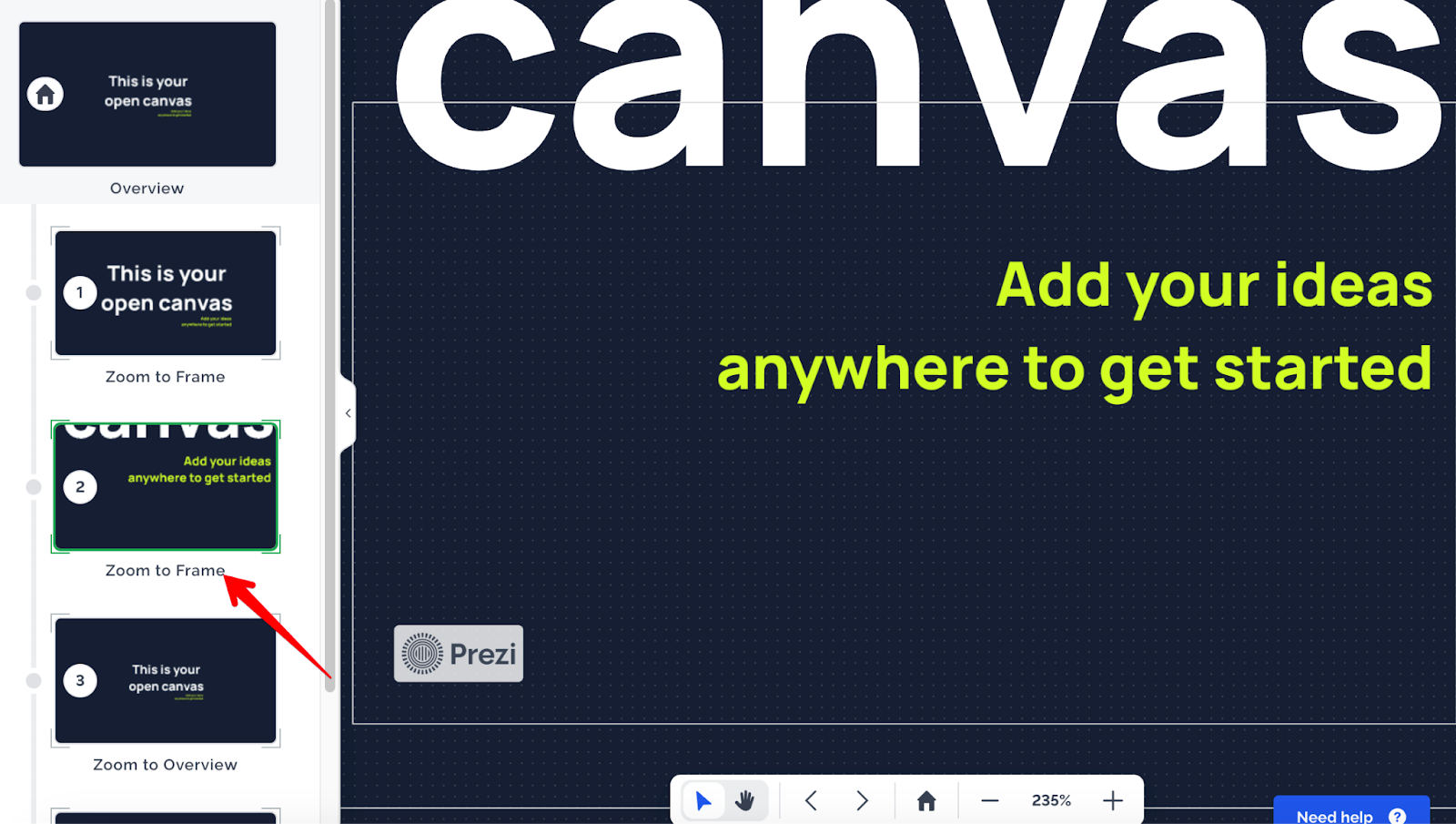
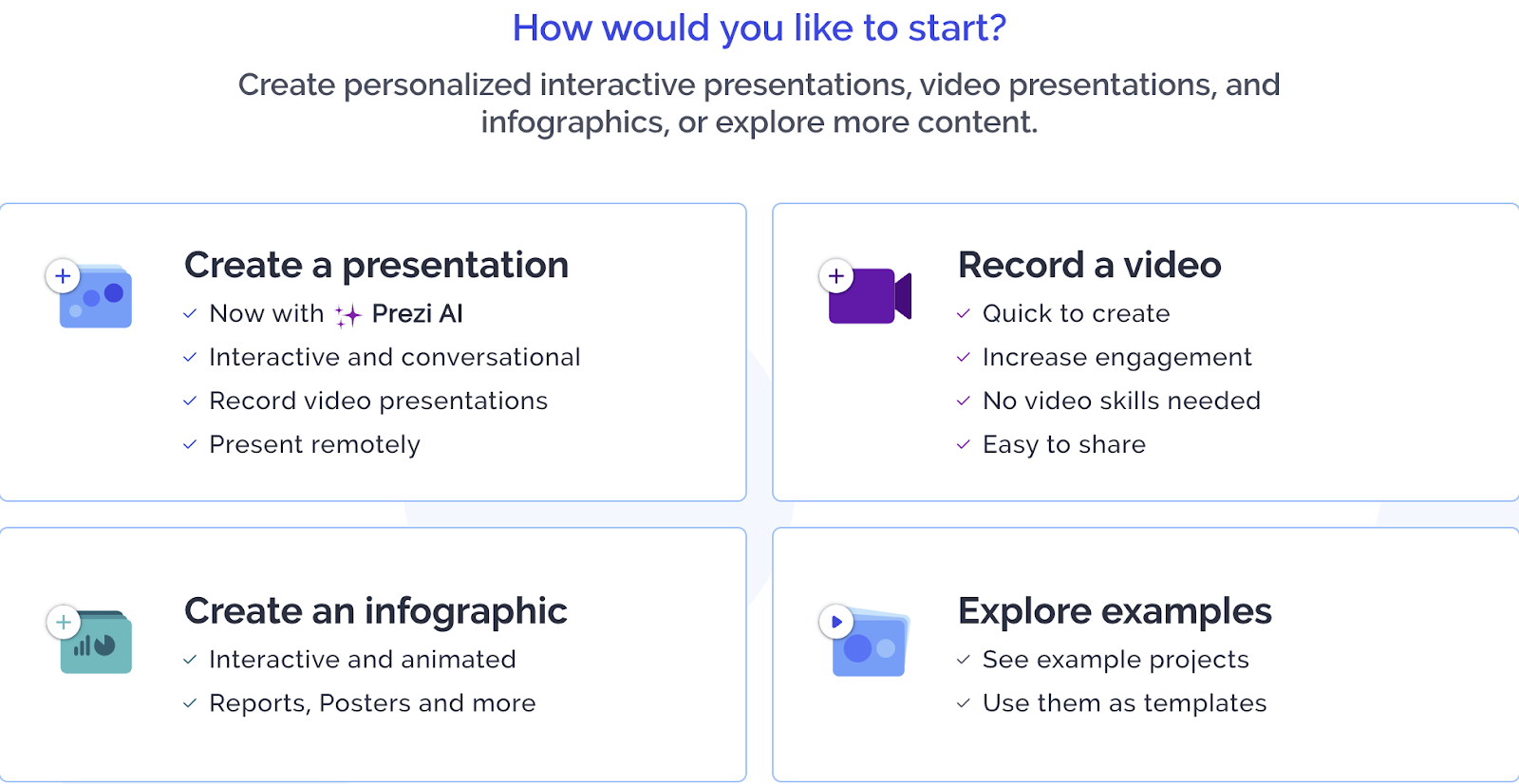
To use Prezi, log into your account and on the left-hand side, go to "Create a Presentation."
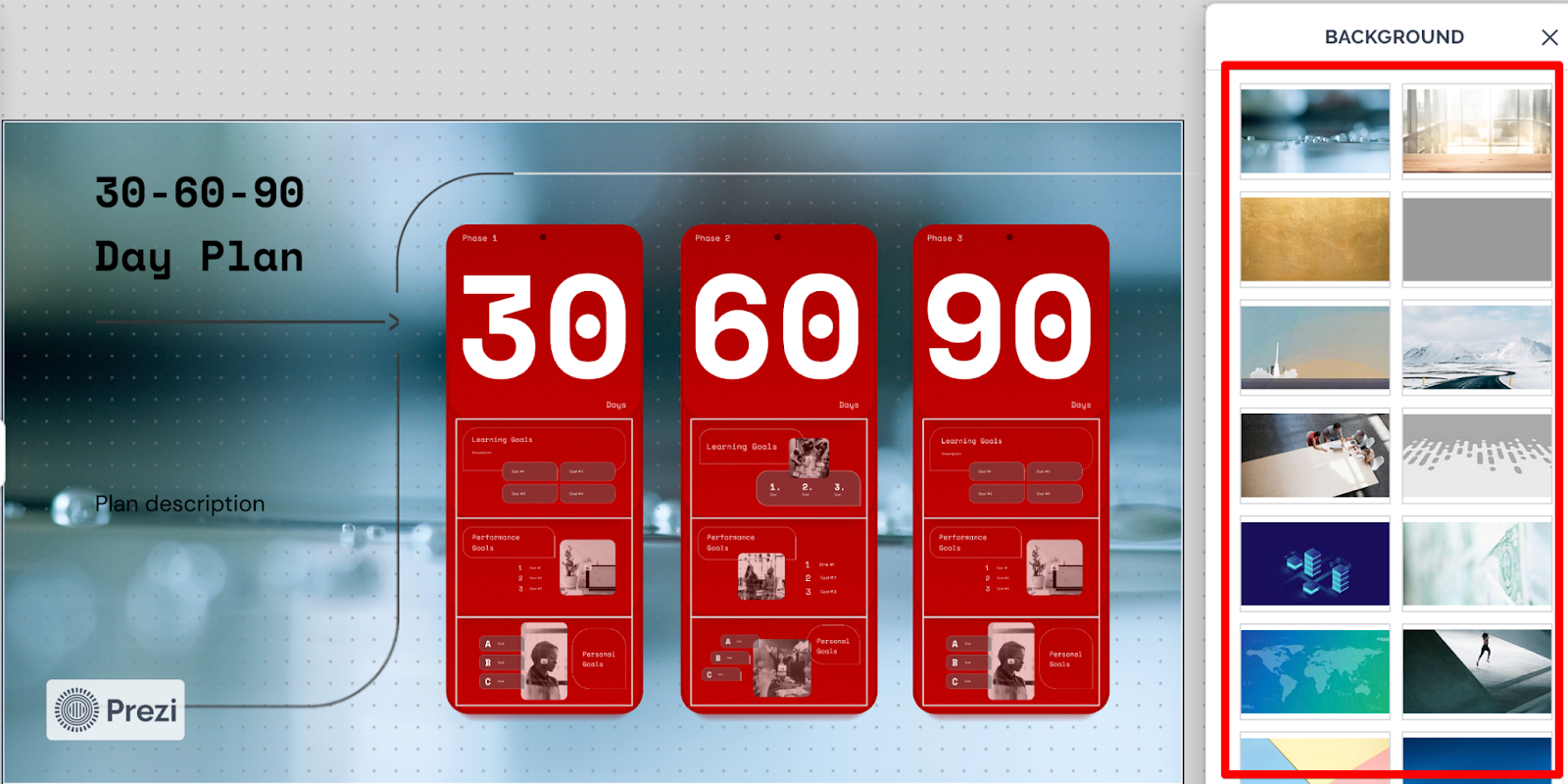
Choose a design that stands out to you, and Prezi will take you to their editing dashboard, where you can customize your presentation.
From here, you can add slides, headings, subheadings, body text, and premium images and videos that you would otherwise have to pay for.
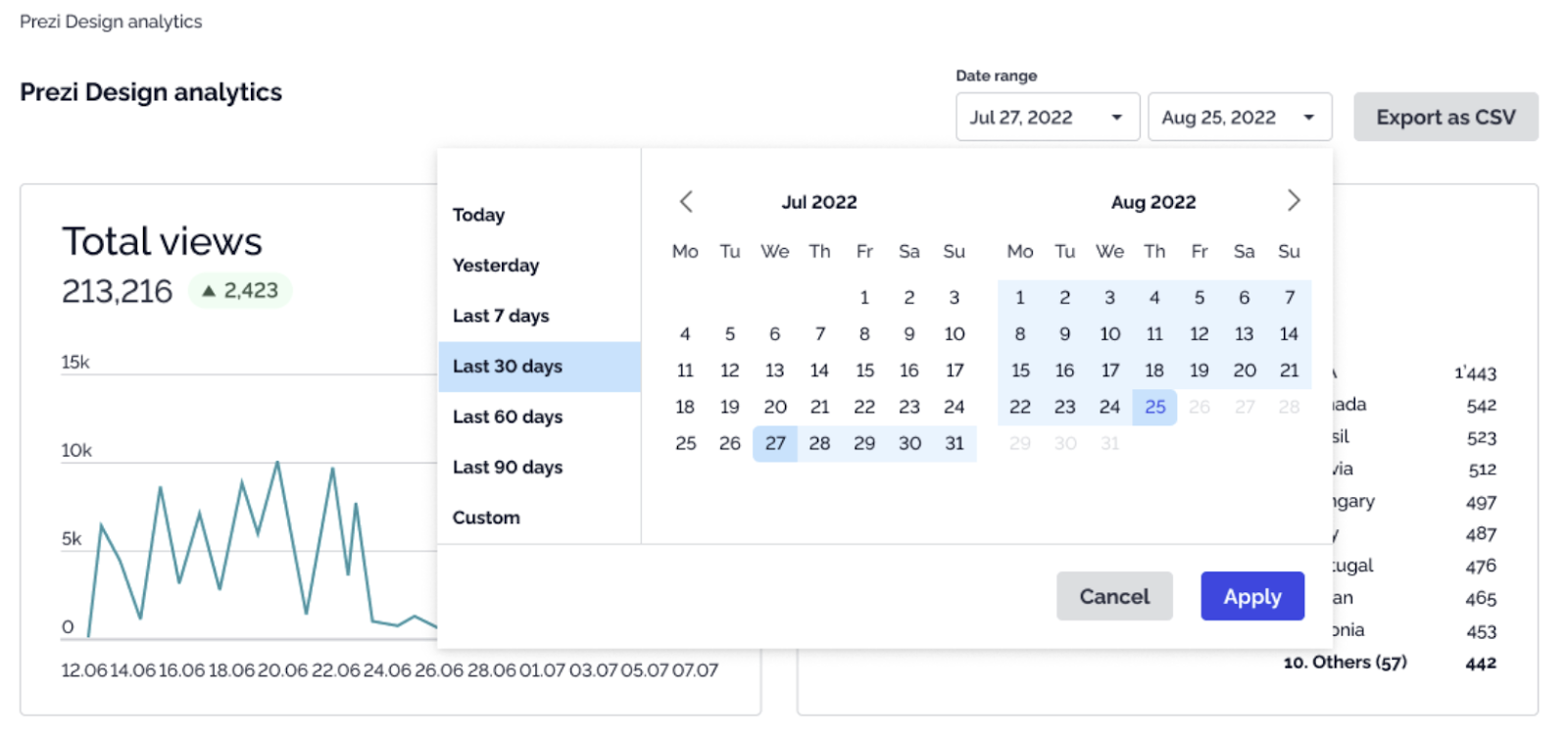
Prezi also has presentation analytics so you can view if students actually watched your presentation and which slides they skipped through. This is perfect if you’re running an online class and you want to keep tabs on your students.
5. WeTransfer: For transferring large files
Pricing: Free for up to 3 GB per transfer, up to 10 transfers a month. Paid plans start at $8 per month.
If you share large files with students and other teachers regularly, then WeTransfer can help you transfer these large files quicker and more securely. Transfers are encrypted, and only the people you send the link to can download the files.
Now I know what you're thinking. Why can't I just use Google Drive or OneDrive? This is fine, but if your class doesn't have these accounts and doesn't feel like signing up, then sending WeTransfer files can be more convenient because it doesn't require anything from their side.
Sharing files with WeTransfer is easy. All you have to do is head to the WeTransfer website and enter the recipient's email address, your email address, a message, and the files you plan to send. With the free plan, you can add up to 3 GB per transfer.
After a couple of seconds, WeTransfer will send these files to your students.
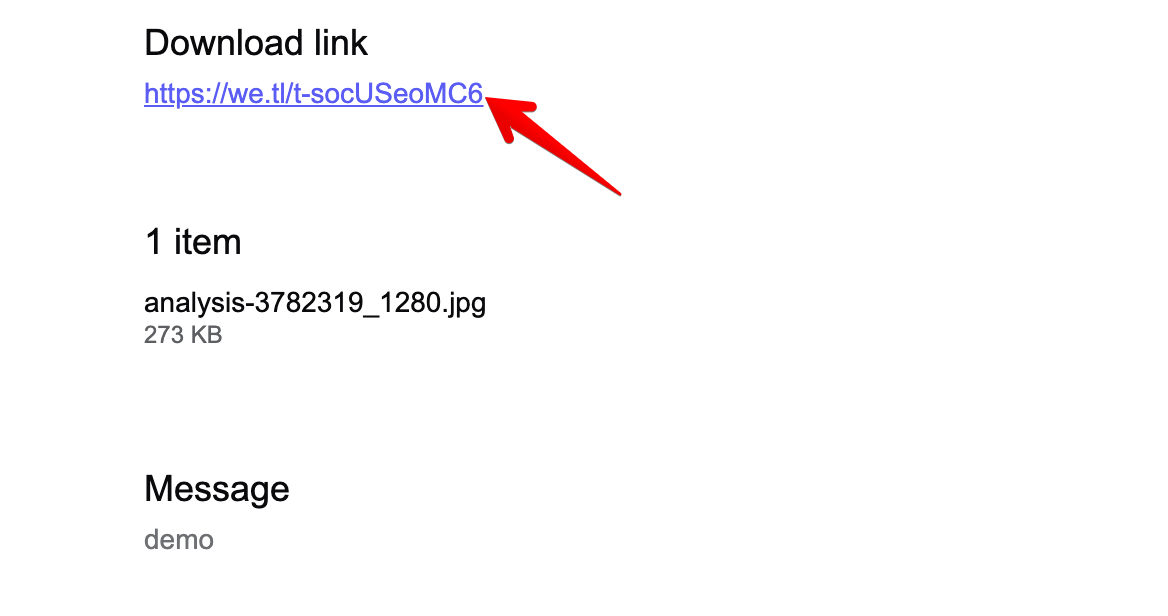
For your students to access your files, they can open the email sent by WeTransfer and click the download link.
Create quizzes for your students within minutes using FormBuilder
With FormBuilder, you can create self-grading quizzes as well as various types of class forms within minutes. Each quiz is graded automatically, students see their score, and every answer lands in your dashboard and in Google Sheets.
Signing up for an account is free and you don’t have to enter your credit card details. So if you’re looking to save time grading student papers, consider signing up for a free FormBuilder account.