Why You Should Start Tracking Your Forms
When you track analytics of your form's submissions you can measure and quantify lead behavior, finding out exactly which fields make people hesitate to sign up or purchase your products. Google…
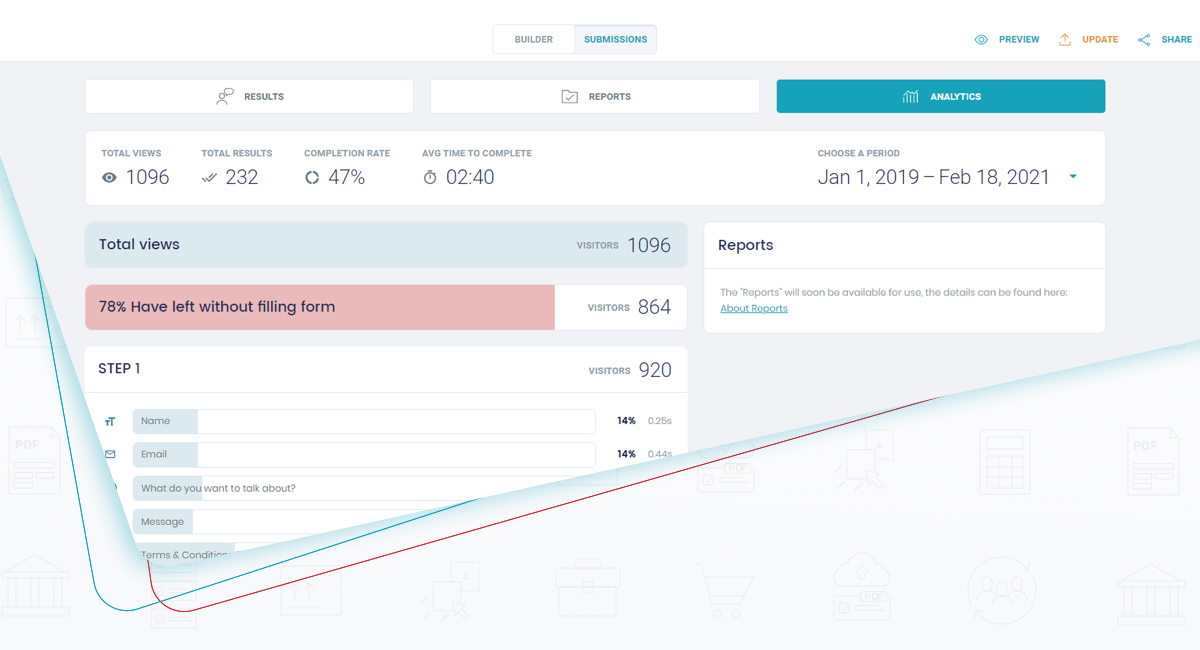
You may have heard of form analytics and using Google Analytics to track online forms. After all, tracking your web forms can be the ultimate factor in knowing how your business strategies are doing and also understanding your audience. And that’s HUGE news.
When you track your forms you can measure and quantify lead behavior, finding out exactly which fields make people hesitate to sign up or purchase your products. As a plus, you learn which changes actually move your completion rate.
Every detail matters: demographic data, bounce rate information, views versus submissions, where the traffic came from, among other relevant information that allows you to improve the form, and also understand your target market.
In this article, you’ll see why you should start tracking your forms, and the top ways to do so.
Why use analytics to track form submission
Google Analytics is a powerful tool, and it is free for most businesses, so it can provide a big picture of all data you need to evaluate your business performance.
Form Analytics isn’t just about Google, though. To get the exact data you need for each form, you need to combine Google Analytics with Google Tag Manager, or (a more practical solution) use the built-in form analytics of your form builder.
So here are the top 5 reasons you should gather detailed analytics from your forms
1. Automatically capture all data
Do you want to know which keywords are bringing traffic to your form? Or how long people stay on your form before submitting or abandoning it?
You can capture this information automatically, with no time wasted on looking for those data. Once in possession of them, you can adapt your form, improving it, in a way that will better fit your audience’s expectations.
Google Analytics collects demographic and other relevant data about your visitor, which can allow you to know your audience better. Once you know to whom you’re talking, you can provide accurate content, improve your products and services, and offer improved customer service. With that, you have a bigger shot at generating loyalty from your customers.
2. Organize and collect all customer data in a single place
Every tool worth its subscription can easily integrate with other tools, even if you need to go through Zapier. Google Analytics, Tag Manager, Sheets, form builders, all can help you gather data in a single place, making it easier to understand the information, analyze the data, and create reports.
This means that you don’t have to settle for reports all saved in different places. You can automatically link sources of data, personalize it, and highlight the information that is more relevant for your business. Define the metrics, goals, and how they must be shown.
3. Get insight into your leads and customers
With analytics tracking form submissions, you get clear insight on:
-
How many people view the form and how many submit it
-
How many start it and then drop off
-
Geolocation information
-
Demographic information
-
From which device the form was accessed
And much more depending on how you set it up.
Of course, you can get the basics without a Google account at all. FormBuilder’s built-in form analytics show views, starts, submissions and completion rate for every published form, with nothing to enable.
From the moment a form is published you already start recording any new information coming from your forms, getting to know important data, that can be a game-changer to your business by getting to know your audience, and change the form completely to suit your needs.
4. Test and Optimize your forms
You can see how many leads start the form and never submit it. So, you can update a field, remove it, change the order, or take any other action to improve the form and avoid future drop-offs.
Imagine a situation where you’re asking for the lead’s phone number, but you don’t really need this information, and people tend to abandon forms when they are asked for too much personal information. If you realize that that is exactly what is happening to your form, you can remove the field or add a tooltip text that explains why you need that information.
If you go the extra mile and add Google Tag Manager and Analytics to the page where your form is embedded, you can compare two versions of the page and see which one produces more submissions. Make sure that each experiment is attached to a key event.
5. Customer data Security
Both Google and FormBuilder take the extra steps to make sure that data transmission is secure. When it comes to forms, your own Privacy Policy should be informing your users what information you gather and how you use it, so you can establish trust. Keep all data submitted from the forms safe, and assure the lead that you won’t misuse any information they trust you with.
FormBuilder includes spam and abuse protection on all online forms. But always remember to handle with extra care the data the lead is trusting you with. You can assure them that any information given is transmitted over an encrypted connection.
Option 1 - Use your form builder’s analytics to track form submissions
Specificity will get you much farther when dealing with data. And form builders have the single responsibility of dealing with form analytics and form data, everything else is noise. This means that the best form builders have some method of reporting form analytics built in.
Step 1. Publish your form
Form analytics only start once a form is live. Publish the form and share the link or embed it on your site.
Step 2 - Open the form’s analytics
From your FormBuilder dashboard, select the form and open its analytics. You’ll see views, starts, submissions and the completion rate for the period you choose. No tracking ID, no setup.
Step 3 - Send the responses where you analyze data
Connect the form to Google Sheets, a webhook, or any app through Zapier so every submission lands next to the rest of your customer data.
Step 4 - Add a thank-you page
Set a thank-you page or redirect after submission. Besides being polite, a dedicated thank-you URL is the easiest thing to count as a conversion in Google Analytics, which brings us to option 2.
The idea behind form builders that make it easy to track form analytics on submissions, is the knowledge of WHY that data needs to be tracked, so that complex workflows can be automated.
Still, if you are more tech savvy, there is one other option to connect a form - any form - to Google Analytics.
Option 2 - Track form submission with Google Analytics & Tag Manager
Have you ever questioned yourself if you could track your forms with Google Analytics the same way you track your entire website? Well, the answer is yes, you can. And you can mark form submissions as a key event (what Google Analytics used to call a goal). But to do so you need first to have a few elements:
-
Google Tag Manager
-
A Google Analytics 4 property
-
A published online form
IMPORTANT: This is a quick overview of how to track form submissions without relying on your form builder’s analytics. The complexity of using Tag Manager will mean that triggers for submitted forms and any other engagement you want to track will need to be set up individually. Note that if your form is embedded in an iframe, the host page cannot see what happens inside it, so the reliable approach is to redirect to a thank-you page on your own site and count views of that page.
How to use the Tracking by Google Analytics with Google Tag Manager
Sign up to Google Analytics and Google Tag Manager. Google Tag Manager will be acting as a “third-party” tool between your form and your Google Analytics account.
Step 1 - Create a Tag and Trigger
Google Tag Manager works by recognizing interactions, so you’ll need a tag and a trigger set up. There is A LOT you can do with Google Tag Manager and your online forms. Your best bet to learn all the possibilities is heading over to Google's Tag Manager Help.
On your Google Tag Manager Workspace, select Tags from the side menu, then click on New.
Then set up the tag type to connect your Tag Manager to Analytics.
First make sure you have a Google Tag (the GA4 configuration tag) firing on every page. It only needs your Measurement ID, which looks like G-XXXXXXXXXX, and Google’s guide to setting up the tag in Tag Manager walks through it.
Then create a second tag of type Google Analytics: GA4 Event and fill out the configuration with:
-
Measurement ID: the same G- ID as above
-
Event Name: form_submit (or another name for what you want to track)
-
Event Parameters (optional): form_name = Example Form, and form_url = domain.example.com (the URL where your form is published)
-
Click Save. You will be prompted to name the tag if you have not done so already.
Once the event is arriving in Analytics, open Admin, then Events, and toggle Mark as key event next to form_submit so it counts as a conversion in your reports. Google’s help page on key events has the details.
Step 2 - Set up a trigger
Now it gets complicated. Depending on how your form is set up, what events appear depending on which user action, will determine how you set up your trigger.
For form submissions on your own page you can count on GTM’s built-in Form Submission trigger:
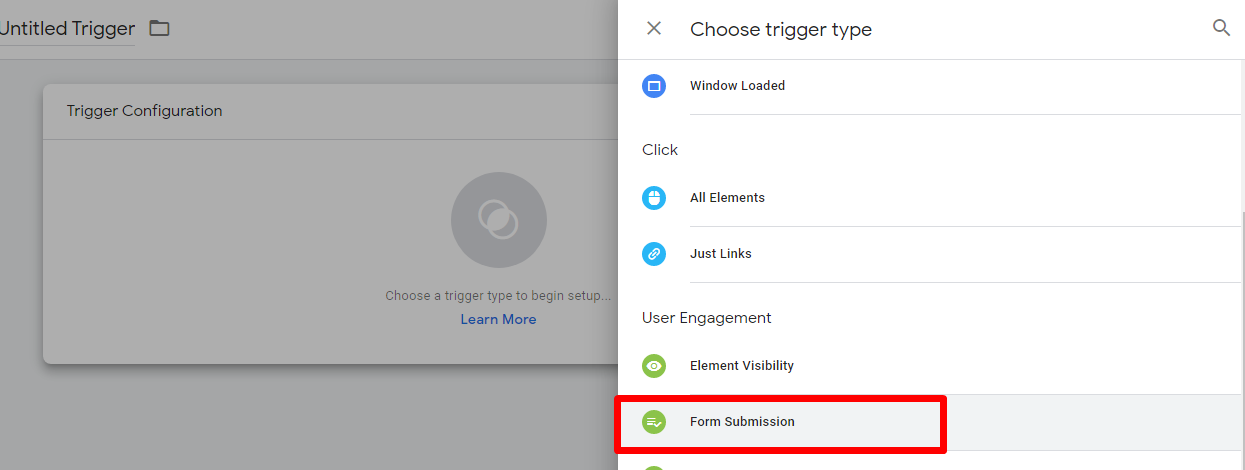
Set it up so it will only trigger on the page where your form is published and make sure to enable Check Validation so it’s only activated when the submission is complete.
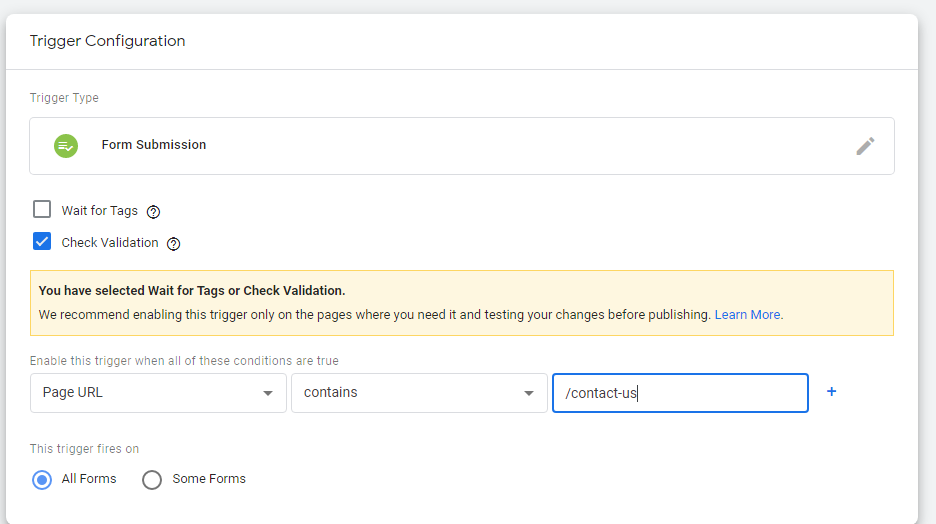
This means that you end up only tracking successful submissions, but it’s the most effective way to track form submissions without a form builder. For an embedded FormBuilder form, use a Page View trigger on your thank-you page URL instead.
In Conclusion
Google Analytics is a great integration to online forms. You can have access to information like where the audience is accessing your form from, demographic data, get clues on what they are looking for, the time and weekday that your forms receive more visitors when the leads are more likely to submit the form, among much more information that can be used to improve your form, letting you update it and, as consequence, ending up having more prospects to be delighted and convinced to convert into paying customers.
FormBuilder’s built-in form analytics are simple, yet useful, and there is nothing to enable. You can easily get the most out of your form analytics by using both tools tracking your form submissions, just remember to connect all relevant data to the same place, so you can easily build your reports and analyze your data.