How to Create a Contact Form in WordPress
A step-by-step guide to building a contact form with FormBuilder and adding it to any WordPress page or post with the block editor, no plugin or code needed.
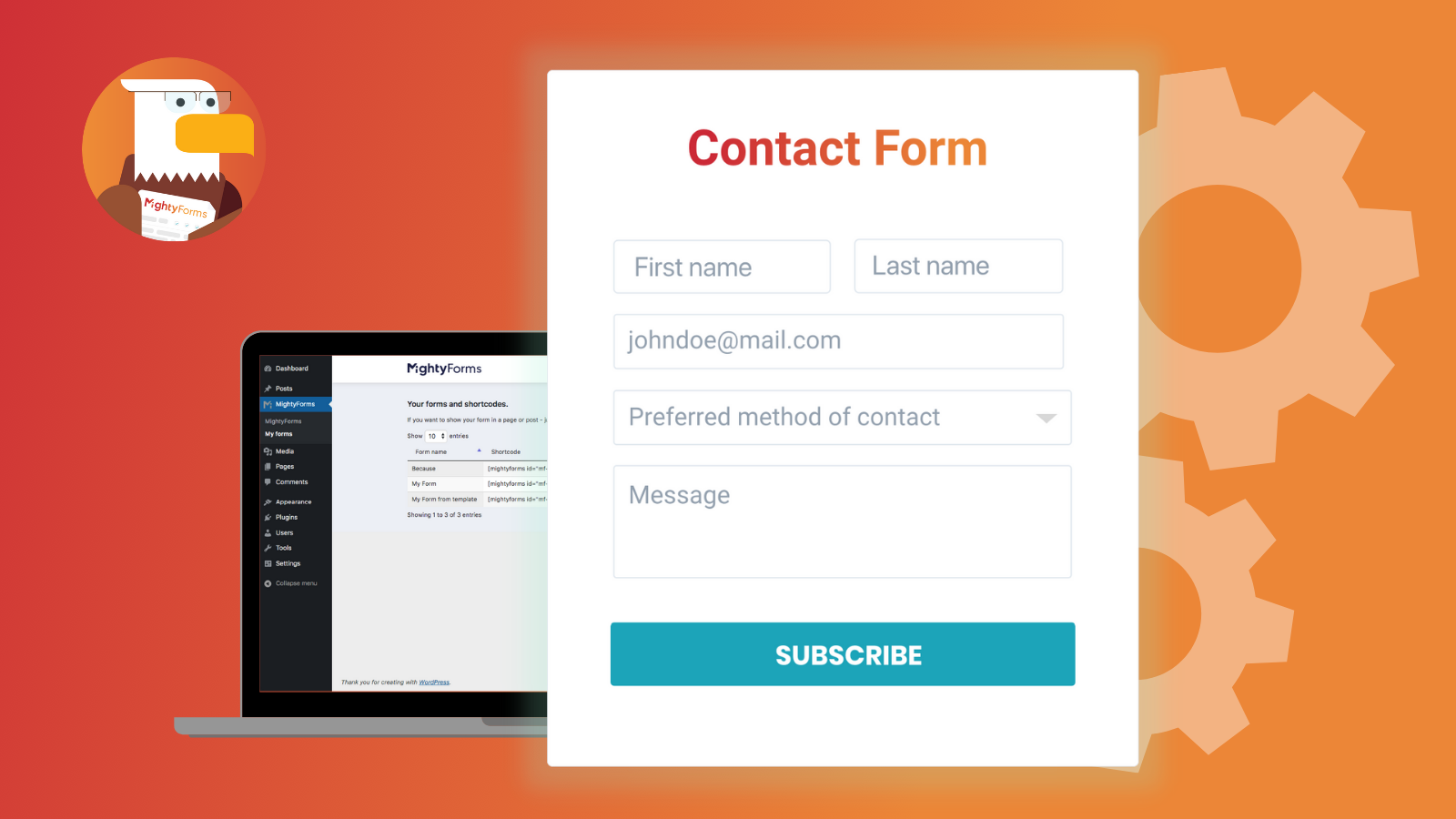
WordPress is easily the most popular website publishing platform freely available, and adding a contact form can be very simple with the right tools. In this article we’ll present an in-depth step-by-step to create a contact form in WordPress with FormBuilder.
For most small businesses, the website is now the front door. Customers look you up, decide whether to trust you, and reach out, all before they ever talk to a person. A proper contact form matters just as much as the business itself. Thus, we’ve decided to come up with this piece of enlightenment! Keep on reading this post while we cover in detail how you can create your online contact form in WordPress, using FormBuilder. Welcome to THE contact form tutorial, I’ll be your guide!
Why use a contact form on your WordPress site
WordPress, the free and open-source content management system, powers roughly 40% of all websites, according to W3Techs. And it is easy to understand why. WordPress stores content and enables its users to create and publish beautiful web pages, requiring only a domain and a hosting service, free of charge.
But more than just choosing one of the WordPress themes as the layout for your website, you should consider including a contact form in it, with just as much interest and importance. If your website goal is to sell products or offer a service, then more than others you need an effective and secure way for visitors to reach you.
A contact form is a set of basic questions that visitors fill out in order to get feedback from webpage owners. You can effortlessly add a contact form into your website by embedding one built with a form builder, without any coding skills needed, and we’ll go over that in detail ahead. If you think that just including an email address and phone number on our website are enough, see below why you need a contact form.
Here are 6 Benefits of having a contact form on your website:
1. Avoid Spam
Your website will be vulnerable to spammers that automatically add unprotected email addresses to their mailing list. Instead of getting emails from potential customers, you’ll get all sorts of unwanted electronic junk.
A standardized contact form will be easier for real people interested in your business to reach you while protecting your email address. It will save you time, so you don’t waste it by perusing and classifying all incoming emails. And it will save you money too, since you won’t miss a genuine opportunity to make a sale or to book a service.
2. Increase Security
By blocking unwanted spam, you’re also adding extra security by also blocking malware and hacking attempts. A contact form will act as a barrier to filter real customer inquiries from automatic malicious attacks.
Form builders add bot and spam filtering on top of that, so junk submissions are caught before they reach your inbox. Additionally, if you build your contact form with FormBuilder, all data exchanged is secured by SSL encryption, and you can report abuse if a form is ever misused.

3. Enhance Your Brand
Imagine working so hard on your product or service and display it all in a beautiful website and not get one result simply because visitors can’t or choose not to reach you. It will be a shame if your contact form is not visible or if it doesn’t look professional or safe enough for people to fill it out.
Think of a contact form as part of your brand, therefore it should represent you well. Using a form builder will allow you not only to create a great-looking form with your brand logo but one that will properly function, as well. An effective contact form will cause a good impression on visitors, boosting your reputation.
4. Optimize Data Collection

If you only make available an email address or social media for contact, you’ll get incomplete information at best. People have different ideas of what is essential information to be shared in an inquiry email.
When you offer a contact form with predetermined fields, you are being clear about what information is important. If you use a form builder like FormBuilder to create your contact form, you can even mark specific fields as required.
Beyond gathering data, you can also automate the tasks of the contact form process, by choosing where to automatically direct all messages. You can also export data to Google Sheets so you can better analyze information and learn more about your audience.
5. Increase Your Email List
Acquiring a new customer is often said to cost five times more than retaining an existing customer. The people on your list are already aware of your business and most likely interested in your offer, so you’ll save time and money.
An email list can be a powerful tool when you need to launch a new service/product or to roll out a promotional campaign. A contact form will provide enough information from your prospects to build your list and you can automate that data for CRM purposes later.
6. Engage Prospects
Your website works like a physical store, you want passersby to take a peek and get inside instead of walking away. A contact form is how you engage visitors to want to know more details, it’s your direct call-to-action. It is also reassuring for visitors to hit a “submit” button knowing their inquiry is processed to be eventually answered and not ignored.
When creating your contact form with a form builder like FormBuilder, you’re also able to make it even more engaging. Your contact form can be set up as multi-step, so visitors will be led to each question one at a time, instead of viewing a full contact form and get discouraged to answer too many questions.
Also, presenting your contact form in a multi-step structure, thus turning it into a conversational form, will work as a casual chat. This form of engagement might be very effective for informal business and independent professionals, giving off that feeling of already talking to each other.
How to Choose a Type of Contact Form
Now that you understand the benefits of having a contact form on your website, you should start considering it as a strategic element of your business. You’ll be already better presentable with a simple basic contact form instead of just providing an email address. However, you can go even further when creating your contact form with a form builder, like FormBuilder.
Examine your type of business and what goals you want to achieve. This should guide you to create a more comprehensive contact form that will get exactly what you need from visitors. These are the three main purposes of contact forms:
Call Back If your business is tailored-made, visitors may use this type of form to request a call back to schedule an appointment or to get an estimate of services, for example.
Feedback It is important to let your customers voice their opinion since it can guide you to improve or enhance your service or product. This type of form makes giving feedback inviting and convenient.
Information request As clear and thorough as your website can be, people might still have questions about your business. You can keep it generic or categorize this type of form with a drop-down menu, so visitors can inquiry you further.
How to Create a Contact Form in WordPress
If you came this far, you have already a website published on WordPress and now you’re looking for detailed directions to add a contact form. WordPress lets you add this functionality with a form plugin, or by embedding a form built elsewhere.
Search “contact form” in the WordPress plugin directory and you’ll end up with hundreds of options. Some will be basic, others complex, some free, some paid. Most of them also live inside your WordPress install, so every update, backup, and spam fix is on you. However, you want to create a smart contact form that will do much more than simply collect contact information.
You need a value-added contact form, where it is not only easy to build it but one that can be edited and integrated with other platforms so it can get results! That’s why we believe that FormBuilder, hosted outside WordPress and embedded with a snippet, can really take your contact form strategy to the next level.
Step 1. Sign up for FormBuilder
1.1. Go to formbuilder.com and create a free account. The free plan gives you 5 active forms and 100 responses a month, with no credit card required.
1.2. Verify your email address. Publishing and sharing a form requires a verified email.
Step 2. Create a New Form
2.1. You should now be looking at the FormBuilder dashboard. Click on Create New Form.
2.2. Now you’ll be given the choice of how you would like to start: from scratch, from a template, or with the AI form generator, where you describe the form in a sentence and get a draft to edit. Let’s go over scratch and template next.
Step 3. Add fields to create a Contact form From Scratch
3.1. When you select to start your contact form from scratch, you’ll be taken to the builder. There’s a field list on one side and a blank form in the center. Simply drag the fields you want from the list and drop them on the form.
There are standard contact fields available, like Full Name, Email, Phone, and Address fields. There are also Text, Text Area, Number, Date, File Upload, and Signature fields, plus Single Choice, Multiple Choice, and Dropdown fields for options. See the full field types list.
3.2. You can reorder any field by dragging it up or down the form.
3.3. In the field settings, you’ll find options like marking a field as required, editing the label and placeholder, and adding help text.
Step 4. Customize a contact form Template
4.1. If you prefer to start building your contact form from a pre-made template, choose From Template on the initial page.
4.2. In the Form Templates directory, you can browse templates by category, such as business, marketing, events, and feedback.
Once you find a template that suits your needs, click on Use Template. You’ll be taken to the builder, so you can edit that template. You can customize, add, or remove any element of this template as well.
Getting to know more about FormBuilder form builder
FormBuilder is a form builder that offers comprehensible solutions for web designers, business owners, and independent professionals. It runs in your browser, with no plugin to install, and the free plan covers 5 active forms and 100 responses a month. Pro raises that to 100 forms and 10,000 responses a month and removes the FormBuilder badge.
You can create all sorts of forms with FormBuilder, like email subscription forms, order forms, payment forms, surveys, and of course, powerful contact forms. FormBuilder form builder offers easy and intuitive form building with a drag-and-drop editor that requires no coding skills.
FormBuilder works with WordPress through a simple embed snippet, enabling you to add your contact form to any page or post in a few clicks. You have total control while you create a fully responsive, 100% mobile-friendly, and easy to fill out contact forms. And to help your business grow, FormBuilder increases your productivity by automating all workflows of your contact form process.

FormBuilder was created to solve online form building problems that other tools couldn’t solve. Consider these FormBuilder features and functionalities when creating your contact form:
• Build from scratch, from a template, or from an AI description
• Import an existing form from a PDF, a URL, Jotform, or Typeform
• Choose from single choice, dropdown, checkbox, rating, slider, signature, and file upload fields
• Edit fonts and colors while personalizing it with your own logo
• Every form is responsive on desktop, tablet, and mobile
• Form analytics show how many people open, start, and complete your form
• Determine which fields are required, add conditional logic, or split questions across multiple pages
• Set up a personalized thank-you page or redirect after submissions
• Built-in spam protection keeps bots out of your inbox
• Set up automatic email notifications to yourself or anyone else in your team
• Password-protect a form or schedule when it opens and closes
• Update or edit your contact form anytime you need; the embedded form updates automatically
• Integrate your contact form with other platforms for even more automation, like Google Sheets (native), webhooks, and thousands of apps through Zapier.
Contact Form Design and Spam Protection – cont.
After you’ve selected all contact form fields needed and established settings for each element, you now have the basic contact form structure laid out.
Even in this elementary structure, this contact form is already fully responsive! However, let’s keep going and we’ll show you how to style this contact form in order to make it popping and eye-catching.
Step 5. Contact Form Design Configuration
5.1. Open the design settings in the builder. Full details are in the customize form design guide.
5.2. Now you can customize and style your contact form just as you want it. Pick colors and fonts that match your WordPress theme, and add your logo so the form looks like part of your site.
Step 6. Spam Protection
6.1. Spam protection is on for every form created with FormBuilder, to better protect you from bot submissions. There is nothing to configure.
Contact Form Automation and Integrations – Advanced Steps
By now, your contact form should be good to go but wait, it can be GREAT. FormBuilder turns a simple contact form into a powerful tool with advanced features and functionalities. Stay with us to see how easy it is to automate your workflow.
Step 7. Thank-you Page and Notifications
7.1. Open the form settings. In the thank-you page settings, write the message you would like your visitors to see right after they submit, for example when they can expect a reply.
7.2. Alternatively, you can redirect your visitors to another page on your website automatically after they’re done submitting your form. Simply paste the link address in the redirect setting.
7.3. Another nice feature is the automatic email notifications that alert you or another team member about a new submission. Turn notifications on and add the addresses that should receive them.
7.4. In the same settings you can turn on an automatic confirmation email to the visitor, with a custom subject and message, so they know their message was received.
Step 8. Integrations Setup
You can view your submissions from the FormBuilder dashboard or get them by email. But submission information from contact forms can become powerful data when integrated into other platforms.
8.1. To keep a running spreadsheet of every inquiry, connect the native Google Sheets integration. New submissions appear as new rows automatically.
8.2. To send submissions to your CRM, help desk, or email tool, pick the app on the integrations page and follow the Zapier steps. Developers can use webhooks to post each submission to their own endpoint.
Step 9. Contact Form Analytics
FormBuilder makes performance analysis easy with built-in form analytics. Track how many people open your contact form, how many start it, and how many finish, so you can spot a field that scares people away.
For site-wide traffic analysis, keep using the Google Analytics setup already on your WordPress site. Because the form is embedded on your page, page views and traffic sources are tracked there as usual.
Contact Form Preview and Publish – Final Steps
Ladies and gentlemen, you now have a fully responsive, automated, and integrated contact form for your WordPress website. You can even preview it to see how it looks and to test all functionalities from different devices. Keep in mind that you can go back and edit your contact form anytime until satisfied.
Step 10. Preview your contact form
10.1. Click on Preview in the builder to see the form as visitors will.
10.2. Resize your browser or open the preview on your phone to check how your contact form performs on all devices.
10.3. If you would like to share this contact form with another team member or if you need to get a client’s approval before publishing it, invite them to your team or send them the preview.
Step 11. Publish and copy the embed code
When you’re ready and good to go, publish your contact form and add it to your WordPress website.
11.1. Give the form a clear name so your work can be easily identified later on the FormBuilder dashboard.
11.2. Click Publish. Your form now has a public link.
11.3. Open Share from the dashboard and copy the embed code. You can also copy the public link or a QR code from the same place. See publish, share, and embed forms for details.
Step 12. Add the form to a WordPress page
12.1. In your WordPress dashboard, open the page or post where the form should live (or create a new one). Make sure you are in the block editor.
12.2. Click the + button to add a block, search for Custom HTML, and add it.
12.3. Paste the FormBuilder embed code into the block. Switch the block’s toggle from HTML to Preview to see the form render inside the editor.
12.4. At the top right-hand corner, click on Preview, so you can check your FormBuilder contact form in your WordPress website in another window. Once you find everything is in order, click on Publish (or Update). It’s now official: your FormBuilder contact form is published and active online!
If you use the classic editor instead, switch the editor to the Text tab and paste the embed code there. Page builders like Elementor and Divi have an HTML or Code widget that works the same way.
WordPress Contact Form Templates Suggestions
Building your own contact form with FormBuilder is no big deal, as you just saw. However, if you need a contact form presto, then FormBuilder has free contact form templates that will get you going in no time.
Just follow the initial steps from the tutorial above to create a new form and then choose to build one From Template. You can browse FormBuilder templates by category. Under business templates, you’ll find pre-made contact form templates designed for high performance:
Contact Us Form Template
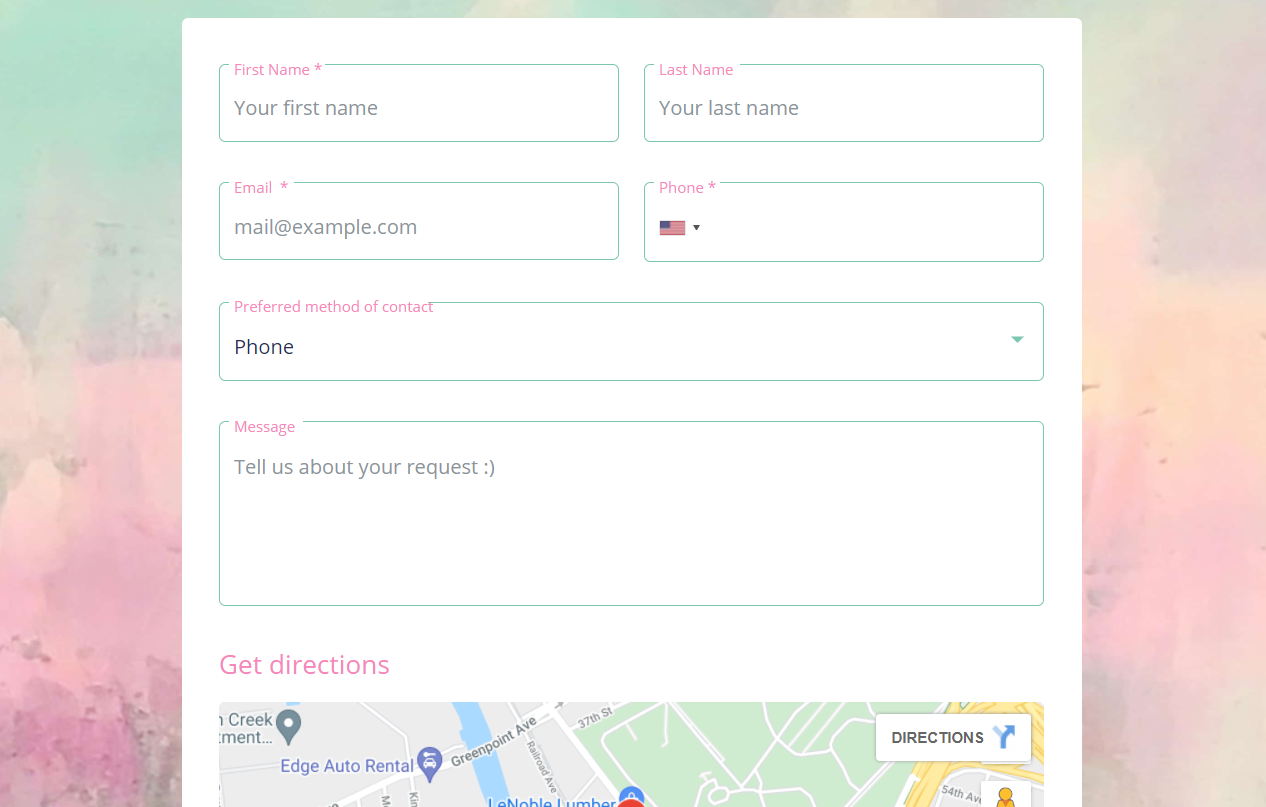
This contact form template is simple, straightforward and effective. With a clean design, you’ll be able to gather essential information from your visitors with the following fields: First Name; Last Name; Email Address; Phone Number; Preferred Method of Contact (dropdown menu with Phone or Email as options), and a Message box.
To make the interaction even more transparent and trustworthy, add your address and opening hours to the form description, so visitors know where and when to find you.
Contact Form Detailed
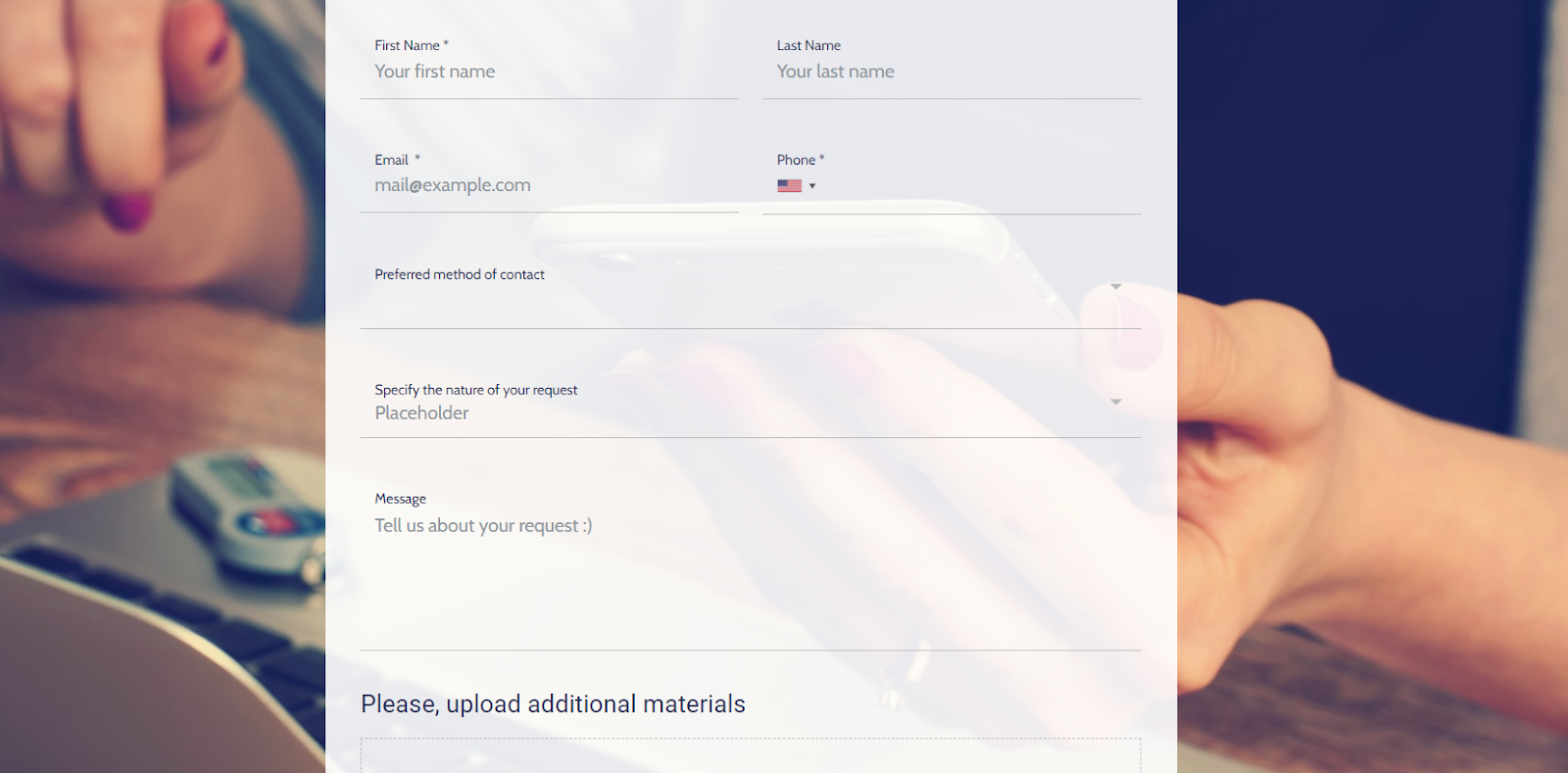
If you need to gather detailed information from each submission, then the Contact Form Detailed template will help you. Visitors will be asked to fill out the following fields: First Name, Last Name, Email Address; Phone Number; Preferred Method of Contact (dropdown menu with Phone or Email as options); Message box, and a Specify the Nature of your Request.
This last field can be totally customized to suit your needs, with a dropdown menu with options so visitors can choose the reason why they are reaching out to you. For example, you can have the following options listed as the nature of the request: Broken Item, Consulting Request, Compliance for Service, and Positive Note.
This FormBuilder template suggestion is great for e-commerce websites, so you’ll know in advance what is the reason for inquiry. Having the visitor to fill out the nature of the request will allow you to determine which submissions require an urgent callback.
There you have it, a complete step-by-step tutorial to guide your contact form building with FormBuilder in WordPress. Your WordPress website will be easily reachable by visitors and you won’t miss any sale prospect. Start for free with FormBuilder form builder, and be in control and on top of every contact form submission to leverage your lead generation and grow your business!